> For the complete documentation index, see [llms.txt](https://help.paintscout.com/llms.txt). Markdown versions of documentation pages are available by appending `.md` to page URLs; this page is available as [Markdown](https://help.paintscout.com/support/resources/frequently-asked-questions/general.md).

# General

General questions about common PaintScout topics including saving, browser cache, translations, and email delivery.

## Why is there a Save button?

PaintScout uses a manual Save button instead of auto-save to ensure data integrity on mobile devices with unreliable network connections. Many users build estimates on iPads in the field, where constant auto-saving can fail due to poor connectivity. If you forget to save, PaintScout stores a "rescue" version locally. Closing and reopening your browser restores your most recent work.

***

## How to clear your browser history

### Desktop

#### Safari

1. From the top toolbar select **History** followed by **Clear History**.
2. Choose how far back you want your browsing history cleared.
3. Confirm by selecting **Clear History.**

<figure><img src="/files/DMFGyinEZRe08Ur7O2nA" alt="Animated GIF showing how to clear browser history in Safari on desktop"><figcaption></figcaption></figure>

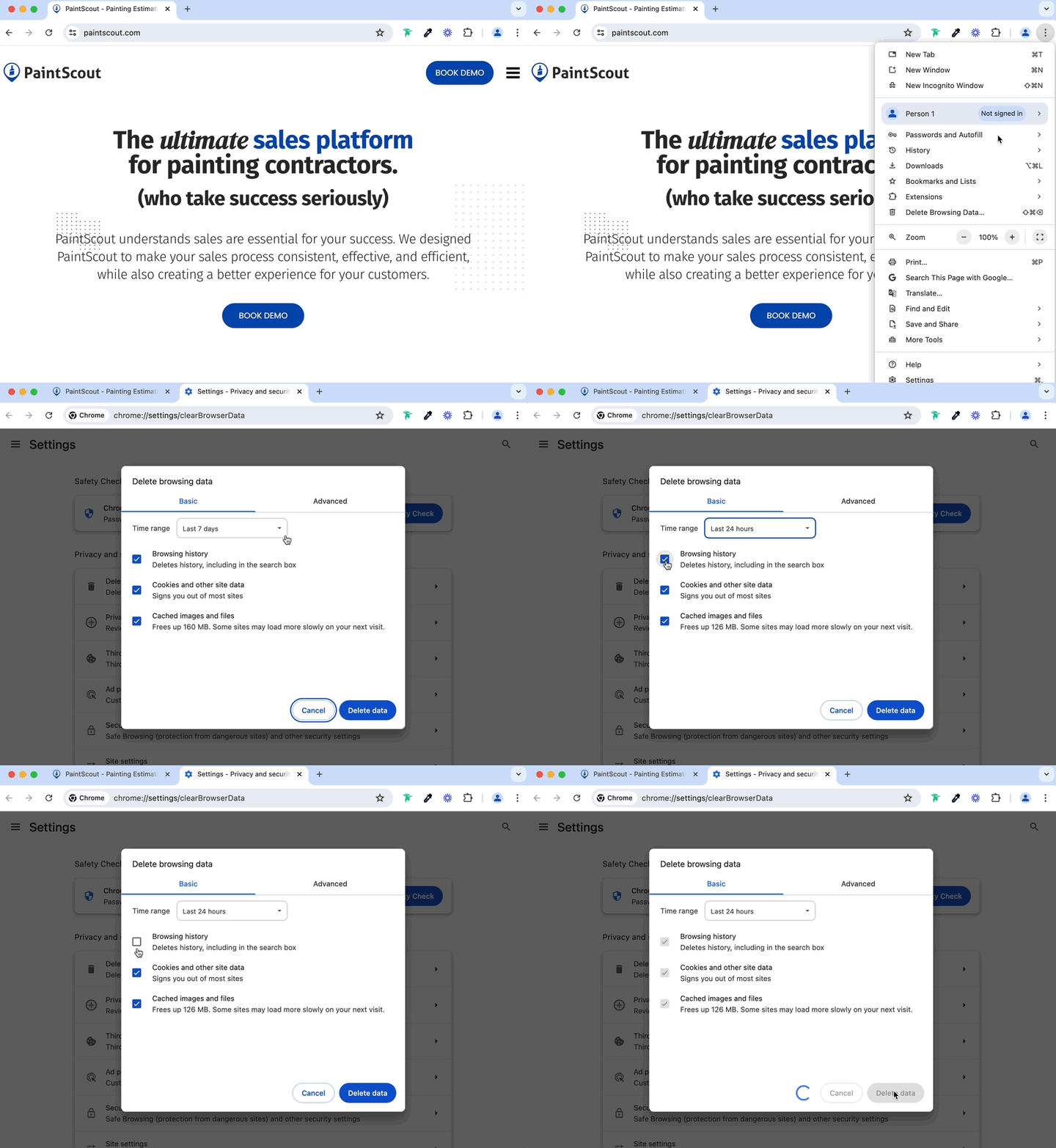
#### Chrome

1. In the top right of your Chrome browser select the three dots and choose **Delete Browsing History**.
2. Choose a time frame.
3. Select the types of information you would like to remove.
4. Click **Delete Data.**

<figure><img src="/files/z4oz1BuYMoY6EqsN2O1I" alt="Animated GIF showing how to delete browsing data in Chrome on desktop"><figcaption></figcaption></figure>

### Mobile

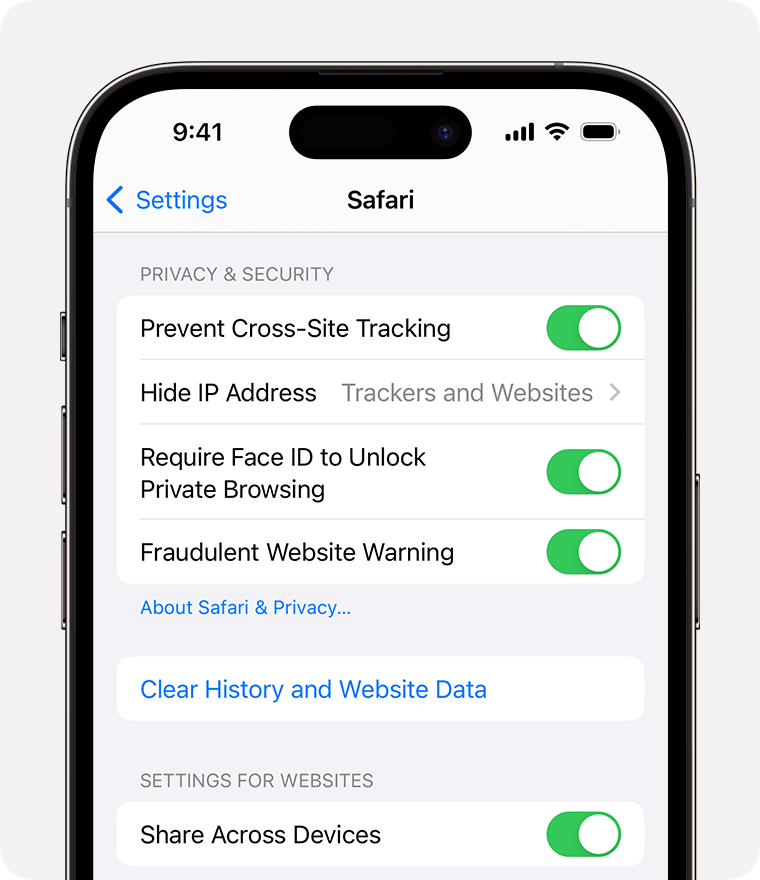
#### Safari

1. Go to **Settings** and select **Safari.**
2. Select **Clear History and Website Data.**

<figure><img src="/files/OThzHD0gKQNqmEamP2m9" alt="Screenshot showing the Clear History and Website Data option in Safari settings on an iPhone"><figcaption></figcaption></figure>

#### Chrome

1. On your device select the three dots on the top right of your browser and select **History.**
   1. *If your address bar is located at the bottom, swipe up on the address bar and tap **History.***
2. Select **Delete Browsing Data.**
3. Select your time range.
4. Ensure the box next to *Browsing History* is selected and uncheck any other data you do not want to delete.
5. Tap **Delete Data.**

***

## Translating Work Orders to Another Language

### Option 1: Use the Google Translate Chrome Extension

<https://chrome.google.com/webstore/detail/google-translate/aapbdbdomjkkjkaonfhkkikfgjllcleb?hl=en>

Once you have downloaded the extension, here's how to translate your page!

<figure><img src="/files/9VGwDP94rOzae717EDsv" alt="Animated GIF showing how to use the Google Translate Chrome extension to translate a work order page"><figcaption></figcaption></figure>

**Here are some notes about it:**

* Downloading or Sending links to Work Orders would ***not*** have the translations... It's only on the browser that you have the translator running. You should be able to print with the translations on though.
* We aren't liable for any of the translations. They would be provided by Google Translate, which we have no control over. It's just doing the same thing as copying/pasting text into <https://translate.google.com/>

### Option 2: Add a Crew Note in another language

You can add a crew note to any production rate or line item.

<figure><img src="/files/7XMtAFqWs8Cm1E2P58wg" alt="Animated GIF showing how to add a crew note in another language to a production rate or line item"><figcaption></figcaption></figure>

These notes will only show on the work order for your team to see.

<figure><img src="/files/w7AfePX5hyMw5aWgBwAC" alt="Screenshot showing a crew note displayed on the work order that is only visible to the team"><figcaption></figcaption></figure>

**Here are some notes about it:**

* You are manually adding the translations to the crew notes. It won't automatically translate the area label or product etc.
* You won't really be able to avoid *some* English on the page.

***

## My customer didn't receive their estimate!

This is one of the most common support questions. We have a dedicated troubleshooting guide that walks through all the causes and solutions:

{% content-ref url="/pages/bpSZtsRM3MHqDArehnqf" %}
[My Customer Didn't Receive Their Estimate](/support/resources/frequently-asked-questions/my-customer-didnt-receive-their-estimate.md)
{% endcontent-ref %}

## Related articles

* [Troubleshooting](/support/resources/troubleshooting-guide.md) — Work through common PaintScout and browser issues
* [Why is my auto follow-up not sending?](/support/email-and-communication/email-settings/why-is-my-auto-follow-up-not-applicable-to-send.md) — Diagnose follow-ups that are not sending as expected


---

# Agent Instructions
This documentation is published with GitBook. GitBook is the documentation platform designed so that both humans and AI agents can read, navigate, and reason over technical content effectively. Learn more at gitbook.com.

## Querying This Documentation
If you need additional information that is not directly available in this page, you can query the documentation dynamically by asking a question.

Perform an HTTP GET request on the current page URL with the `ask` query parameter:

```
GET https://help.paintscout.com/support/resources/frequently-asked-questions/general.md?ask=<question>
```

The question should be specific, self-contained, and written in natural language.
The response will contain a direct answer to the question and relevant excerpts and sources from the documentation.

Use this mechanism when the answer is not explicitly present in the current page, you need clarification or additional context, or you want to retrieve related documentation sections.
