> For the complete documentation index, see [llms.txt](https://help.paintscout.com/llms.txt). Markdown versions of documentation pages are available by appending `.md` to page URLs; this page is available as [Markdown](https://help.paintscout.com/support/resources/frequently-asked-questions/estimates.md).

# Estimates

Answers to common questions about managing, sharing, and tracking estimates in PaintScout, including statuses, archiving, PDFs, and customer visibility.

## What do the colored dots (statuses) mean?

| Status                                          | Description                                                                                                                                                                                                                                                                                             |
| ----------------------------------------------- | ------------------------------------------------------------------------------------------------------------------------------------------------------------------------------------------------------------------------------------------------------------------------------------------------------- |
| ![Draft status](/files/Od6b1eJZii752R9xV73f)    | All estimates start as drafts when initially created. These drafts are not factored into Win Rate calculations.                                                                                                                                                                                         |
| ![Sent status](/files/rnddklMwr8f4ymkXPnTR)     | Once sent, the estimate status changes to **Sent** and is now included in Win Rate calculations. Keep in mind, even if you send it to yourself, the status will change. You can review who the estimate was sent to by checking its activity.                                                           |
| ![Viewed status](/files/V2ZZZ216OANTWDvIxCON)   | When someone views the estimate, it shifts to Viewed. Note that opening the estimate, even if sent to yourself, will change the status. For a link that doesn't trigger a view, you can use the preview link found in the *copy estimate link* section.                                                 |
| ![Accepted status](/files/jepdaNJsKxgMLpWvnq1W) | Once the estimate is accepted, it moves to the Accepted status. It's best to limit changes at this point, as customers have accepted it in its current state. If changes are necessary, utilize the additional work feature. If invoicing through PaintScout, make any changes directly to the invoice. |
| ![Declined status](/files/rr0Iuk7L1rchuJHhfKVR) | If the estimate is declined, its status changes accordingly. This can be manually done or, if enabled in settings, by customers. Review the estimate's activity for any notes or reasons provided for the decline.                                                                                      |
| ![On Hold status](/files/KBcKiI0AwwlKNSY0A7WL)  | On Hold status means that the estimate is temporarily paused and not actively being pursued. You or your customer can resume work by updating the status to accepted or declined.                                                                                                                       |
| ![Invoiced status](/files/R8tVKCRjaZaVV8BFSBNM) | Invoiced indicates that the estimate has been converted into an invoice and sent to the customer for payment. Invoiced estimates will still count towards your Win Rate.                                                                                                                                |

***

## How do I manually change the estimate status?

1\. Navigate to the upper left of the estimate, where the type and status are indicated. Click on the Status and a pop-up menu will appear.

<figure><img src="/files/rK24sfDfCk8S2oOPLtOL" alt="Screenshot showing the estimate type and status area in the upper left corner of an estimate"><figcaption></figcaption></figure>

2\. Select the appropriate status from the dropdown to manually move the estimate along its lifecycle.

<figure><img src="/files/93TCRlqFAfuoErRx4nFX" alt="Screenshot showing the status dropdown menu with options to change the estimate status"><figcaption></figcaption></figure>

3\. After you make a change, you can also leave a note allowing you to provide context for you and your team.

<figure><img src="/files/kxxQLMbcydQMU412XYXv" alt="Screenshot showing the note field that appears when manually changing an estimate status"><figcaption></figcaption></figure>

This will show as an internal banner along the top of your estimate:

<figure><img src="/files/vWhe9iw1o96SD3hFMpm6" alt="Screenshot showing the internal status change banner displayed at the top of an estimate"><figcaption></figcaption></figure>

{% hint style="warning" %}
Please note that manually changing the estimate status will *not* trigger any automatic emails or notifications.
{% endhint %}

***

## How do I unarchive an estimate?

1. Click your **Estimates** tab.

   <figure><img src="/files/r5aDaa5bHPRcW2WvEeDm" alt="Screenshot showing the Estimates tab in PaintScout navigation"><figcaption></figcaption></figure>
2. Click on the **Advanced Search and Report** button on the right-hand side of the search bar.

   <figure><img src="/files/LiuuEqffgRU0F3zilbKq" alt="Screenshot showing the Advanced Search and Report button next to the search bar on the Estimates page"><figcaption></figcaption></figure>
3. Under the **Archived** section select **Only Archived.** This will populate a list containing all of your archived estimates.

   <figure><img src="/files/9TcvGWnJYsricmGDC7Gm" alt="Screenshot showing the Archived filter set to Only Archived in the advanced search options"><figcaption></figcaption></figure>
4. Search and select the estimate you would like to make active again.
5. Once in the estimate, select the drop-down next to the Send button and press **Unarchive Estimate.**

   <figure><img src="/files/aeQX57uarwVqyQkE4FvG" alt="Screenshot showing the Unarchive Estimate option in the dropdown menu next to the Send button"><figcaption></figcaption></figure>
6. Your estimate has now been restored to *active* status and will be included within your dashboard metrics and searchable under your Estimates tab.

***

## How to archive & delete items from estimates

To ensure you don't accidentally delete your hard work, areas and line items cannot be deleted directly from the estimate. You must first *archive* it.

By archiving items, they will appear in the **Archived** section of your estimate. From there, you can move them back to the estimate, or delete them!

### How to archive an area or line item from an estimate

**Method 1:** Click the checkbox of the area/line item you would like to archive. Then select **archive** from the toolbar along the bottom.

<figure><img src="/files/j3gMsRRLSh3DfFg2nNpp" alt="Screenshot showing an area selected with a checkbox and the archive option in the bottom toolbar"><figcaption></figcaption></figure>

**Method 2:** Click the 3-dot icon to the right of the item, then select **archive.**

<figure><img src="/files/30GzV33DGwLpOiTRpp96" alt="Screenshot showing the three-dot menu on an item with the archive option highlighted"><figcaption></figcaption></figure>

### How to archive a substrate from an area

Open the area, click the three dots to the right of the surface and select **archive.**

<figure><img src="/files/7cvAeWbFNtmcLBxJGi6C" alt="Screenshot showing the three-dot menu on a substrate with the archive option to remove it from an area"><figcaption></figcaption></figure>

### How to view archived items

Items will then appear in the **Archived** section of the estimate. You can access this section by opening the **archived** tab at the top.

<figure><img src="/files/SNedrRqSJ4IQKGfcsozA" alt="Screenshot showing the Archived tab at the top of the estimate where archived items are listed"><figcaption></figcaption></figure>

Items that are saved in the archived section can be added back to the estimate at a later time, or permanently deleted. You can also keep items in the archived folder. They are not visible to the client on the estimate or to your crew on the work order.

### How to move archived items back to the estimate

**Method 1:** Open the archived section and check the boxes next to the item(s) you wish to unarchive. Afterward, simply click **Move to Estimate** from the toolbar along the bottom. This approach is particularly useful when you need to unarchive multiple items at once!

<figure><img src="/files/iZaVkU0dobV71xK5LXLW" alt="Screenshot showing archived items selected with checkboxes and the Move to Estimate button in the bottom toolbar"><figcaption></figcaption></figure>

**Method 2:** Click the 3-dot icon to the far right of the item you want to unarchive and select **Move to Estimate**.

<figure><img src="/files/JjqnoPHcFQAhcjW809Bm" alt="Screenshot showing the three-dot menu on an archived item with the Move to Estimate option"><figcaption></figcaption></figure>

### How to permanently delete items

If you want to remove items from your estimate, start by archiving them. In the **Archived** section of your estimate, choose the item you want to delete either by using the checkboxes on the left side of the item or the three-dot icon on the right side.

<figure><img src="/files/MmSHWTMkIl0MwLvth93j" alt="Screenshot showing the delete option for an archived item using the checkbox or three-dot menu"><figcaption></figcaption></figure>

Keep in mind that this action will permanently delete the item from your estimate, and there's no way to retrieve it afterward.

***

## How do I download a PDF?

1. Simply click on the drop-down menu next to the send button.
2. Choose the **Download Estimate** option for a copy of the estimate or select **Download Work Order** for a copy of the work order.

   <figure><img src="/files/OWMBqvWiLwFwVFp7Xrx2" alt="Screenshot showing the dropdown menu next to the Send button with Download Estimate and Download Work Order options"><figcaption></figcaption></figure>
3. Your download will start automatically and save the PDF directly to your device!

***

## How to print an estimate

### For Estimators

1. Click the dropdown next to the send button and select **Download Estimate**.
2. This will generate a PDF download of your estimate to your device.
3. Locate the PDF in your device's files and follow your usual printing process.

### For Customers

1. When your customer opens their estimate, they'll see a **More** dropdown next to the accept button.
2. From the dropdown, they can choose the **Print Estimate** option.

<figure><img src="/files/UBQDeW89PisE4ahX2XZV" alt="Screenshot showing the customer view of an estimate with the More dropdown containing the Print Estimate option"><figcaption></figcaption></figure>

***

## How to add a document to an estimate

### Create a General Document

The most impactful way to include a document like a certificate of insurance, warranty details, licensing, or even color selection sheet is by uploading the PDF file to your **Presentation**.

**Here's how to do it:**

1. Click the person icon in the top right of your page and go to your **Account Settings** > **Presentations** section. Click the presentation you want to edit.
2. Locate the page where you want to add the document and click on **Add Section** from the toolbar on the left.

   <figure><img src="/files/6P7D62oTXT1i6H1PMjNE" alt="Screenshot showing the Add Section button in the presentation editor toolbar"><figcaption></figcaption></figure>
3. Select the **Documents** section.

   <figure><img src="/files/ialbIqZ9uTVNnyMOwRzD" alt="Screenshot showing the Documents section option in the Add Section menu"><figcaption></figcaption></figure>
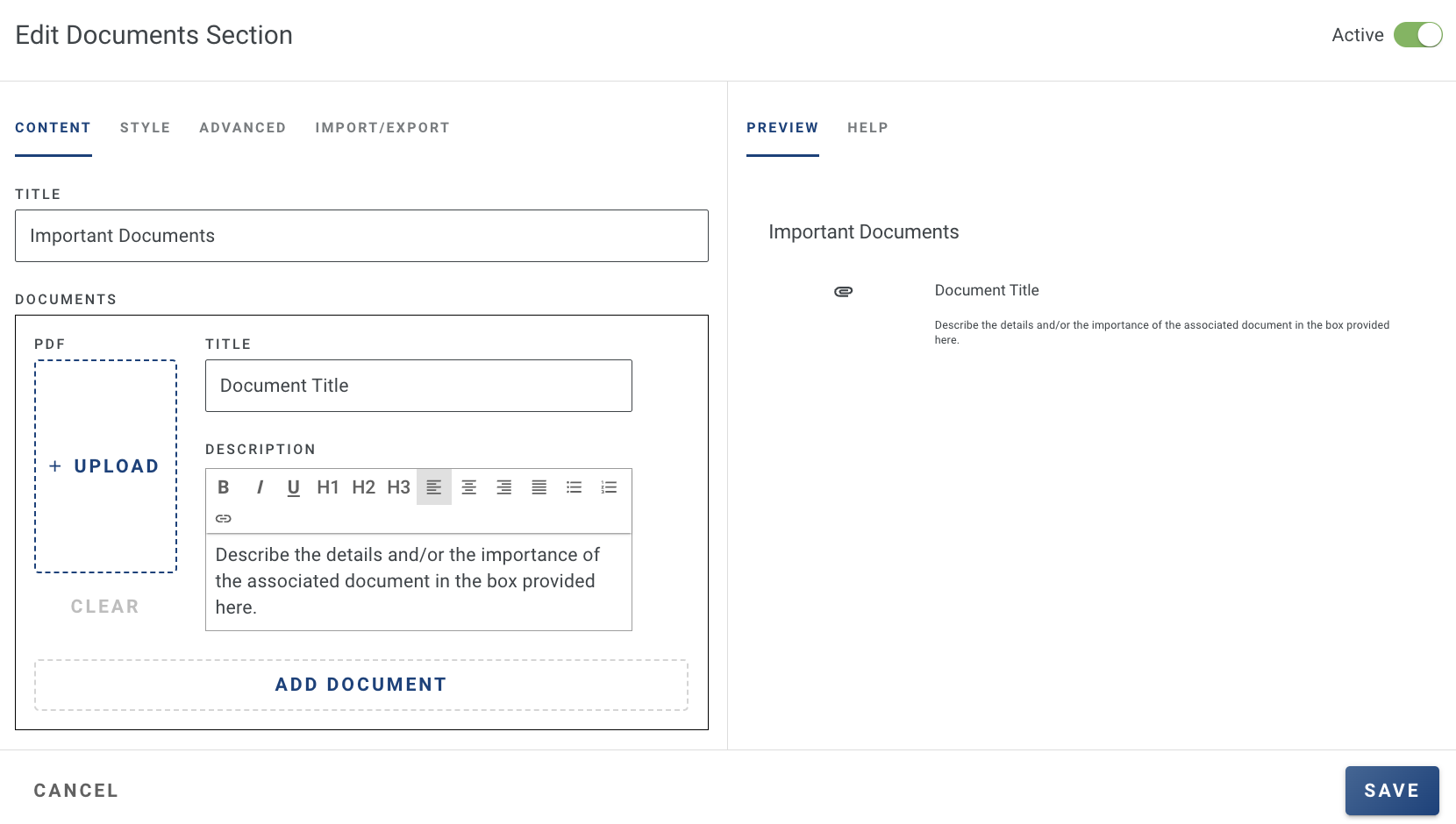
4. From there, upload your document in PDF format and make any necessary adjustments to the title and description — You can see a preview of your changes in the right window. To include more documents select **+add document** and repeat the process.

   <figure><img src="/files/A4sxfOY0HVzjJ2Knr6dN" alt="Screenshot showing the document upload interface with title, description fields, and a preview of the uploaded PDF"><figcaption></figcaption></figure>

### Adding a specific document to an estimate

In certain situations, you might need to incorporate a client-specific document into an estimate.

**Here's what you can do:**

1. On the **Documents** section you just created, select the **Advanced** tab at the top.
2. Click the **Allow Estimators to Customize or Hide this section on each quote** checkbox. You will then be able to add more documents to a presentation directly within the estimate.

   <figure><img src="/files/Oq3s4d0DwTHjIyo1XeXe" alt="Screenshot showing the Advanced tab with the Allow Estimators to Customize checkbox on the Documents section"><figcaption></figcaption></figure>
3. Click the **Presentation** tab at the top of your estimate. The documents section should be showing, which you can then select to edit

   <figure><img src="/files/usphrH3IpsyaQA15HXwB" alt="Screenshot showing the Presentation tab at the top of an estimate with the Documents section visible"><figcaption></figcaption></figure>
4. You can then add another document which will only appear on this specific estimate.

<figure><img src="/files/v7tOW1yjssMkPWM8gR5b" alt="Screenshot showing the option to add an additional document that will only appear on this specific estimate"><figcaption></figcaption></figure>

**Alternatively, you could add the PDF document to a line item as a screenshot.**

1. Capture a screenshot of your PDF document and save it as a **.jpg** or **.png** file.
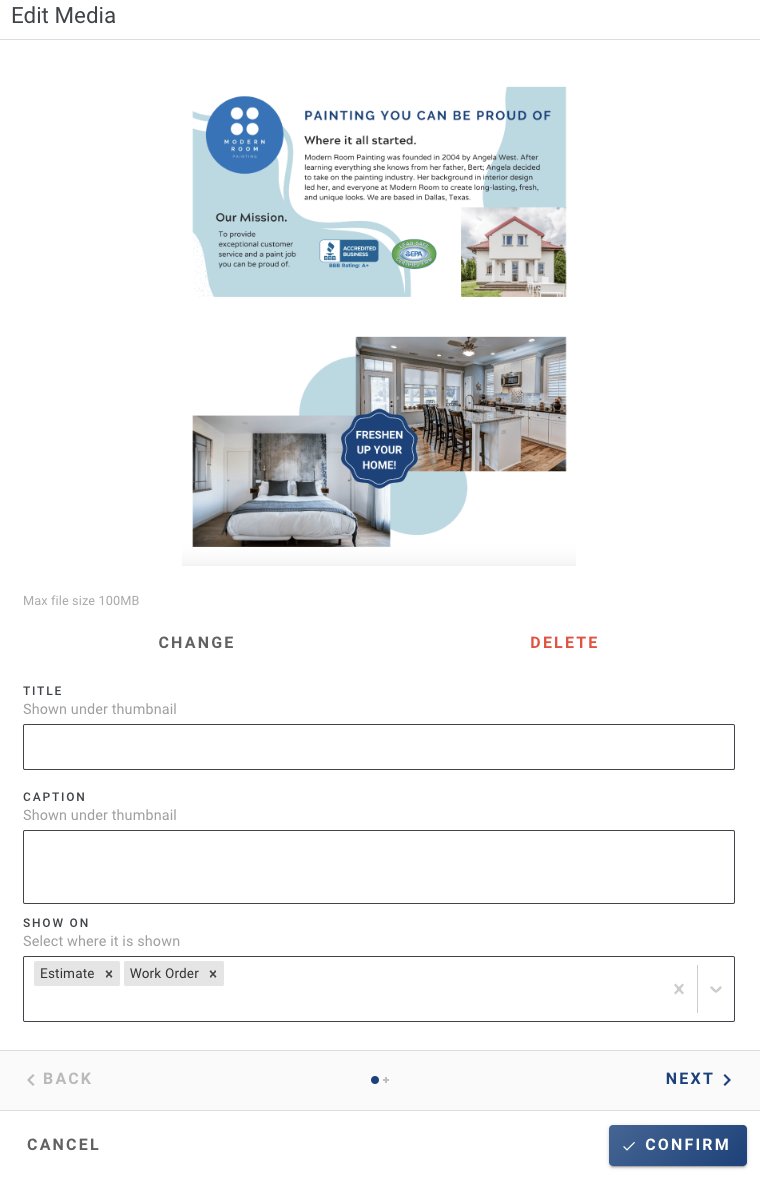
2. On a line item or designated area, click on **Add Media** and upload the saved screenshot.
3. You now have the option to enter a title, and caption and specify whether you want this image to appear on the estimate, the work order, or both.

   <figure><img src="/files/EfkJjPBsZLrDSQyiORz9" alt="Screenshot showing the Add Media upload interface on a line item with title, caption, and visibility options for estimate and work order"><figcaption></figcaption></figure>

***

## How to change an estimate ID

<figure><img src="/files/HFBeGj8F3c3tgpkfIF6T" alt="Screenshot showing the automatically assigned estimate ID on an estimate in PaintScout"><figcaption></figcaption></figure>

Each estimate is automatically assigned an **estimate ID**, which cannot be changed individually to avoid duplicates.

However, we can change the starting ID. To request a new starting number for the ID sequence on estimates, invoices, or both, please contact us at <support@paintscout.com>.

***

## Do I need to resend the estimate for my customer to see changes?

No. PaintScout estimate links are **live links**. Any edits you make after sending automatically appear the next time your customer opens or refreshes the link. No resend is required.

***

## Will my customer be notified when I make a change to their estimate?

No. Customers do not receive automatic notifications when you edit an estimate. The link is **live**, so changes appear on their next visit. Resend the estimate to confirm they see the latest version and to create a version log in your Activity section.

***

## How do I stop customers from viewing an estimate?

Uncheck the **client visible** setting in the estimate's Advanced section to block customer access. The customer will see a message prompting them to contact their estimator.

**Here's how to do it:**

1. In the estimate, open the menu sidebar.
2. Select the **advanced** section

   <figure><img src="/files/0chigaxZtxUkLe7FximU" alt="Screenshot showing the Advanced section in the estimate sidebar menu"><figcaption></figcaption></figure>
3. Uncheck the option for **client visible**.

   <figure><img src="/files/4K0zoAdmJiA0UJvpTFRm" alt="Screenshot showing the Client Visible checkbox option in the Advanced section of the estimate sidebar"><figcaption></figcaption></figure>
4. When your customer now tries to view the estimate they will be met with a message prompting them to get in touch with their estimator.

The customer's ability to view the estimate will remain blocked until the **client visible** box is checked again.

***

## Do changes on the estimate update the invoice?

No. Once an invoice is created from an estimate, the two documents are independent. Changes to the estimate do not affect the invoice.

***

## Why can't I find every estimate when adding an invoice from a contact or company?

When you add an invoice from a contact or company, PaintScout lets you search estimates that do **not** already have a linked invoice.

If an estimate does not appear in search, it likely already has a linked invoice.

{% hint style="warning" %}
On a company record, estimates appear through associated contacts. If the estimate is not linked to one of that company's contacts, it will not appear on the company page.
{% endhint %}

## Related articles

* [Saving & Syncing](/support/estimating/creating-estimates/saving-syncing-estimates.md) — Prevent data loss and keep estimates synced
* [Restore an Estimate](/support/estimating/managing-estimates/how-to-restore-an-estimate.md) — Revert to an earlier sent version when needed
* [Pricing & Calculations](/support/resources/frequently-asked-questions/pricing-and-calculations.md) — Review rates, taxes, discounts, and estimate totals
* [Payments & Financing](/support/resources/frequently-asked-questions/payments-and-financing.md) — Understand payments, Stripe, and financing options


---

# Agent Instructions
This documentation is published with GitBook. GitBook is the documentation platform designed so that both humans and AI agents can read, navigate, and reason over technical content effectively. Learn more at gitbook.com.

## Querying This Documentation
If you need additional information that is not directly available in this page, you can query the documentation dynamically by asking a question.

Perform an HTTP GET request on the current page URL with the `ask` query parameter:

```
GET https://help.paintscout.com/support/resources/frequently-asked-questions/estimates.md?ask=<question>
```

The question should be specific, self-contained, and written in natural language.
The response will contain a direct answer to the question and relevant excerpts and sources from the documentation.

Use this mechanism when the answer is not explicitly present in the current page, you need clarification or additional context, or you want to retrieve related documentation sections.