> For the complete documentation index, see [llms.txt](https://help.paintscout.com/llms.txt). Markdown versions of documentation pages are available by appending `.md` to page URLs; this page is available as [Markdown](https://help.paintscout.com/support/resources/frequently-asked-questions/account-and-setup.md).

# Account & Setup

Common questions about configuring your PaintScout account, including branding, contacts, email templates, and international settings.

<details>

<summary><strong>How do I upload my company logo?</strong></summary>

Skip to the 0:31 timestamp in the video below.

{% embed url="<https://www.youtube.com/watch?v=01ocZF5KG_c>" %}

1\. Click the person icon in the top right of your page and go to your **Account Settings** > **Account Details** > **Branding** section.

<figure><img src="/files/Uudv0a3zMWcSPmXhptPr" alt="Screenshot showing the Branding section under Account Settings where you can upload your company logo"><figcaption></figcaption></figure>

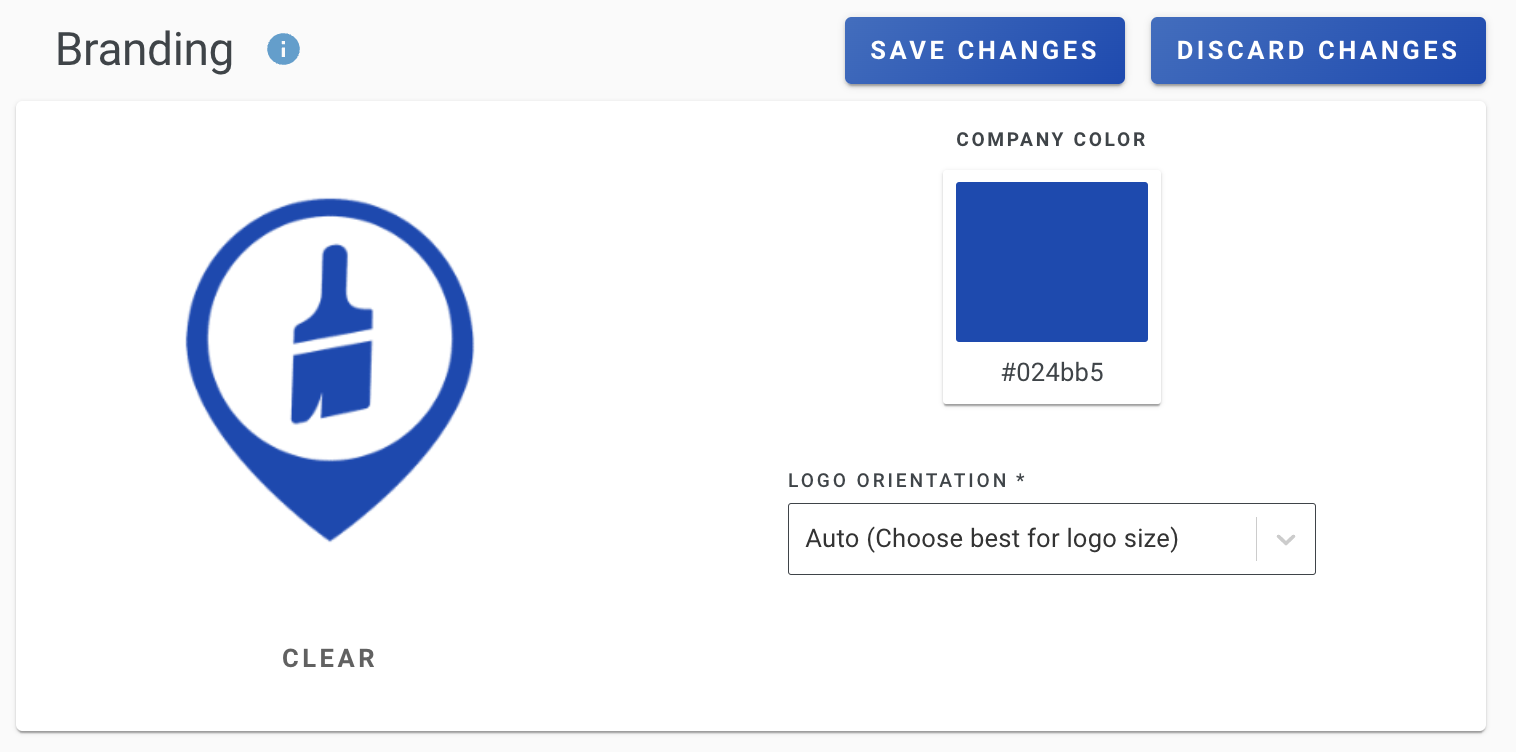
2\. Upload a file of your logo, adjust your branding color, and change your logo orientation.

* **Auto:** PaintScout will choose the best orientation depending on the size of the logo.
* **Default:** The logo will appear to the left of the company contact information
* **Stack:** The logo will appear above the company contact information.

<figure><img src="/files/tLGL5Xf3GIZaqAmk90tt" alt="Screenshot showing the logo upload area, branding color picker, and logo orientation options including Auto, Default, and Stack"><figcaption></figcaption></figure>

</details>

<details>

<summary><strong>How to Create a New Company</strong></summary>

1. Navigate to the Companies section and click **+New Company**

   <figure><img src="/files/7LE9hM5GFyhAt3UqEhd3" alt="Screenshot showing the Companies section with the New Company button to create a new company record"><figcaption></figcaption></figure>
2. Fill in the required fields.

   <figure><img src="/files/VoSAGA1j8IlJaBsDVSKj" alt="Screenshot showing the new company form with required fields to fill in"><figcaption></figcaption></figure>
3. The company page will show all related Estimates, Invoices, Activity, and Chat communication from the **associated contacts**.

   <figure><img src="/files/f7LADjP9lkY3EVXz2Bro" alt="Screenshot showing a company page with related Estimates, Invoices, Activity, and Chat from associated contacts"><figcaption></figcaption></figure>

**How to add an associated contact:**

Click the **+Add** button in the Contacts section on a company. All related estimates/invoices from that contact will populate.

<figure><img src="/files/NuVaBUPrLQLZRncWpwp3" alt="Screenshot showing the Add button in the Contacts section on a company page to link an associated contact"><figcaption></figcaption></figure>

**Why aren't the linked records and activity showing up?**

This is likely because the estimate and invoice are using an *outdated* version of a contact, so it's unable to link to the company. To fix this, navigate to the estimate/invoice and edit the contact and click to **Update to the latest version.**

<figure><img src="/files/wDnyptYizpPAkhCwWNdg" alt="Screenshot showing the Update to the latest version option when editing a contact on an estimate or invoice"><figcaption></figcaption></figure>

</details>

<details>

<summary><strong>How do I import my contact list?</strong></summary>

PaintScout does not currently support self-service contact imports. Send a CSV file with your contact details to the support team and they will import it for you.

Here's how to format your contact list:

<figure><img src="/files/0fivkMnRbq6Mh98Oby99" alt="Screenshot showing the CSV format for importing contacts with columns for name, email, phone, and address details"><figcaption></figcaption></figure>

You can email your contact list to <support@paintscout.com>

</details>

<details>

<summary><strong>How can I temporarily disable a Rate, Area, or Line Item?</strong></summary>

The **Active** toggle in Account Settings lets you temporarily hide an item from estimators without deleting it. This is useful for seasonal items, old items kept for reference, or temporarily unavailable services.

<figure><img src="/files/Fbzd9ln3RFZx5WmzWngl" alt="Screenshot showing the Active toggle switch on an item in Account Settings to enable or disable it"><figcaption></figcaption></figure>

Deactivated items are indicated with a red dot in the upper right hand corner.

<figure><img src="/files/C5Cizn5Q3AiniSZl5I13" alt="Screenshot showing a deactivated item indicated by a red dot in the upper right corner"><figcaption></figcaption></figure>

</details>

<details>

<summary><strong>How to resolve a required field error</strong></summary>

<figure><img src="/files/9eio2fKJpS1o7glOf8Jm" alt="Screenshot showing a required field error message when trying to save account settings"><figcaption></figcaption></figure>

When you try to save changes to your account settings, you may come across an error about a required field. This happens because all settings are saved together.

If you get this error, you'll need to go to the relevant section, fill in the required field and then save. Required fields are identified with a red star.

<figure><img src="/files/ihmlNVS0RldSK8nwIaRo" alt="Screenshot showing a required field identified with a red star in Account Settings"><figcaption></figcaption></figure>

**Required fields and where to find them:**

* **Tax Rate** — Estimates > Settings
* **Discount Rate** — Estimates > Settings
* **Client Visible Expiry** — Estimates > Settings
* **Invoice Due Date** — Invoices > Settings
* **Company Name** — Account Details > Company Information

</details>

<details>

<summary><strong>How to pre-populate customer details in an email template or follow-up</strong></summary>

When writing an email template or follow-up, you'll likely want the message to feel personalized for the client. You can easily add a personal touch to your communications using the **tag** icon.

1\. Find the tag icon in the text toolbar when creating email templates and follow-ups.

<figure><img src="/files/QBR8YHBceFRXzVf4xzVN" alt="Screenshot showing the tag icon in the text toolbar for inserting dynamic customer fields into email templates"><figcaption></figcaption></figure>

2\. Click on the tag icon to choose the customer information you want to include. You can select from the following:

* Company name
* Client first and last name
* Client/job address, city, state, zip code
* Job identifier
* Estimate date, number or type
* Estimator name, email, and phone number

3\. Once the tag is embedded in the email, the system will pull the relevant information from the estimate to complete your message.

<figure><img src="/files/m4BvD5kQguAbTrIf1lz3" alt="Animated GIF showing how to use the tag icon to insert dynamic customer details into an email template"><figcaption></figcaption></figure>

</details>

<details>

<summary><strong>Is PaintScout available internationally?</strong></summary>

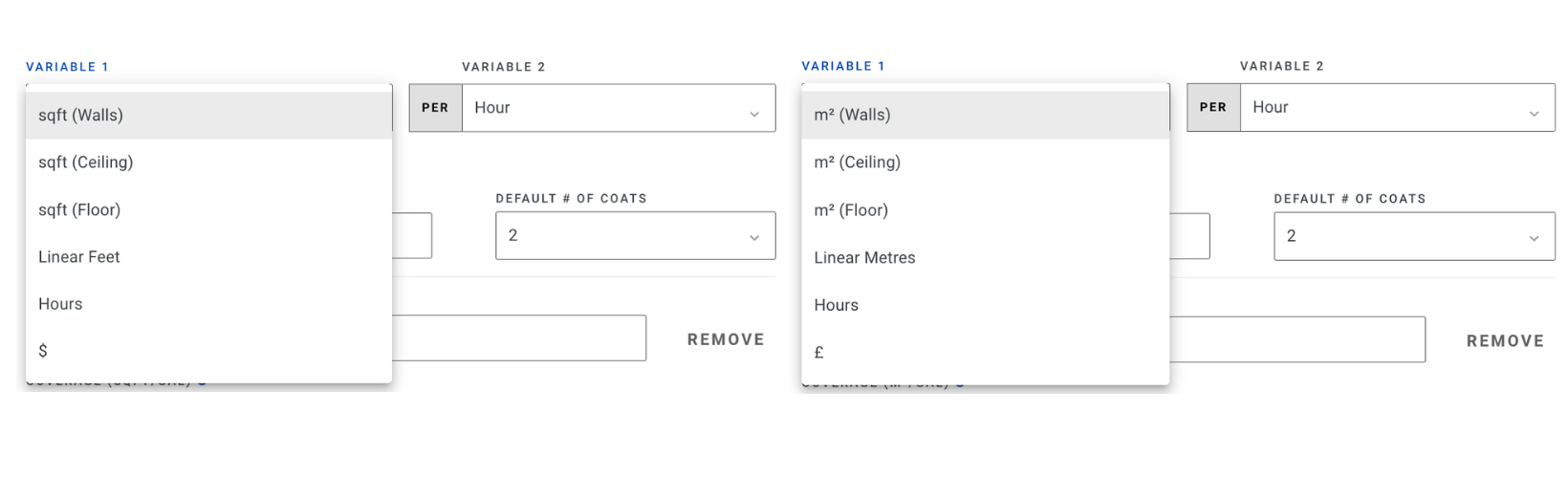
Yes. PaintScout supports both imperial and metric measurement systems, international phone number formatting, and multiple currencies including dollars ($), pounds (£), and euros (€).

<figure><img src="/files/RFHfuE7f6ZuQEl4znzU3" alt="Graphic showing PaintScout supports both imperial and metric measurement systems internationally"><figcaption></figcaption></figure>

[Reach out to our support team](mailto:support@paintscout.com) to enable international mode on your account.

</details>

## Related articles

* [Account Details Overview](/support/account-settings/account-settings/account-details-overview.md) — Configure company info, branding, and contact details
* [Profile Overview](/support/account-settings/your-profile/your-profile-overview.md) — Manage your personal profile, password, and notifications
* [Multi-Factor Authenticator (MFA) setup](/support/resources/frequently-asked-questions/multi-factor-authenticator-mfa-setup.md) — Set up extra security for your account login


---

# Agent Instructions
This documentation is published with GitBook. GitBook is the documentation platform designed so that both humans and AI agents can read, navigate, and reason over technical content effectively. Learn more at gitbook.com.

## Querying This Documentation
If you need additional information that is not directly available in this page, you can query the documentation dynamically by asking a question.

Perform an HTTP GET request on the current page URL with the `ask` query parameter:

```
GET https://help.paintscout.com/support/resources/frequently-asked-questions/account-and-setup.md?ask=<question>
```

The question should be specific, self-contained, and written in natural language.
The response will contain a direct answer to the question and relevant excerpts and sources from the documentation.

Use this mechanism when the answer is not explicitly present in the current page, you need clarification or additional context, or you want to retrieve related documentation sections.