> For the complete documentation index, see [llms.txt](https://help.paintscout.com/llms.txt). Markdown versions of documentation pages are available by appending `.md` to page URLs; this page is available as [Markdown](https://help.paintscout.com/support/operations/deals/introduction-to-deals.md).

# Introduction to Deals

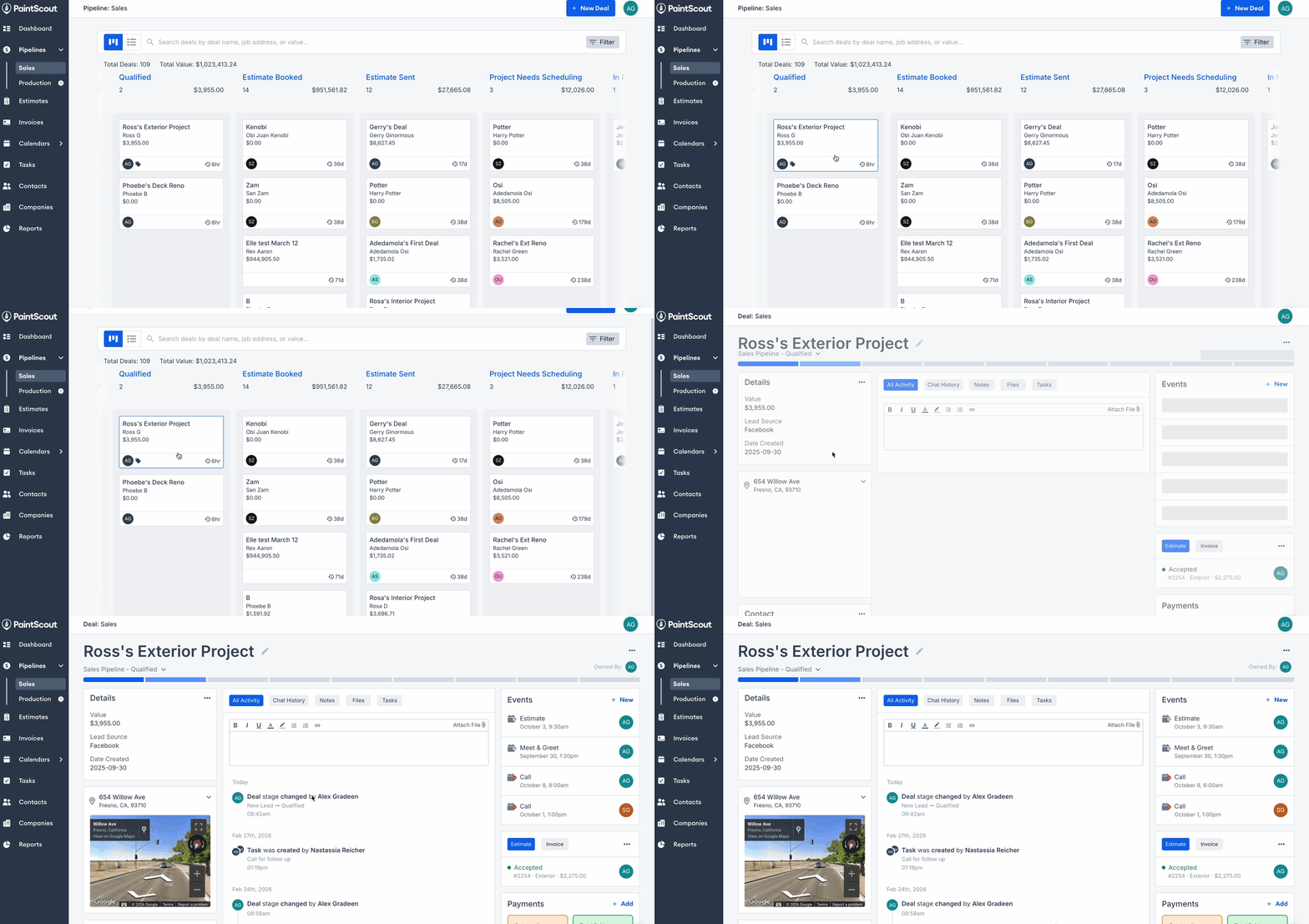
A deal in PaintScout is the main record for a job in your pipeline. It can track an opportunity in sales or an active job in production. Each deal can connect your estimate, invoice, contact, [tasks](/support/operations/tasks/introduction-to-tasks.md), and other job details in one place.

{% hint style="danger" %}
**Important:** this feature requires the paid **Operations add-on.**
{% endhint %}

## What Is a Deal?

A Deal is the central record for a job in PaintScout. It supports both your sales workflow and your production workflow.

A deal can include:

* One estimate
* One invoice
* Linked contact and company
* Associated tasks, tags, and notes

Sales pipeline deals help you track leads, appointments, and follow-ups. Production pipeline deals help you track active work, scheduling, and crew-ready details.

Think of a deal as your way to track a job from the first conversation through scheduling and execution.

<figure><img src="/files/63arvp9TRUTFKXLkxDX0" alt=""><figcaption></figcaption></figure>

***

## Welcome to Your Deals Board

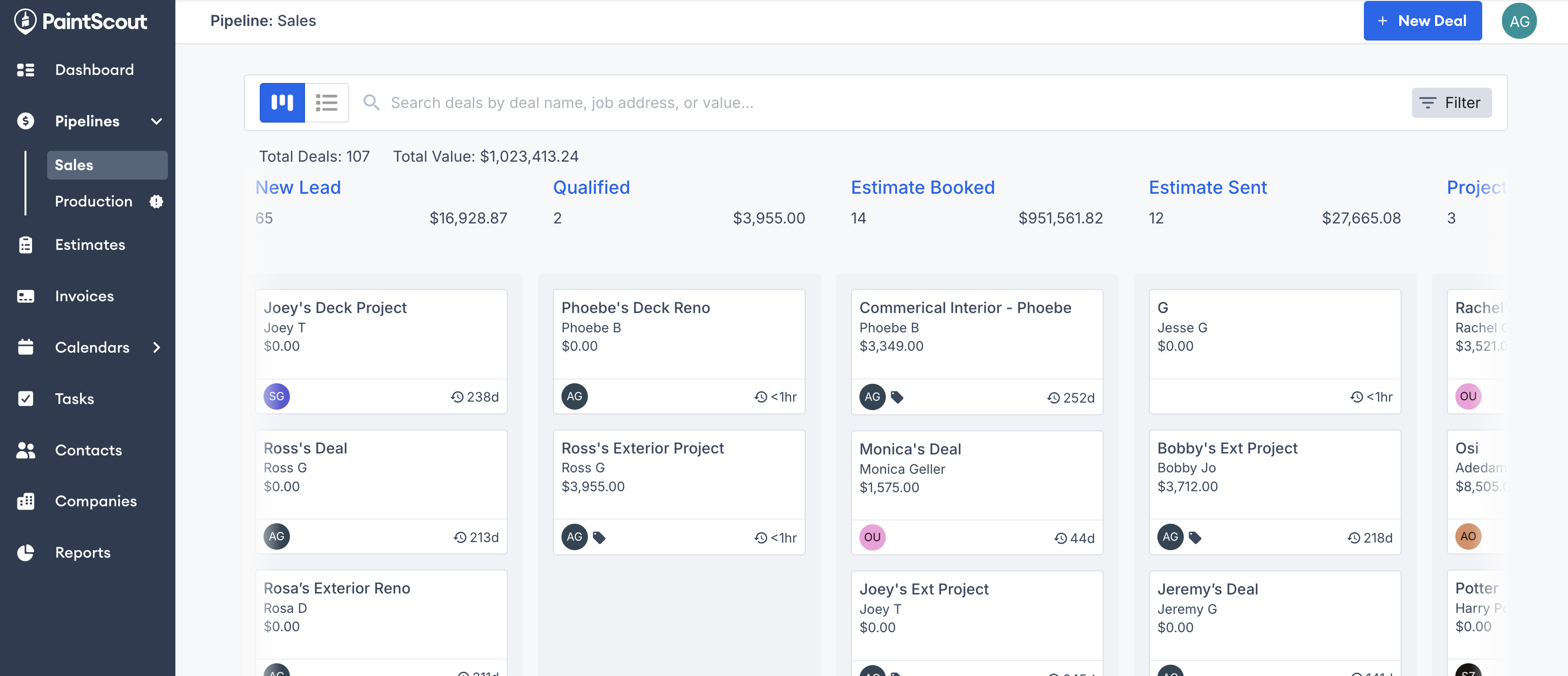
The **Deals board** shows all your jobs by stage. You can work from a sales pipeline or a production pipeline.

<figure><img src="/files/PRZpIcPq0JgHu7kEFQny" alt=""><figcaption></figcaption></figure>

### Board View

* [**Deal Stages**](/support/operations/deals/deal-stages.md): Each column represents a stage in the selected pipeline.
* **Moving Deals:** Drag a deal card into a new stage. The **Time in Stage** label updates automatically.

  <figure><img src="/files/Lp2tedRyx1HHyOIQXsii" alt=""><figcaption></figcaption></figure>
* **Organizing Columns:** Minimize or expand columns to keep the board easier to scan.

  <figure><img src="/files/ThbdllZXcTHaZYfBehnK" alt=""><figcaption></figcaption></figure>
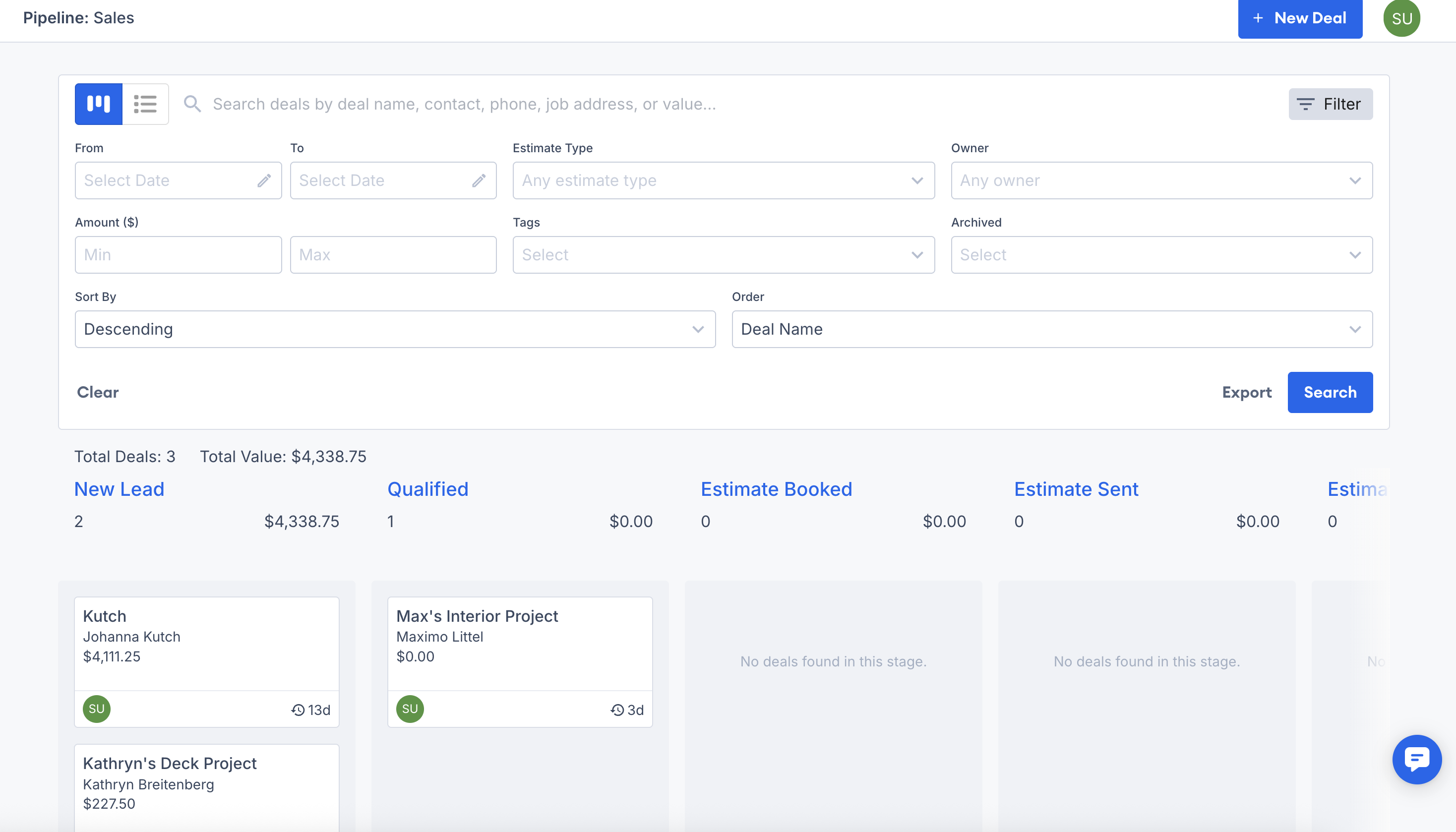
* **Filtering & Exporting:** Use filters to narrow down by owner, status, or tags. Export deals if you need a file.

<figure><img src="/files/PuLWcfh5ZqJx6gJ9e7Ef" alt=""><figcaption></figcaption></figure>

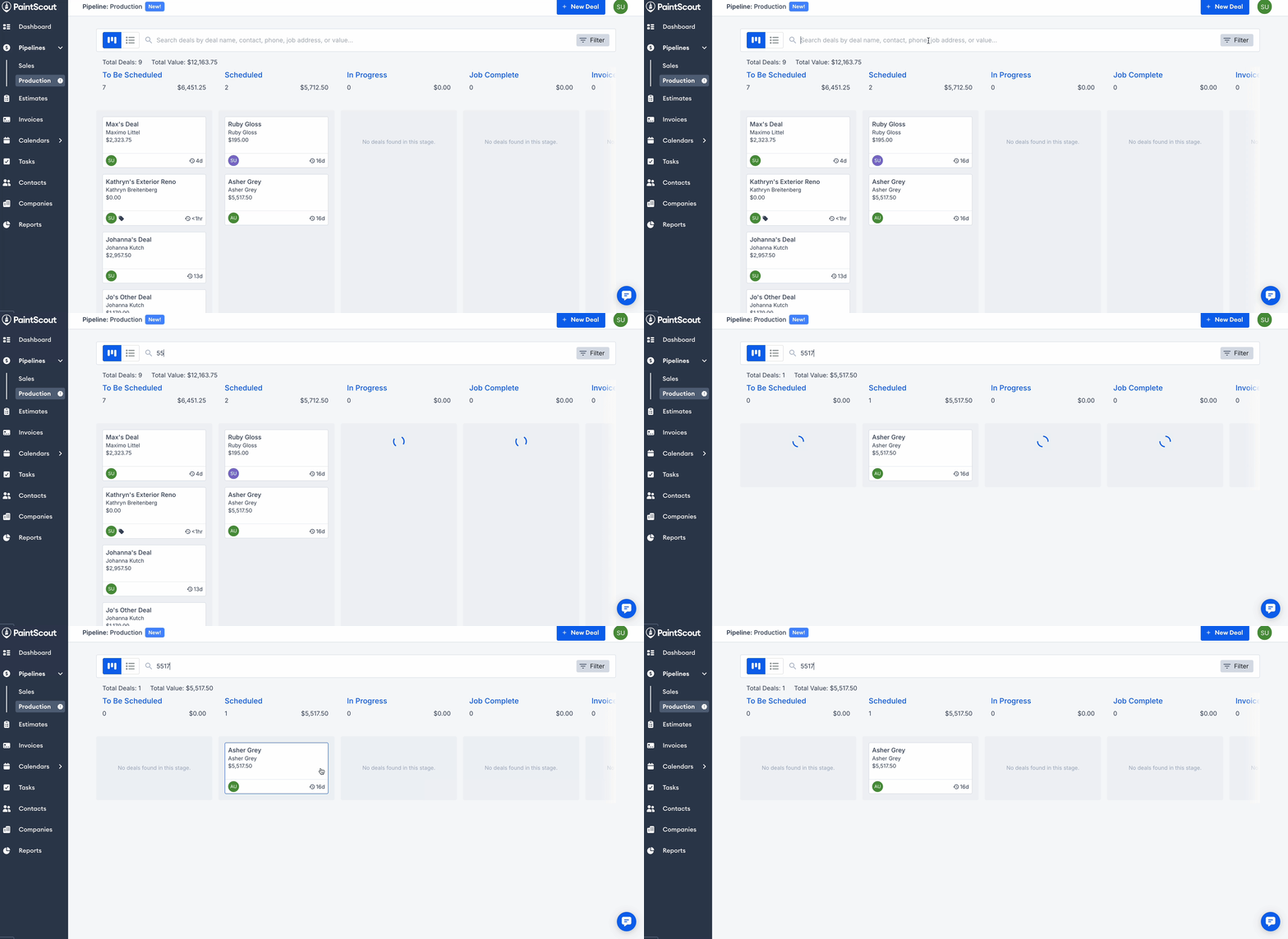
* **Search**: You can search for deals by deal name, contact, phone number, job address, estimate number, or value.

<figure><img src="/files/SBzdwVf51yYfB7HpBQ7T" alt=""><figcaption></figcaption></figure>

### List View

If you prefer a table-style layout, switch to List View.

* **Entries Breakdown:** Each row shows a deal with key details like value, contact, stage, and work hours.

  <figure><img src="/files/RrhjG3pwGeUV8Lx87OHT" alt=""><figcaption></figcaption></figure>
* **Headers & Categories:** Click column headers to sort, or select <img src="/files/qopNJ2plMHiOopIUfAx5" alt="" data-size="line"> to choose which columns appear.

  <figure><img src="/files/Mw3WVQRqYbOmq14u29GP" alt=""><figcaption></figcaption></figure>
* **Editing Options:** Use the `...` menu to edit, delete, or archive a deal.

  <figure><img src="/files/aN3rd5w5VIBBXJdbudTb" alt=""><figcaption></figcaption></figure>
* **Multi-Select:** Select multiple deals at once to archive or delete them in bulk.

  <figure><img src="/files/d1VSCeHZJbAMJglyT764" alt=""><figcaption></figcaption></figure>

***

## Deal Page

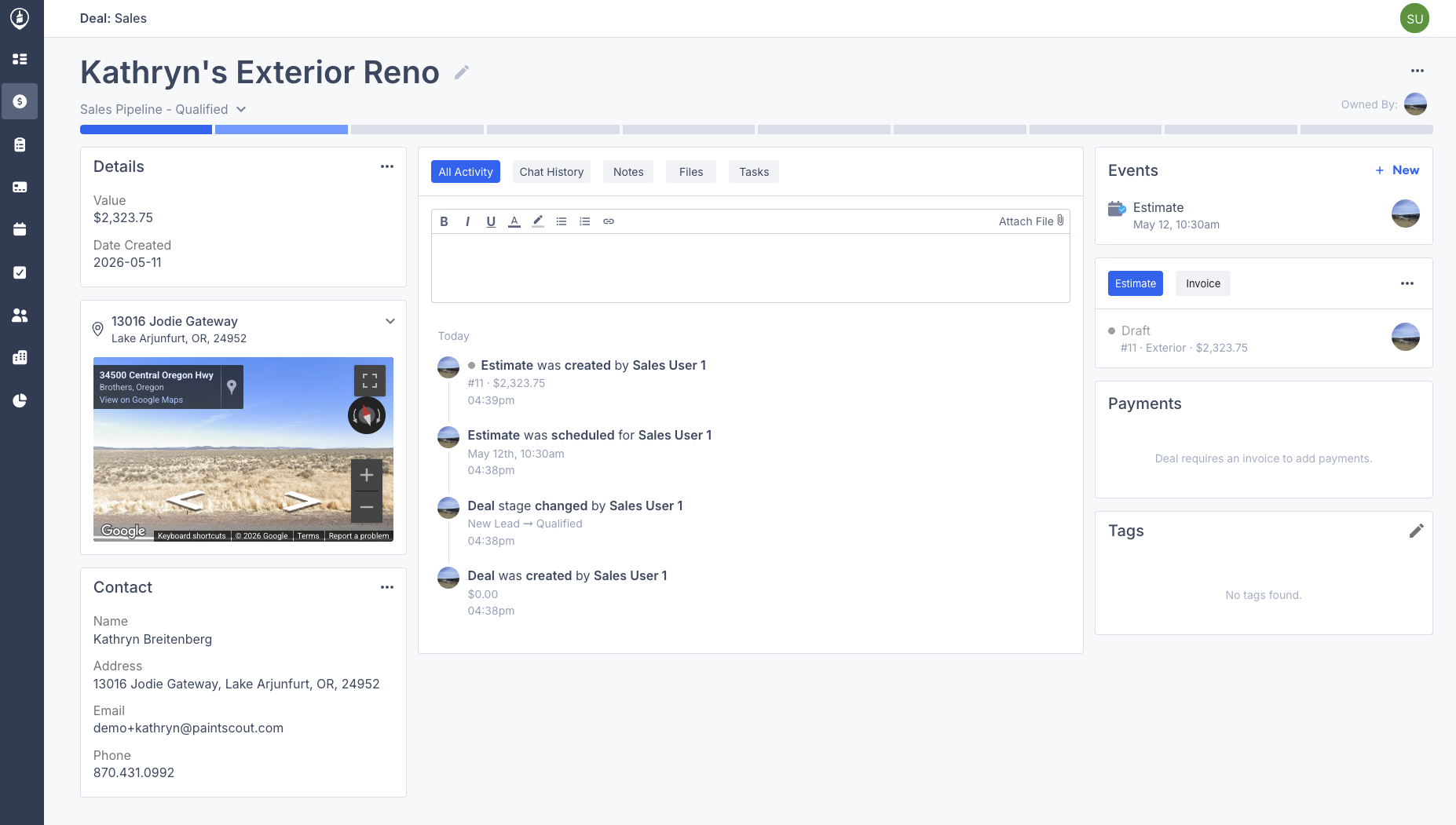
Click a deal to open its **Deal Page**. This is where you manage the job and review everything connected to it. Sales and production deals share the same core layout, with a few pipeline-specific sections.

<figure><img src="/files/nwlYPJVhaqf0AMizvJ5r" alt=""><figcaption></figcaption></figure>

* **Pipeline & Stage**: See the deal’s current stage in the pipeline.
* **Owner Dropdown:** Assign or change the deal owner.
* **Detail Cards:** View the deal details and related contact information.
* **Project Cards:** Keep track of the estimate, invoice, tasks, payments, and tags in one place.
* **Notes & Activity:** Review internal notes and activity in one feed. Pin important notes to keep them at the top of the deal.

{% hint style="info" %}
The **deal value** uses the linked invoice total when an invoice exists. If there is no linked invoice, it uses the linked estimate total instead.
{% endhint %}

### Sales Deals

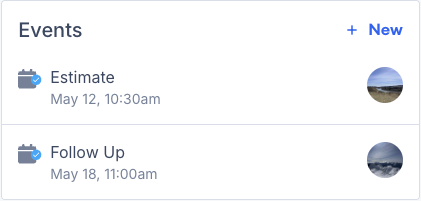
Deals in the Sales pipeline include an **Events** section for estimates, appointments, and follow-ups.

<figure><img src="/files/HtoQn0GldF709obMCrJZ" alt=""><figcaption></figcaption></figure>

### Production Deals

Deals in the Production pipeline include:

* A **Work Order** section. This links to the work order from the invoice. It also shows hours and any additional work.

<figure><img src="/files/LQjxTm1IpCO3wKLWAQMe" alt=""><figcaption></figcaption></figure>

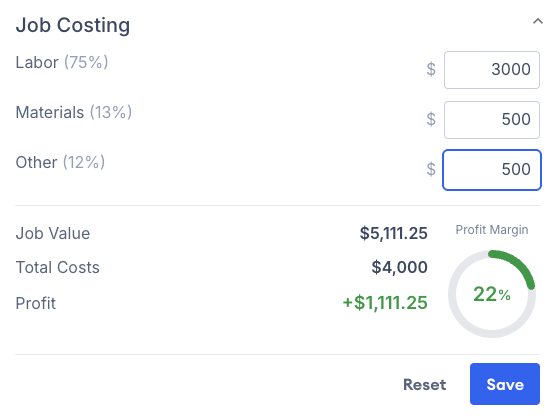
* A **Job Costing** card. Enter expenses and monitor profit margins directly on the deal. [Learn more about Job Costing here](/support/operations/deals/job-costing.md).

<figure><img src="/files/vl1PYIykDsLjfK724PDZ" alt=""><figcaption></figcaption></figure>

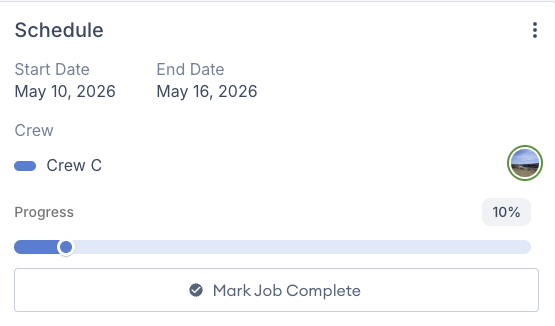
* A **Schedule** card. View and edit the deal’s job details.

<figure><img src="/files/HsDCYMRVO8UoezpxzfYf" alt=""><figcaption></figcaption></figure>

The Deal Page is your **main hub** for managing every part of the job.

&#x20;&#x20;

## Related articles

<table data-card-size="large" data-view="cards"><thead><tr><th></th><th></th><th data-hidden data-card-target data-type="content-ref"></th></tr></thead><tbody><tr><td><strong>Create a Deal</strong></td><td>Create and edit deals in PaintScout by linking contacts, setting pipeline stages, and assigning deal owners.</td><td><a href="/pages/7jP7s8KhGHrNn90uaYt1">/pages/7jP7s8KhGHrNn90uaYt1</a></td></tr><tr><td><strong>Deal Stages</strong></td><td>Customize your pipeline stages to match your workflow from lead request through job completion.</td><td><a href="/pages/kqcttVnZT4jrbrY3XSXX">/pages/kqcttVnZT4jrbrY3XSXX</a></td></tr></tbody></table>


---

# Agent Instructions
This documentation is published with GitBook. GitBook is the documentation platform designed so that both humans and AI agents can read, navigate, and reason over technical content effectively. Learn more at gitbook.com.

## Querying This Documentation
If you need additional information that is not directly available in this page, you can query the documentation dynamically by asking a question.

Perform an HTTP GET request on the current page URL with the `ask` query parameter, and the optional `goal` query parameter:

```
GET https://help.paintscout.com/support/operations/deals/introduction-to-deals.md?ask=<question>&goal=<endgoal>
```

`ask` is the immediate question: it should be specific, self-contained, and written in natural language.
`goal` is optional and describes the broader end goal you are ultimately trying to accomplish on behalf of the user. GitBook uses it to tailor the answer towards what is most useful for that goal.

The response will contain a direct answer to the question and relevant excerpts and sources from the documentation.

Use this mechanism when the answer is not explicitly present in the current page, you need clarification or additional context, or you want to retrieve related documentation sections.