> For the complete documentation index, see [llms.txt](https://help.paintscout.com/llms.txt). Markdown versions of documentation pages are available by appending `.md` to page URLs; this page is available as [Markdown](https://help.paintscout.com/support/operations/deals/how-to-create-a-deal.md).

# Create a Deal

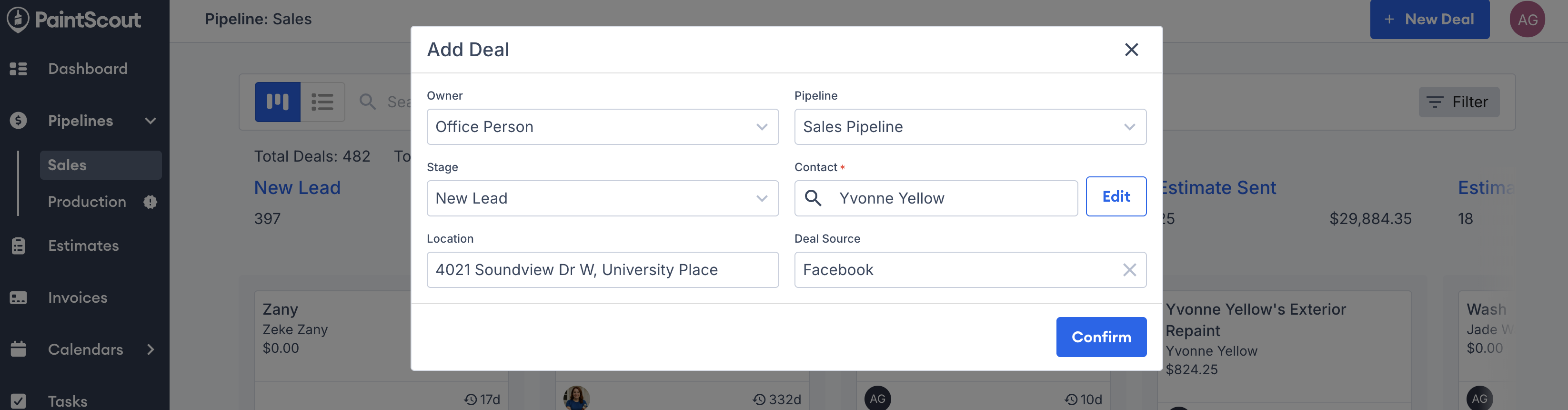
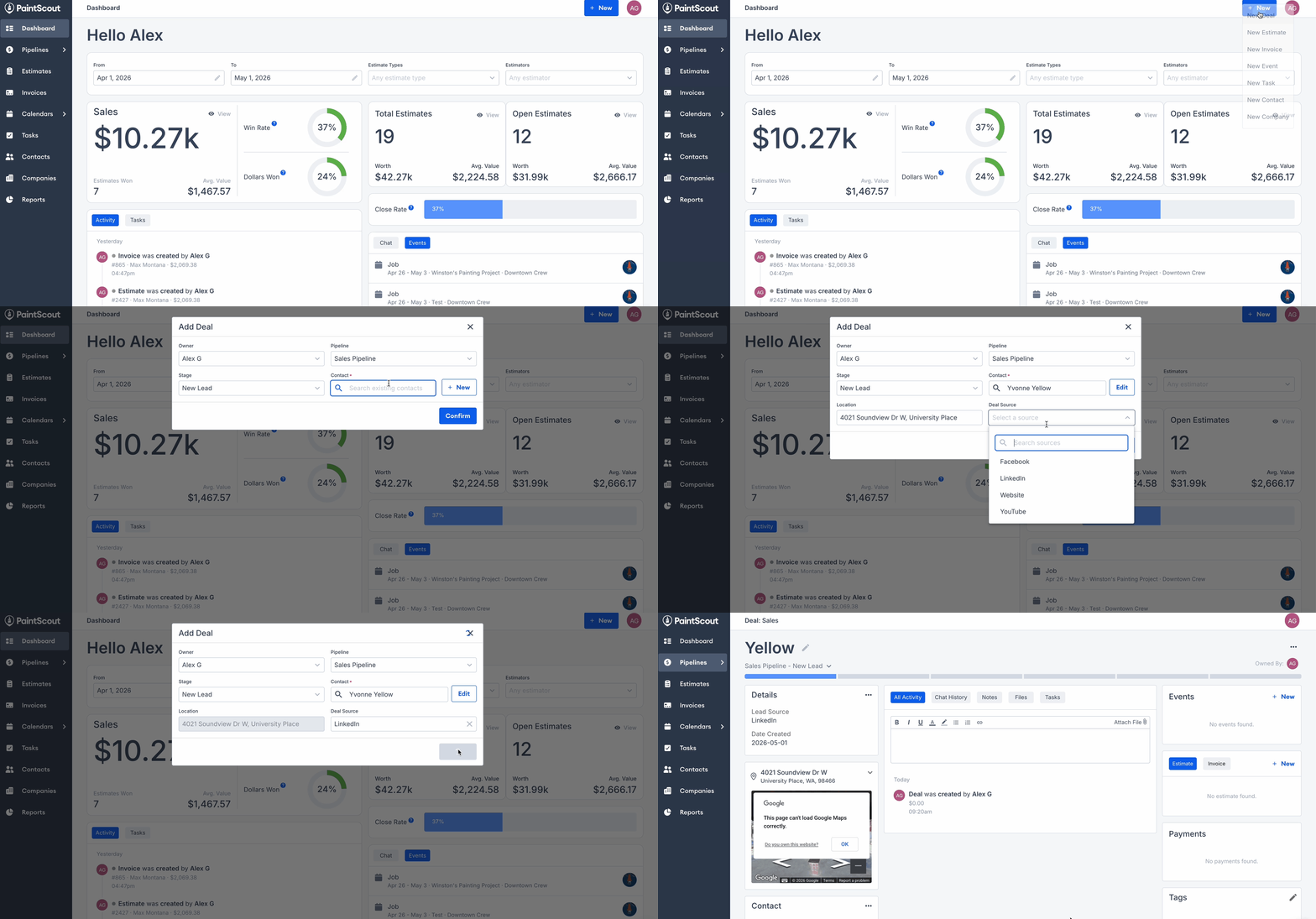
To create a deal in PaintScout, click **+New Deal**, choose a pipeline and stage, assign an owner, and select a contact. Every deal must be linked to a contact.

{% hint style="danger" %}
**Important:** this feature requires the paid **Operations add-on.**
{% endhint %}

## How to Create a Deal

1. Click **+New Deal**.

   <figure><img src="/files/Ibj3pNPOit3QsY7V6PcO" alt="Screenshot showing the New Deal button"><figcaption></figcaption></figure>
2. Choose the **Pipeline** and **Stage**.
   * Choose **Sales** for pre-sale work like appointments and follow-ups.
   * Choose **Production** for work you want to schedule and assign.
   * You can move the deal later.
3. Select the **Deal Owner**.
   * Choose who owns the deal.
   * The owner can track progress and receive notifications.
4. Select an existing contact or add a new one.
   * Every deal must be tied to a contact.
   * After you select a contact, you can:
     * Adjust the **Job Address** if it differs from the contact’s address.
     * Set the **Deal Source**, such as a referral or ad campaign.

{% hint style="info" %}
Production deals include scheduling tools like the **Schedule** card once the deal is ready for active work.
{% endhint %}

***

## Where Can I Create a Deal?

You can create a deal from several places in PaintScout:

* **Dashboard or Deals page:** Create a deal while reviewing your opportunities.

  <figure><img src="/files/FjqXhorqEXBCuDisAT82" alt="Screenshot showing the New Deal button on the Dashboard or Deals page"><figcaption></figcaption></figure>
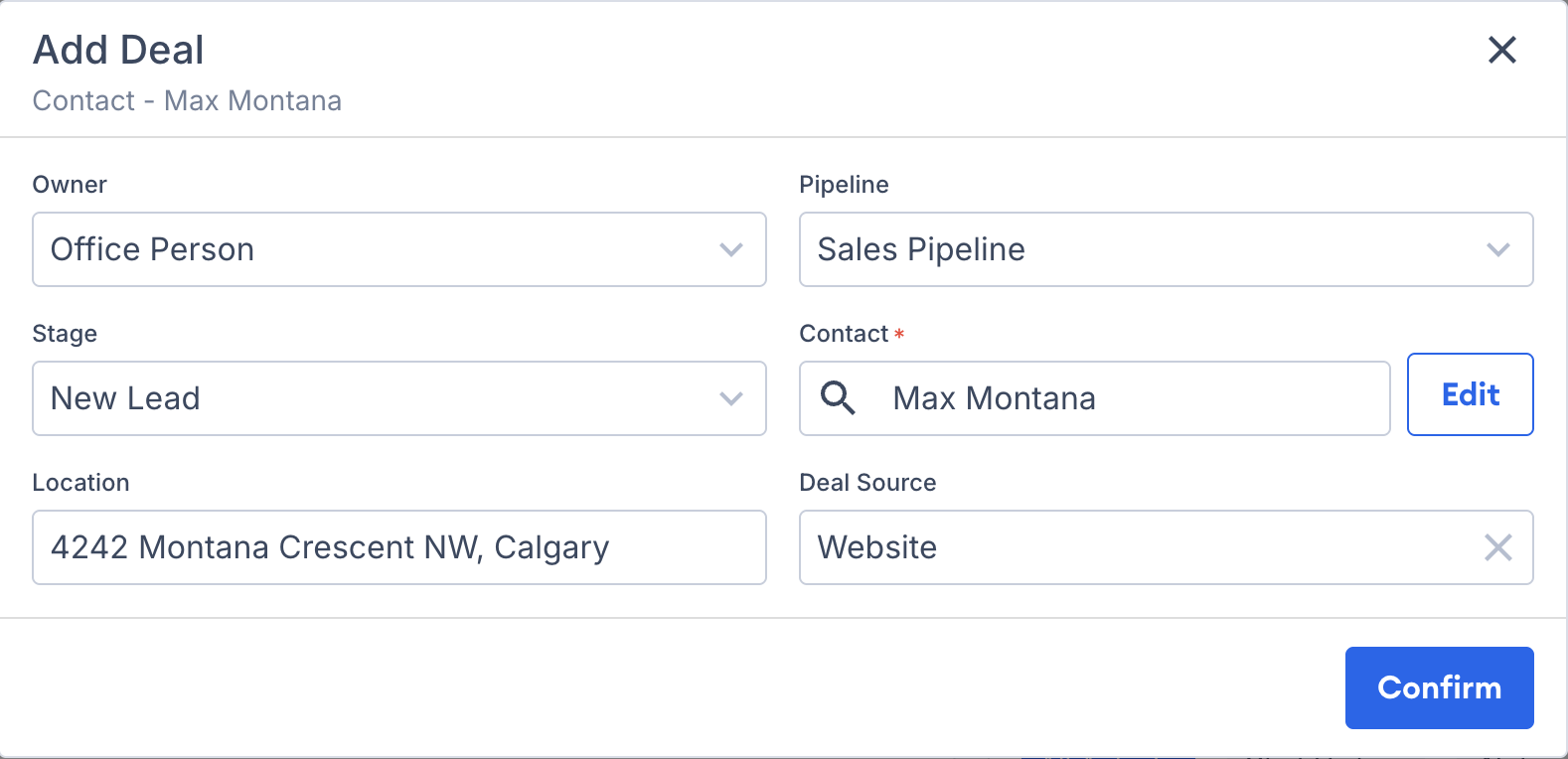
* **Contact or Company profile:** Create a deal that is already linked to the customer.

  <figure><img src="/files/L79KTsJjAj2sj9wpFeSC" alt="Screenshot showing the option to create a deal from a Contact or Company profile"><figcaption></figcaption></figure>
* **From an estimate:** Click the dropdown next to **Send**, then choose **Create Deal**.

  <figure><img src="/files/7fOSK1yZnXQdAHUUDAcw" alt="Screenshot showing the Create Deal option in the Send button dropdown on an estimate"><figcaption></figcaption></figure>

***

## Editing a Deal

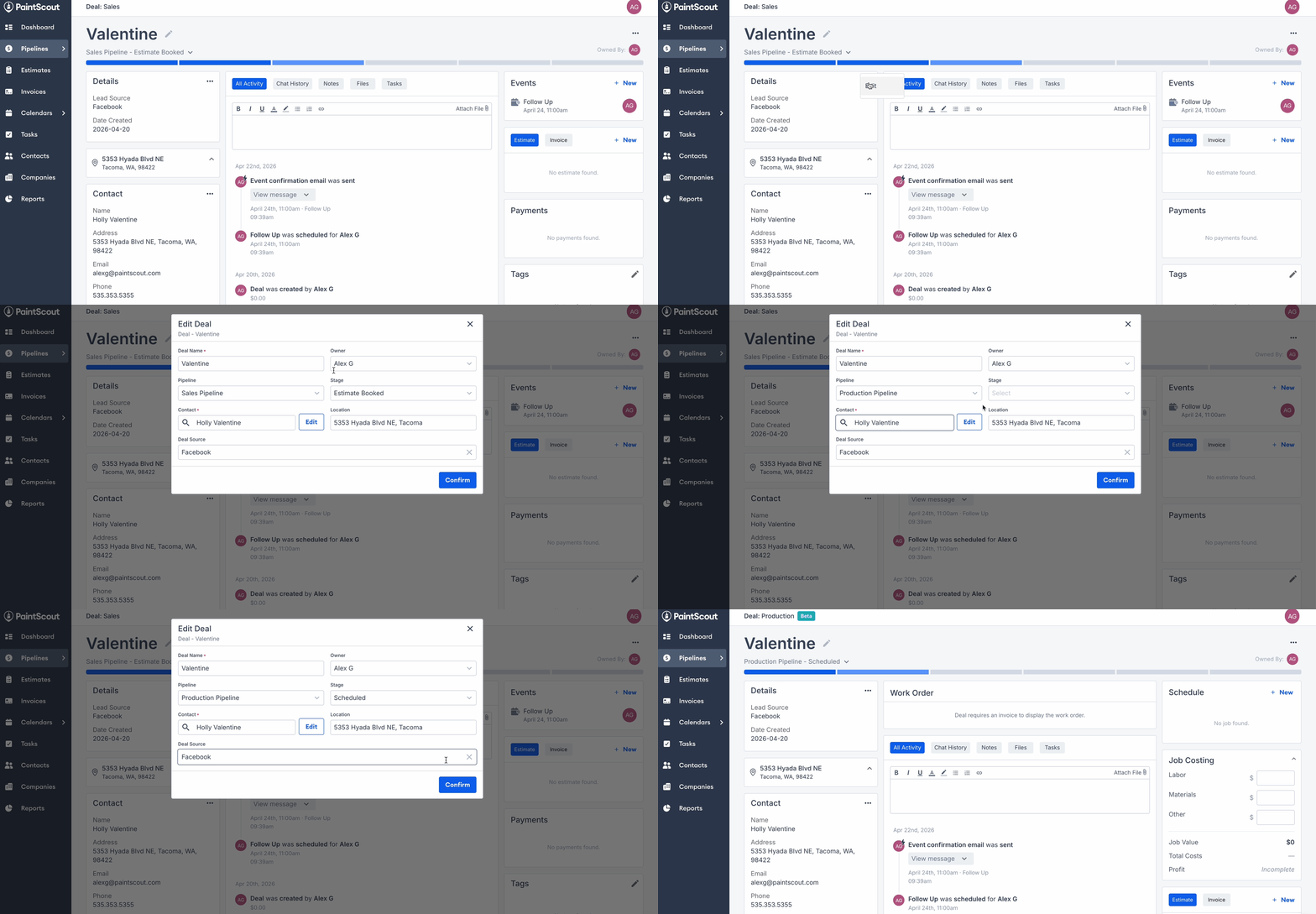
Once you create a deal, you can update its details at any time.

Click the `...` menu or the pencil icon on the details card. You can then:

* Change the **Deal Name**
* Update the **Stage** and **Pipeline**
* Reassign the **Deal Owner**
* Change the **Contact**
* Adjust the **Location** and **Source**

<figure><img src="/files/JwTGFBzhuc86FIcnn1yR" alt="Screenshot showing the Edit Deal dialog with fields for name, stage, owner, contact, location, and source"><figcaption></figcaption></figure>

***

## Related articles

* [Introduction to Deals](/support/operations/deals/introduction-to-deals.md) — Understand how deals work across sales and production
* [Deal Stages](/support/operations/deals/deal-stages.md) — Customize your sales and production stages
* [Schedule a Job](/support/operations/jobs/schedule-a-job.md) — Move production-ready work onto the calendar


---

# Agent Instructions
This documentation is published with GitBook. GitBook is the documentation platform designed so that both humans and AI agents can read, navigate, and reason over technical content effectively. Learn more at gitbook.com.

## Querying This Documentation
If you need additional information that is not directly available in this page, you can query the documentation dynamically by asking a question.

Perform an HTTP GET request on the current page URL with the `ask` query parameter:

```
GET https://help.paintscout.com/support/operations/deals/how-to-create-a-deal.md?ask=<question>
```

The question should be specific, self-contained, and written in natural language.
The response will contain a direct answer to the question and relevant excerpts and sources from the documentation.

Use this mechanism when the answer is not explicitly present in the current page, you need clarification or additional context, or you want to retrieve related documentation sections.