> For the complete documentation index, see [llms.txt](https://help.paintscout.com/llms.txt). Markdown versions of documentation pages are available by appending `.md` to page URLs; this page is available as [Markdown](https://help.paintscout.com/support/operations/crm/crm-faq.md).

# Operations FAQ

Answers to common questions about deals, jobs, estimates, tags, calendars, and other Operations features in PaintScout.

***

## Why can’t I add more than one estimate to a deal?

We understand why it might feel convenient to link multiple estimates to a single deal. However, we’ve designed the system so that **each Deal has only one Estimate**. This keeps your pipeline stages accurate and avoids confusion.

Here’s why:

* **Stage Accuracy**\
  Imagine creating both an interior and exterior estimate under the same deal. If the customer only accepts the interior proposal, moving the deal to “Won” would reflect the status of the interior work — but not the exterior estimate. Similarly, if both are accepted but production timelines differ, moving the deal to “In Production” could misrepresent which scope of work is actually underway.
* **Reporting**\
  On the reporting side, you’re covered. Each estimate is tracked individually, so win rates and marketing/lead source reporting remain accurate. The deal itself holds the source, and if you create two deals (one for interior, one for exterior), reporting will show the dollar value and estimate counts tied to that source.

👉 That’s why we recommend **creating separate deals for each distinct estimate**. It ensures your deal stages reflect the true progress of each scope of work — and keeps your pipeline, communications, and reporting crystal clear.

## What is the difference between a sales event and a job?

Use a **sales event** for customer appointments. Examples include estimate visits, walkthroughs, and follow-up meetings.

Use a **job** for scheduled production work. Jobs live on the Production Calendar, support crew assignment, and help you manage active work after the deal moves into production.

Both are tied to deals. They serve different parts of the workflow.

## How do I schedule a job?

Open the deal and use the **Schedule** card, or schedule it from the **Production Calendar**.

[Schedule a Job](/support/operations/jobs/schedule-a-job.md)

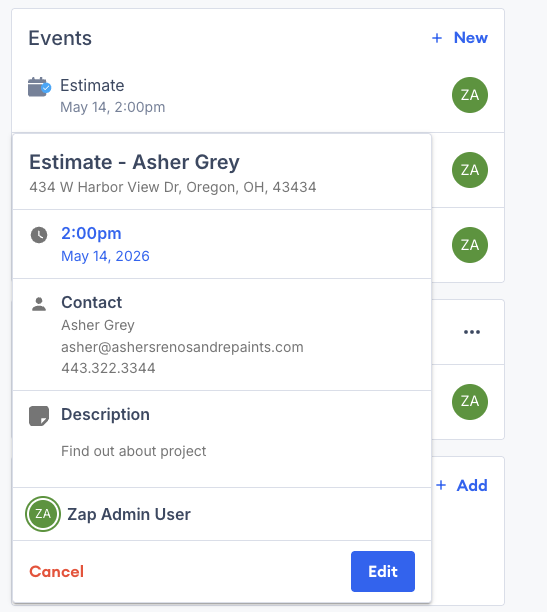
## Why does my event show only the start time?

[Sales events](/support/operations/events-and-calendar/introduction-to-events.md) in PaintScout are required to be a minimum of 15 minutes. If your scheduled event is less than this, only the start time will show.

<figure><img src="/files/blD8h6DJiby0yGRvpIci" alt=""><figcaption></figcaption></figure>

## Can I edit a scheduled job or reassign a crew?

Yes. Open the job from the deal or the Production Calendar. Then update the dates, crew, or other job details.

[Edit or Reschedule a Job](/support/operations/jobs/edit-or-reschedule-a-job.md)

## What notifications do customers receive when I schedule a job?

For now, there are no new customer notifications (emails) for Operations. This way, you are able to move jobs around freely without worrying that the customer is repeatedly notified.

## How do I edit the deal stages?

You can customize your pipeline stages in your account settings > Deals section.

[Deal Stages](/support/operations/deals/deal-stages.md)

## How do I adjust the name of a deal?

1. Open the Deal
2. Click the pencil icon in the details card or "..." (More) menu, and select **Edit Deal**.
3. From here, you can rename the Deal and update other details like owner, stage, location, and source.

   <figure><img src="/files/nf1wFjz55V3K6pX9JAUb" alt="Screenshot showing the Edit Deal dialog with name, owner, stage, location, and source fields"><figcaption></figcaption></figure>

## How do I add a tag to a contact, deal, estimate, or company?

1. Navigate to the record
2. Find the **Tags** section and click the pencil icon to add a tag.

   <figure><img src="/files/Sk2X3O2i9iWOxfHznJzU" alt="Screenshot showing the Tags section with the pencil icon to add a tag"><figcaption></figcaption></figure>
3. You can select from tags created in Settings.

## Why can’t I find an estimate when I try to add it to a deal?

If the estimate search shows no results, the deal and estimate are likely tied to different contact records. This usually happens when there are duplicate contacts with the same name - one contact record has the deal; the other has the estimate.

The search uses the contact ID on the deal. It does not match by name or address alone.

To fix it, use Swap Contact on the estimate or on the deal. Make sure both records use the same contact. Once the deal and estimate share one contact ID, the estimate should appear and link normally. [Learn more here](/support/operations/deals/linking-estimates-to-deals.md)

## How do I remove an estimate from a deal?

1. Go to the deal
2. Find the estimate card and click the "..." Menu and choose **Remove Association**

   <figure><img src="/files/F97Cu1sKDKLECEPm3eLm" alt="Screenshot showing the More menu on an estimate card with the Remove Association option"><figcaption></figcaption></figure>

The Estimate (and any linked invoices) will no longer show on the Deal, but they will still be visible in the **Estimates** and **Invoices** pages.

## Why can’t I change the deal on a scheduled sales event?

Once a sales event is scheduled, the **Deal link cannot be changed**. This ensures that activity history stays accurate. If the sales event needs to be connected to a different deal, cancel the sales event and create a new one linked to the correct deal.

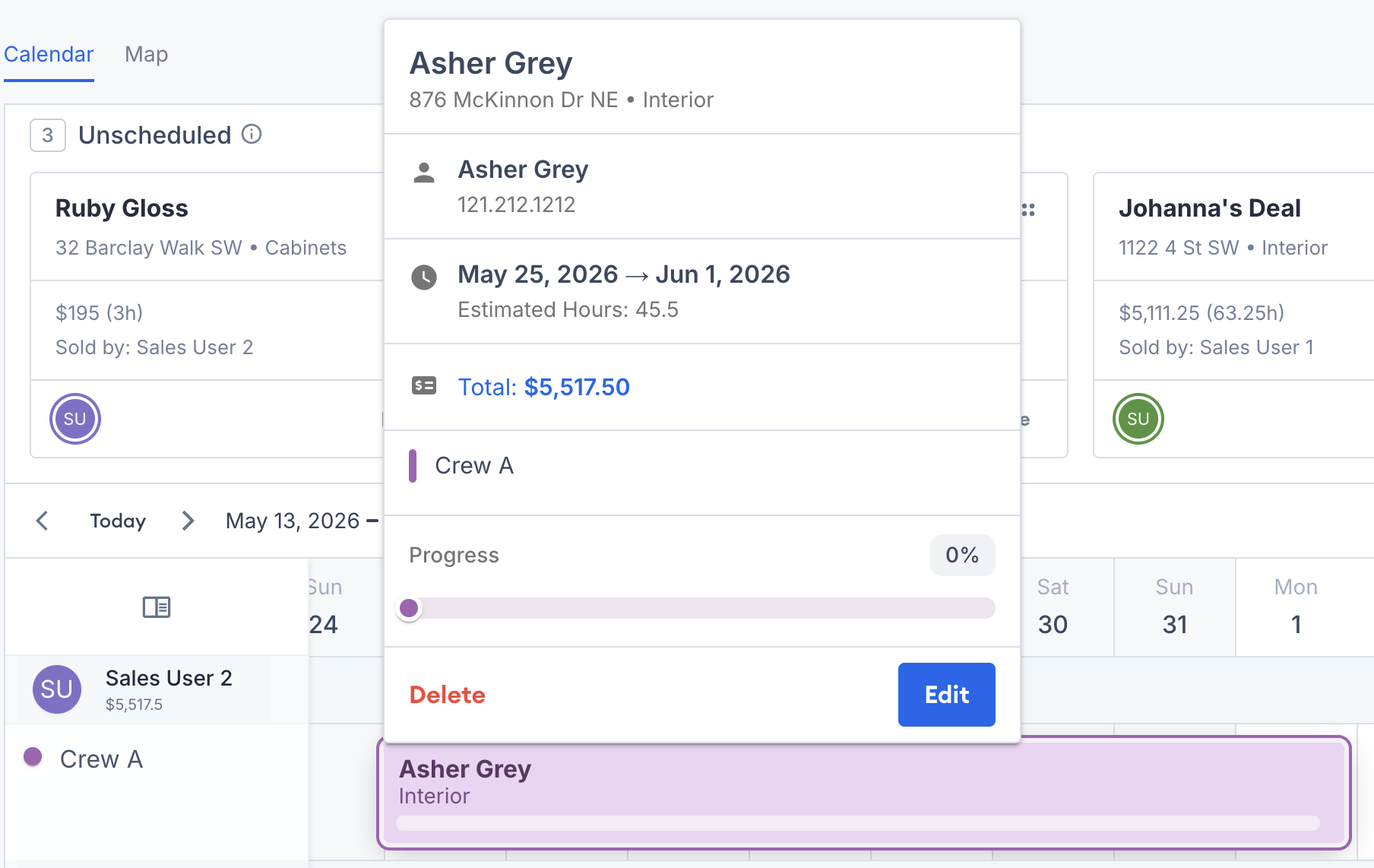
## Can I get to an invoice from the Production Calendar?

Yes. On any Calendar view, click open a job's details.

Click on the "Total" section and this will bring you to the related invoice.

<figure><img src="/files/1hUIZePeyOjFpO3JeEBr" alt=""><figcaption></figcaption></figure>

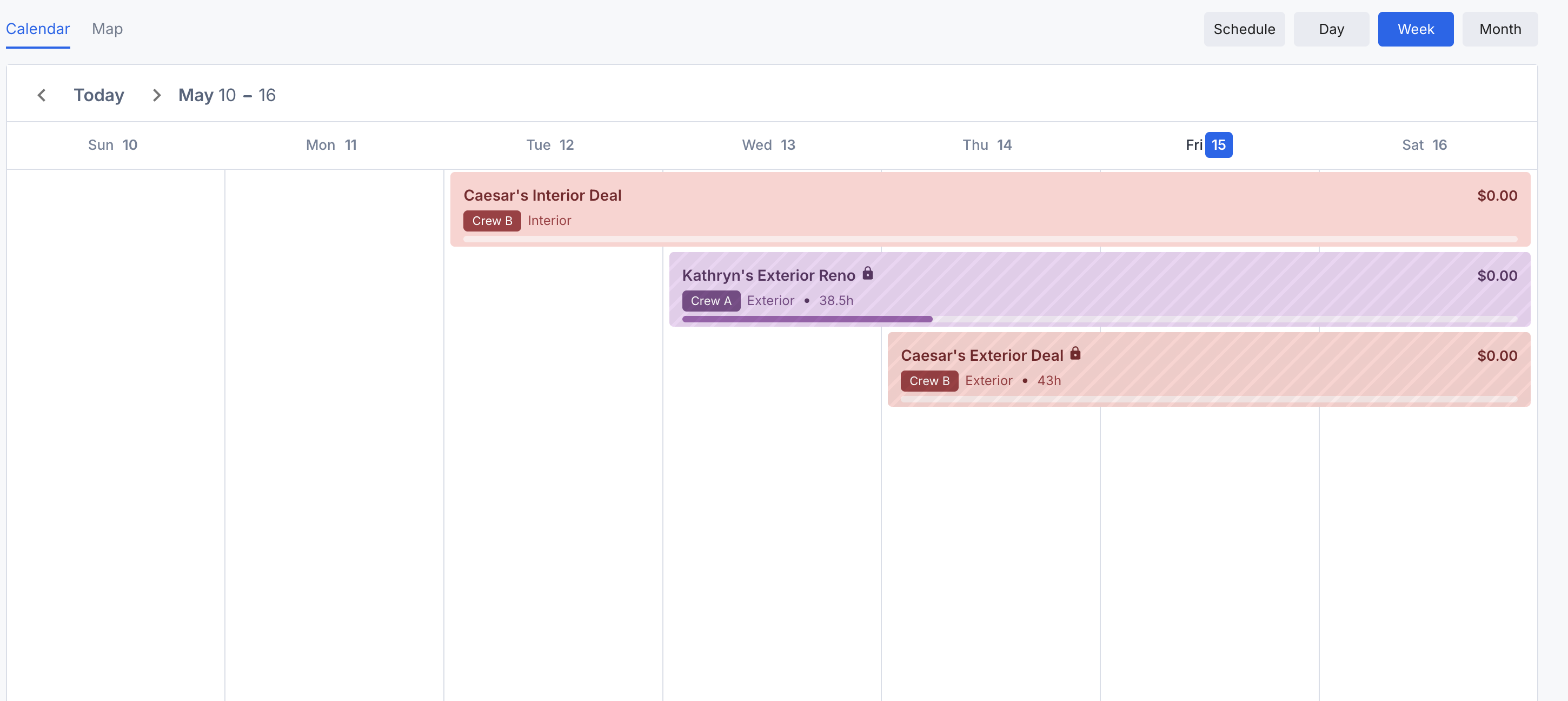
## There's a lock icon on deals on my Calendar. What does this mean?

If jobs on your Production Calendar have lock icons, this means that you don't have access to view or edit those deals. This is tied to your user type and the custom permissions on your account.

If you believe this is a mistake, please reach out to the account owner.

<figure><img src="/files/2ptFCJRXZu6fqX0e2Pym" alt=""><figcaption></figcaption></figure>

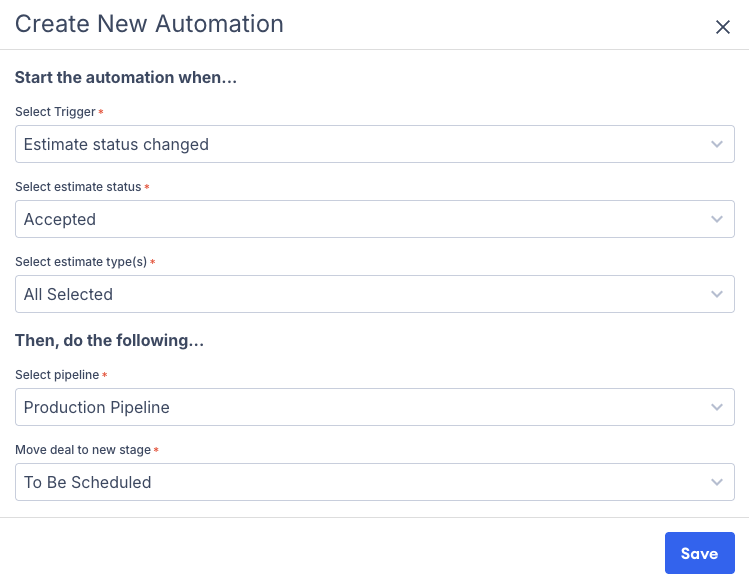
## I'm a CRM user. What happens to my automations now that I have Operations?

With Operations, you can now automate deal movement between the Sales and Production pipelines. Review and update your automations in Account Settings>Automations to match your workflow.

<figure><img src="/files/w6a7mW5wFLvmzIRNzPek" alt=""><figcaption></figcaption></figure>

## I'm a CRM user. How do I update my deal stages with Operations?

Check out this video for helpful tips on how to restructure your Sales and Production pipelines to reflect your workflow.

Don't forget to review your [automations](/support/operations/automations.md) to match the updated stages.

{% embed url="<https://www.loom.com/share/b901d032fb2940c9bed9cdb736402841>" %}

***

## Related articles

* [PaintScout Glossary](/support/resources/resources/paintscout-glossary.md) — Definitions of key PaintScout terms


---

# Agent Instructions
This documentation is published with GitBook. GitBook is the documentation platform designed so that both humans and AI agents can read, navigate, and reason over technical content effectively. Learn more at gitbook.com.

## Querying This Documentation
If you need additional information that is not directly available in this page, you can query the documentation dynamically by asking a question.

Perform an HTTP GET request on the current page URL with the `ask` query parameter:

```
GET https://help.paintscout.com/support/operations/crm/crm-faq.md?ask=<question>
```

The question should be specific, self-contained, and written in natural language.
The response will contain a direct answer to the question and relevant excerpts and sources from the documentation.

Use this mechanism when the answer is not explicitly present in the current page, you need clarification or additional context, or you want to retrieve related documentation sections.
