> For the complete documentation index, see [llms.txt](https://help.paintscout.com/llms.txt). Markdown versions of documentation pages are available by appending `.md` to page URLs; this page is available as [Markdown](https://help.paintscout.com/support/invoicing-and-payments/payments/payment-processing-with-stripe.md).

# Payment Processing with Stripe

Stripe is a payment processor that integrates with PaintScout to let you collect credit card payments directly from estimates and invoices. You can also configure deposits and surcharging.

## What is Stripe?

Stripe is a third-party payment processor that handles credit card transactions for your PaintScout account.

***

## How to Set Up Your Stripe Integration

1\. Go to [stripe.com](https://stripe.com/) and create an account.

2\. Log in to PaintScout and go to **Account Settings** > **Integrations**.

<figure><img src="/files/i0H9KrFGpkR92e0Hdful" alt="Screenshot showing the Account Settings Integrations section in PaintScout"><figcaption></figcaption></figure>

3\. Navigate to **Stripe** and toggle it on.

<figure><img src="/files/UDuDWBRvCsFnYKeAbwse" alt="Screenshot showing the Stripe integration toggle switched on in PaintScout settings"><figcaption></figcaption></figure>

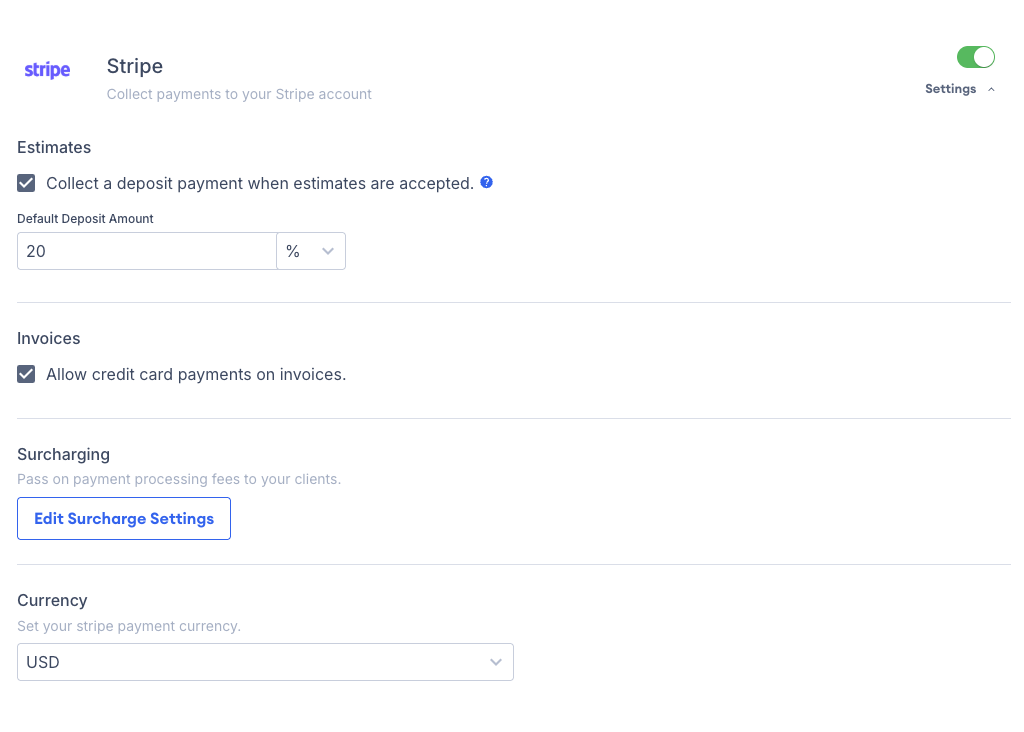
4\. Click the **Settings** dropdown to adjust your payment settings.

<figure><img src="/files/qmvbQfWnTd9WVV5ERGOq" alt="Screenshot showing the Stripe payment settings dropdown with deposit, invoice payment, and surcharging options"><figcaption></figcaption></figure>

* **Collect a deposit payment when estimates are accepted**: check this off if you would like to receive deposit payments via credit card.
  * By adding a **default deposit amount** by percentage (%) or dollar ($), your customer will be prompted to pay a deposit via credit card after accepting the estimate.
* **Allow credit card payments on invoices**: check this if you would like to allow credit card payments on invoices.
* **Surcharging**:
  * To enable this, toggle it on and set the % fee that you will pass along to your customer.
  * If you *don't* want to include surcharging on deposit payments, make sure that this checkbox is checked.

***

## How to Customize the "Payment Received" Email

PaintScout automatically emails your customer a payment confirmation. To edit this template:

1\. Go to your **Account Settings** > **Communications** > **Email Templates**.

<figure><img src="/files/xEqDx3UU0xqE2laZETzZ" alt="Screenshot showing the Email Templates section under Account Settings Communications"><figcaption></figcaption></figure>

2\. Under the **Emails Sent Automatically** section, click the **Payment Received** email template.

<figure><img src="/files/z9vOfRrY0udFwXPpGBn3" alt="Screenshot showing the Payment Received email template in the Emails Sent Automatically section"><figcaption></figcaption></figure>

3\. Adjust the verbiage in your email and make sure the **Enabled** checkbox is on.

<figure><img src="/files/QWlUeHdgaRhdWA4bdN8R" alt="Screenshot showing the Payment Received email template editor with the Enabled checkbox"><figcaption></figcaption></figure>

***

## Deposit & Invoicing workflow with Stripe

{% embed url="<https://www.youtube.com/watch?v=aM7tl58WTgI>" %}

***

## How Do Customers Make a Payment?

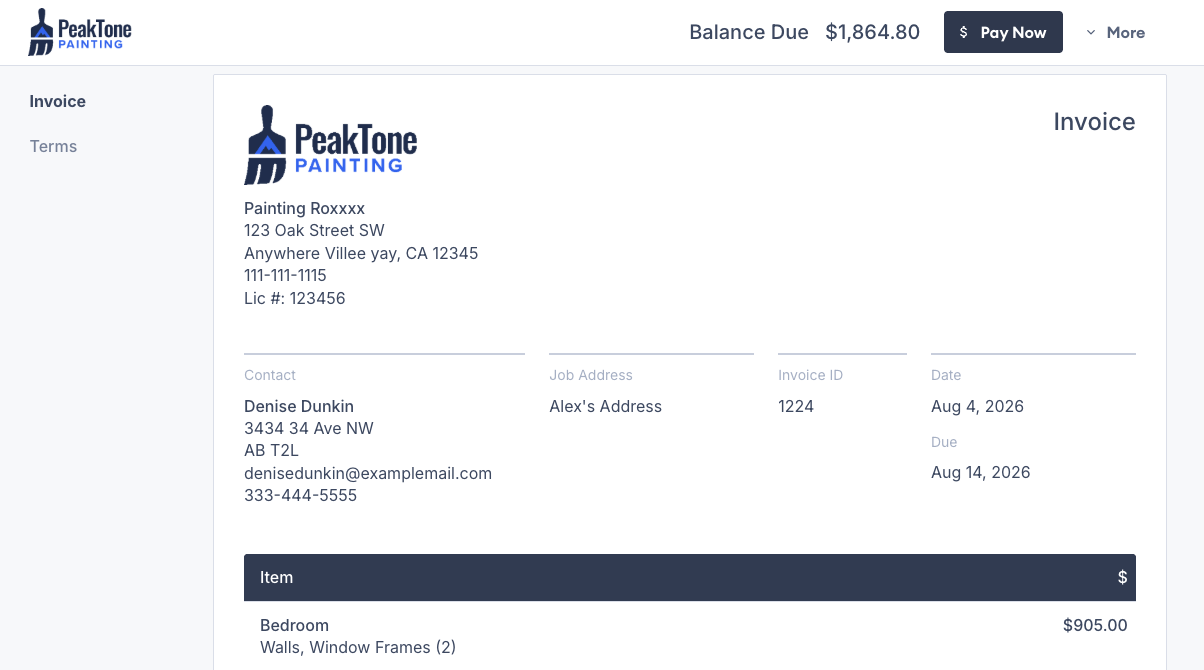
1\. The customer clicks the **Pay Now** button on the estimate or invoice to make a credit card payment.

<figure><img src="/files/MoMr3LmrOfVKW7mvtPf5" alt="Screenshot showing the Pay Now button on a customer-facing invoice"><figcaption></figcaption></figure>

**Note:** The **Pay Now** button only appears on estimates after the customer has accepted.

{% hint style="info" %}
The **Pay Now** button only appears on estimates after the customer has accepted.
{% endhint %}

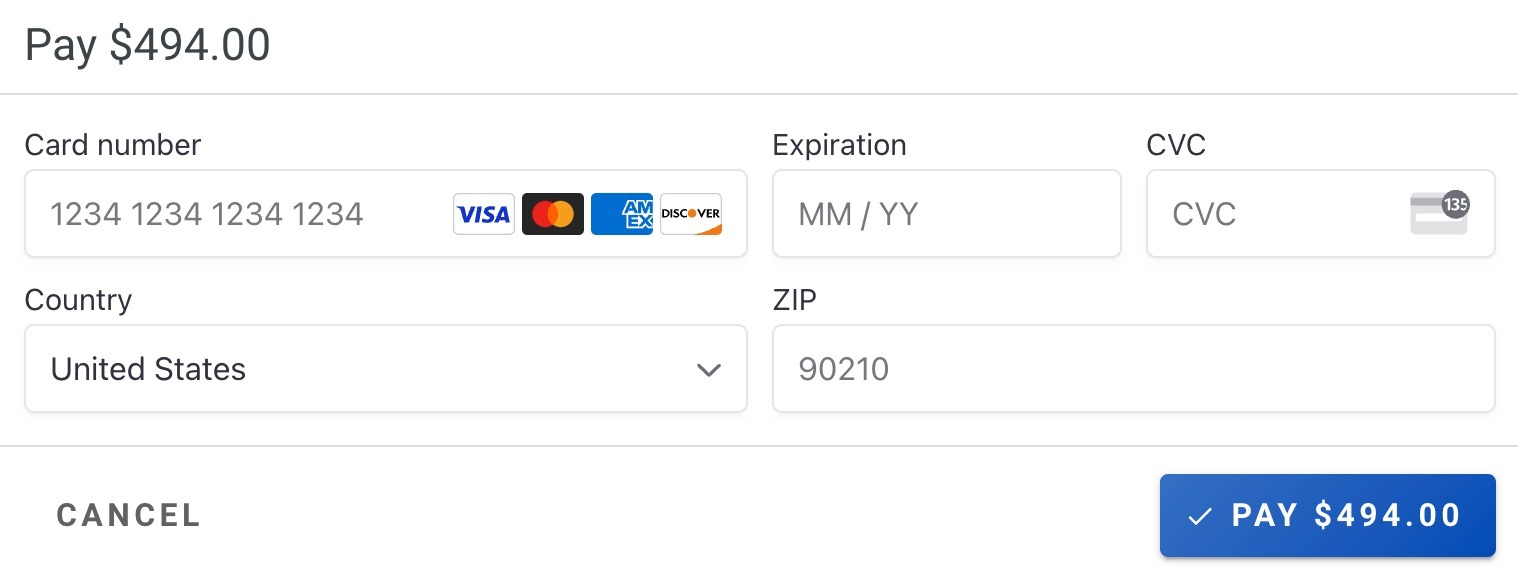
2\. The customer will then enter their credit card details and click '**Pay**.'

<figure><img src="/files/TloAzQAJuMPDfpi3VX7K" alt="Screenshot showing the credit card payment entry form with card details fields"><figcaption></figcaption></figure>

3\. A new window will appear if payment is successful.

<figure><img src="/files/3jQR3b7ZmYECfwuuYJgc" alt="Screenshot showing the successful payment confirmation window"><figcaption></figcaption></figure>

***

## How to Manually Process a Credit Card Payment

1\. Open the invoice and scroll to the **Payments** table.

2\. Click **+Add/Request Payment**.

<figure><img src="/files/rxWhKpSk1qMUJqzVdRVJ" alt="Screenshot showing the Add/Request Payment button in the Payments table on an invoice"><figcaption></figcaption></figure>

3\. Select **Take Credit Card Payment.**

<figure><img src="/files/mvn58WEylrRmxJd05deV" alt="Screenshot showing the Take Credit Card Payment option in the payment method dialog"><figcaption></figcaption></figure>

4. Enter the payment amount and add a note if needed.

<figure><img src="/files/hgzyM1uUhp3cmaiutjCc" alt="Screenshot showing the payment amount entry dialog with amount field and optional note"><figcaption></figcaption></figure>

5\. Enter the customer's payment information and click **Pay.**

<figure><img src="/files/okyQKv09xXDTgwgfgkaj" alt="Screenshot showing the credit card details entry form for processing a manual payment"><figcaption></figcaption></figure>

***

## How to Turn Off Payments or Adjust the Deposit Amount

1\. Open the estimate or invoice and click the **sidebar** on the right-hand side.

2\. Open the **Payments & Lending** section.

3\. Turn off credit card payments, adjust the deposit amount, or change the surcharge percentage before sending.

<figure><img src="/files/1kzTYbjY3l5IB0sVoUvn" alt="Screenshot showing the Payments and Lending section in the estimate sidebar with options to toggle payments, adjust deposits, and change surcharge"><figcaption></figcaption></figure>

***

## Frequently Asked Questions

## What is the rate for payments with Stripe?

Each transaction costs your Stripe fee (typically 2.9% + $0.30) plus a 0.5% PaintScout fee, totaling approximately 3.4%.

## How long does a payment take to get to me?

Payout timing is configurable in your Stripe settings. [Learn more here >](https://stripe.com/docs/payouts)

## How can I issue a refund?

Process refunds through the Stripe dashboard. [Learn more here >](https://support.stripe.com/questions/refund-a-customer)

## Related articles

* [PaintScout Payments](/support/invoicing-and-payments/payments/paintscout-payments.md) — Compare the built-in payment option for credit card and ACH
* [Adding Payment Methods](/support/invoicing-and-payments/payments/adding-payment-methods.md) — Choose which payment methods appear on invoices
* [Credit Card Surcharging](/support/invoicing-and-payments/payments/credit-card-surcharging.md) — Pass eligible credit card fees to customers
* [How Customers Pay](/support/invoicing-and-payments/recording-payments/how-customers-make-a-payment.md) — See the customer payment flow from email to checkout


---

# Agent Instructions
This documentation is published with GitBook. GitBook is the documentation platform designed so that both humans and AI agents can read, navigate, and reason over technical content effectively. Learn more at gitbook.com.

## Querying This Documentation
If you need additional information that is not directly available in this page, you can query the documentation dynamically by asking a question.

Perform an HTTP GET request on the current page URL with the `ask` query parameter:

```
GET https://help.paintscout.com/support/invoicing-and-payments/payments/payment-processing-with-stripe.md?ask=<question>
```

The question should be specific, self-contained, and written in natural language.
The response will contain a direct answer to the question and relevant excerpts and sources from the documentation.

Use this mechanism when the answer is not explicitly present in the current page, you need clarification or additional context, or you want to retrieve related documentation sections.