
> For the complete documentation index, see [llms.txt](https://help.paintscout.com/llms.txt). Markdown versions of documentation pages are available by appending `.md` to page URLs; this page is available as [Markdown](https://help.paintscout.com/support/invoicing-and-payments/payments/paintscout-payments.md).

# PaintScout Payments

PaintScout Payments is a built-in payment processor that lets you accept credit card and ACH payments directly on estimates and invoices, with support for deposits and surcharging.

{% hint style="warning" %}
If you're currently connected to **Stripe**, switching to PaintScout Payments will **automatically disconnect** your Stripe integration.
{% endhint %}

## How to Set Up PaintScout Payments

1\. Go to **Account Settings** > **Integrations**. Find **PaintScout Payments** and toggle it on.

<figure><img src="/files/yH3OaIhEUqOA5MombZ2g" alt="Screenshot showing the PaintScout Payments toggle in the Account Settings Integrations section"><figcaption></figcaption></figure>

2\. You will be redirected to a form page - fill in all the requirements and submit.

<figure><img src="/files/3JwrW9rlfLjabS0xNpfY" alt="Screenshot showing the PaintScout Payments application form to fill in and submit"><figcaption></figcaption></figure>

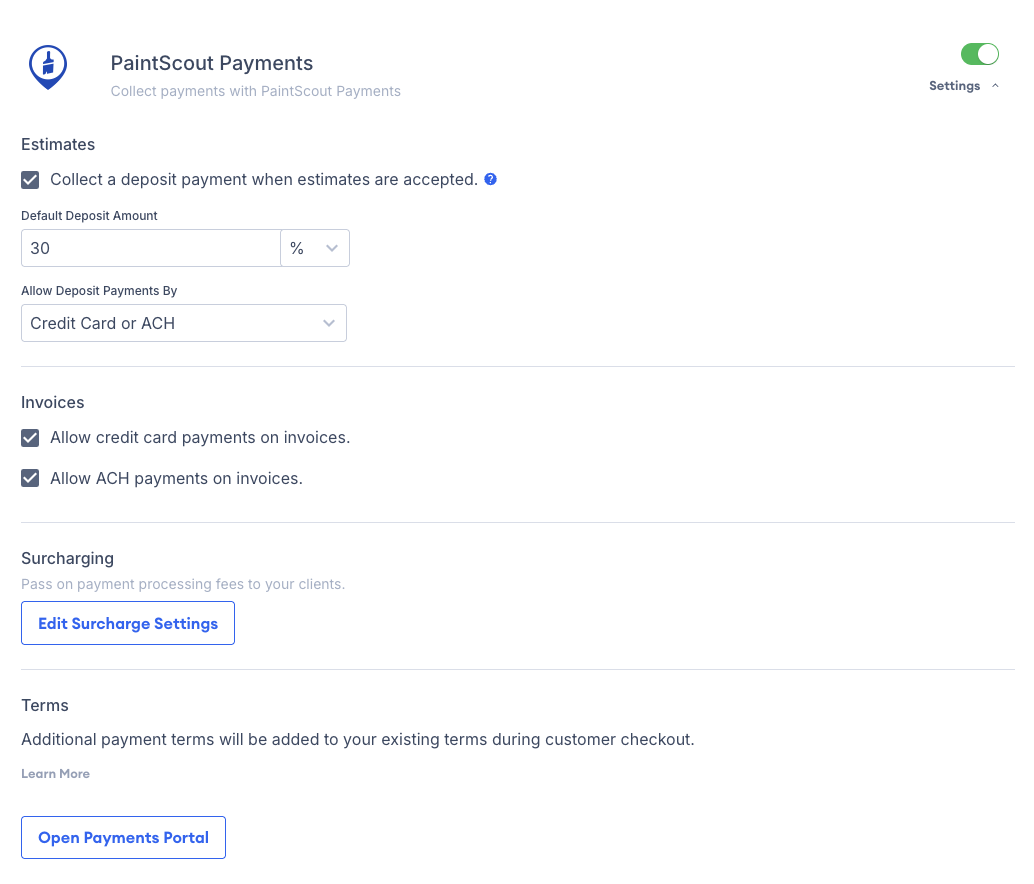
3\. Head back to PaintScout to adjust your payment settings. Click the **Settings** drop-down.

<figure><img src="/files/rsULozyOj1ZF0BucUTDI" alt="Screenshot showing the PaintScout Payments settings dropdown with deposit, invoice payment, and surcharging options"><figcaption></figcaption></figure>

* **Collect a deposit payment when estimates are accepted** – Enable this option to require deposit payments via credit card or ACH (or EFT for Canadian users).
  * You can set a default deposit amount as a percentage (%) or a fixed dollar ($) amount.
  * Once enabled, customers will be prompted to pay the deposit immediately after accepting an estimate.
* **Allow payments on invoices** – Enable these options to accept credit card or ACH payments for invoices.
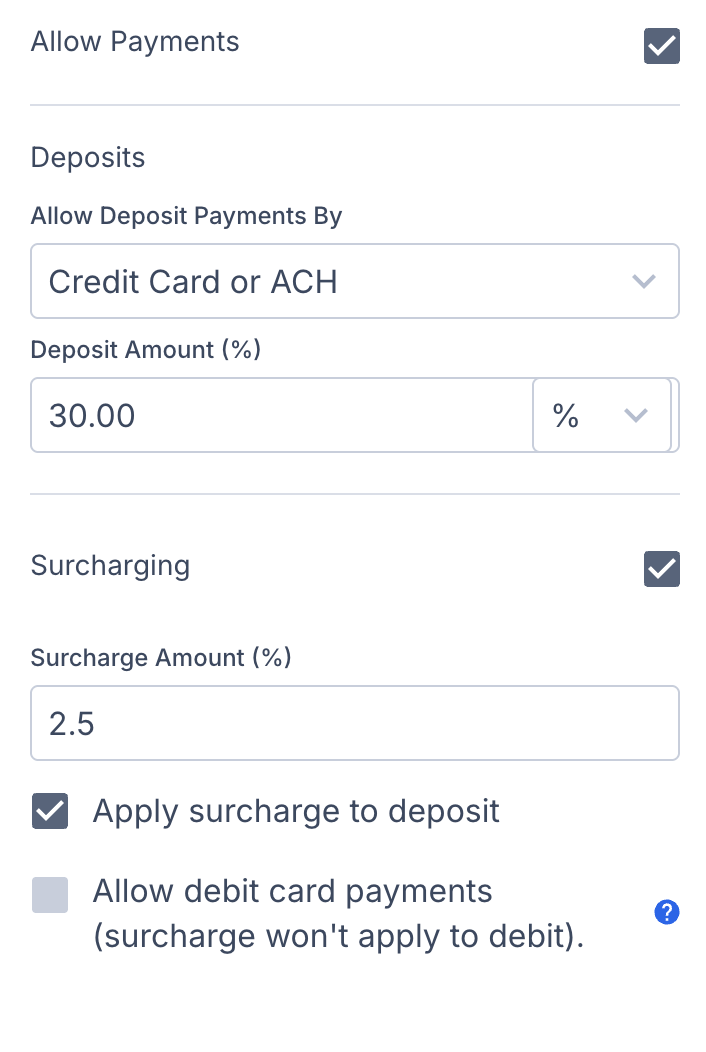
* **Enable surcharging** – To pass along processing fees to your customers, toggle surcharging on and set the percentage fee. If you’d like to exclude this fee from deposit payments as well, check the second box.
  * Select “**Allow debit card payments**” if you want to accept debit transactions — just note that surcharges won’t apply. Due to legal restrictions, debit payments can’t be surcharged.
  * If unchecked, customers won’t be able to pay with debit while surcharging is enabled.

{% hint style="info" %}
Changes to these payment settings only apply to new estimates and invoices going forward. Existing estimates and invoices keep their current payment settings unless you update those records manually.
{% endhint %}

4\. Once you have adjusted your settings, you can log in to your [payments portal](https://payments.paintscout.com/login) – this is where you will be able to see all your payments, process refunds, etc.

You can also click the **Open Payments Portal** button to log in.

<figure><img src="/files/hFrMIMUmj7KnajKB1j0T" alt="Screenshot showing the Open Payments Portal button in PaintScout Payments integration settings"><figcaption></figcaption></figure>

***

## How Do Customers Make a Payment?

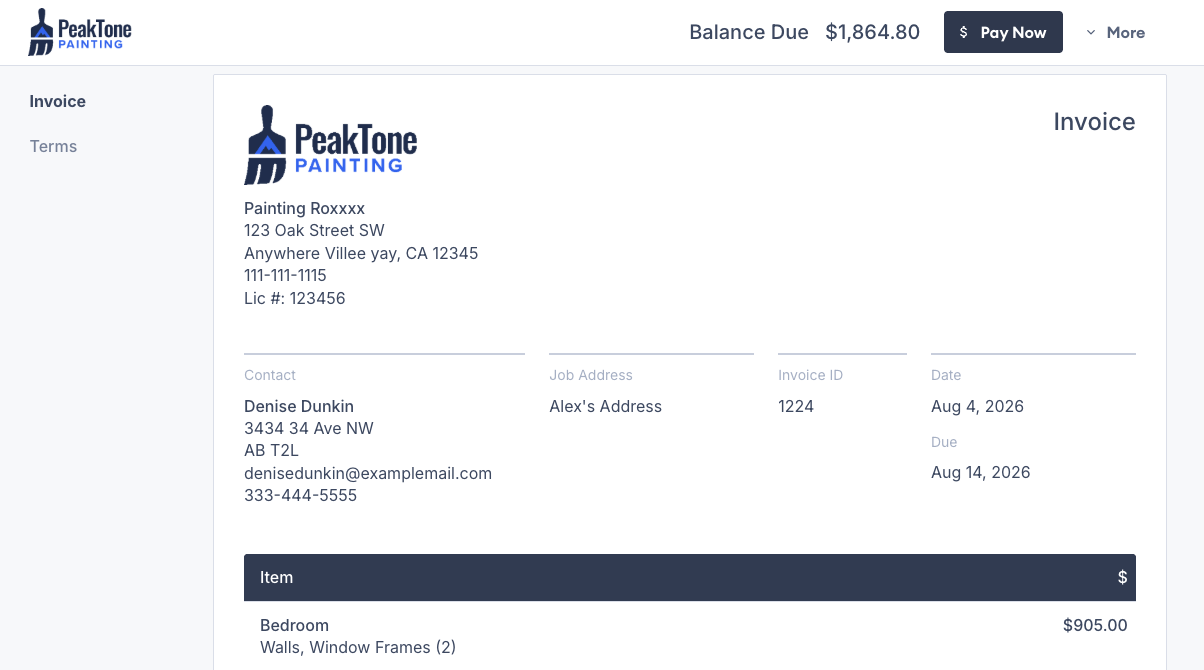
1\. On the estimate or invoice, the customer clicks the **Pay Now** button to make a payment.

The **Pay Now** button only appears after the customer has accepted the estimate.

<figure><img src="/files/MoMr3LmrOfVKW7mvtPf5" alt="Screenshot showing the Pay Now button on a customer-facing estimate or invoice"><figcaption></figcaption></figure>

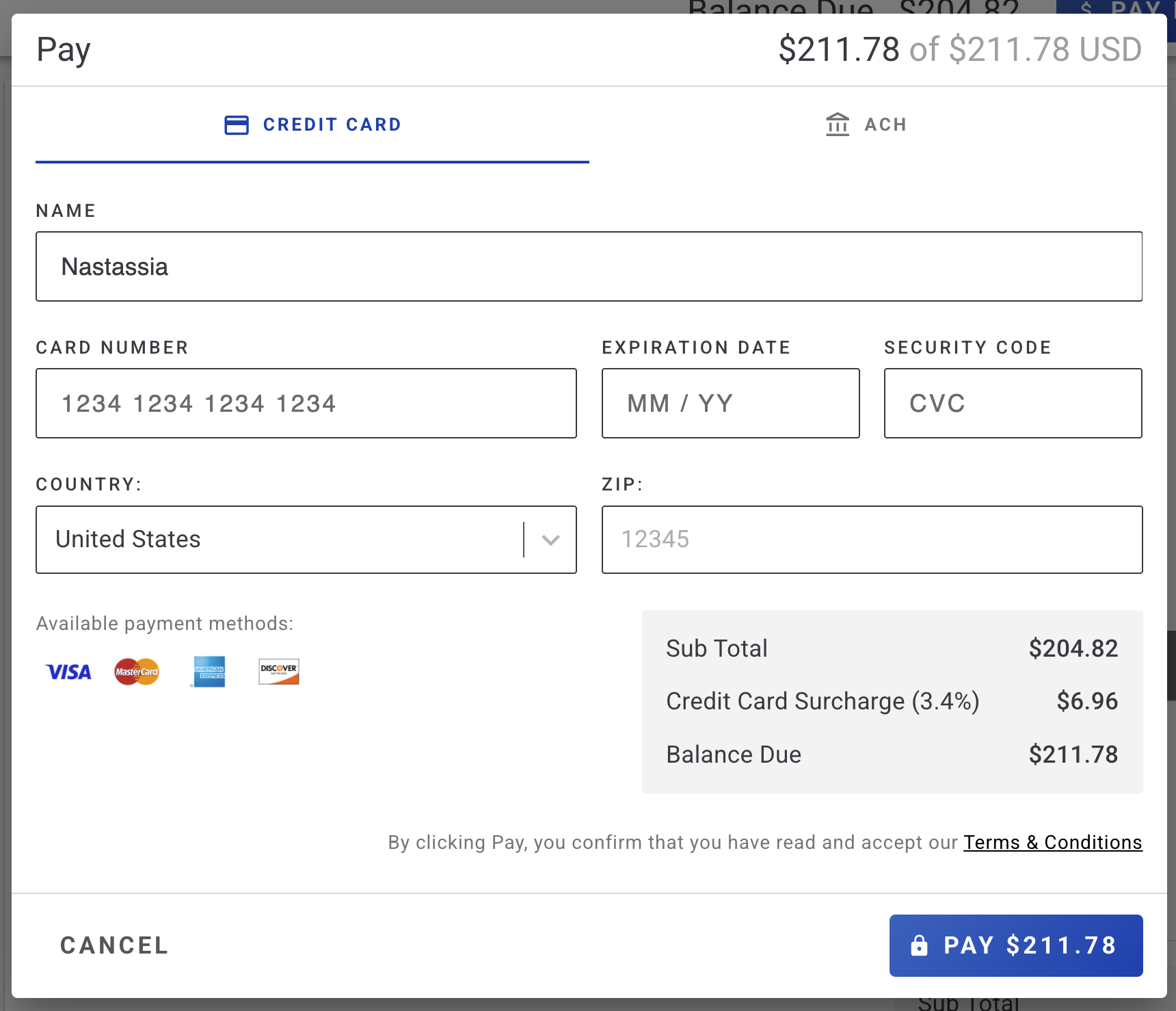
2\. The customer can choose to pay via Credit Card or ACH (or EFT for Canadian customers).

<figure><img src="/files/6VezrwnlhbvmmvPpiX4T" alt="Screenshot showing the payment method selection dialog with Credit Card and ACH options"><figcaption></figcaption></figure>

3\. A new window will appear if payment is successful.

<figure><img src="/files/3jQR3b7ZmYECfwuuYJgc" alt="Screenshot showing the successful payment confirmation window"><figcaption></figcaption></figure>

***

## How to Customize the Payment Received Email

PaintScout automatically sends a confirmation email to your customer when a payment is recorded. To edit this email template:

1\. Go to your **Account Settings** > **Communications** > **Email Templates** > **Emails Sent Automatically** section.

2\. Click the **Payment Received** email template.

<figure><img src="/files/qktGloxBUnYc4tY4bkMM" alt="Screenshot showing the Payment Received email template in the Emails Sent Automatically section"><figcaption></figcaption></figure>

3\. Adjust the verbiage in your email and make sure the **Enabled** checkbox is on.

<figure><img src="/files/qV05PWUkxiA5rUZSCBFe" alt="Screenshot showing the Payment Received email template editor with the Enabled checkbox"><figcaption></figcaption></figure>

{% hint style="info" %}
**Pro tip:** If you would like to receive email notifications when a payment is made, navigate to the **Email Alerts** section in your PaintScout Payments portal to configure your notification preferences.
{% endhint %}

***

## Frequently Asked Questions

### How do I access the payments portal?

* You can access your [payments portal here >](https://payments.paintscout.com/login)
* Or, you can access it through the Integration Settings in your account.

<figure><img src="/files/r9zT4AltBES7UFvZQMij" alt="Screenshot showing how to access the PaintScout Payments portal from the integration settings"><figcaption></figcaption></figure>

### Once I apply for PaintScout Payments, how long does it take to get approved?

Most applications are approved instantly. If additional information is needed, you will receive an email with instructions to complete the onboarding process.

### What are the processing fees?

* **Credit card:** 3.15% per transaction
* **ACH:** 1% per transaction (capped at $25)
* **Payout fee:** $0.35 per payout

Certain credit cards incur additional fees on top of the 3.15% base rate:

* AMEX: +0.35%
* Commercial / Business Cards Fees: +0.75%
* International Transaction Fees: +1.75%

For example, an AMEX transaction costs 3.15% + 0.35% = 3.5% total.

### Why don't the transactions in my portal match what I was paid out?

Transaction amounts show the total paid by the customer. Payout amounts show the total after processing fees are deducted. To see the fee breakdown, go to **Payouts > Payout History > Payout Details** in the PaintScout Payments portal.

### How long does a payment take to get to me?

Credit card payments typically arrive within 1 business day. ACH payments take 1-5 business days. The default payout schedule is daily, but you can customize it:

1\. Go to the [Payments Portal](https://payments.paintscout.com/login) and click **Payouts** in the left navigation panel.

2\. Click **View Schedules** to see all payout schedules.

3\. Click **Edit Schedule** to change the payout frequency.

Some transactions may take longer to review before they are fully cleared.

### How can I issue a refund?

Go to the [Payments Portal](https://payments.paintscout.com/login), select a payment under **Payment History**, and click the **Refund** button.

Refund fees:

* **Standard refund:** $0.04
* **ACH refund:** $15.00

### How do I handle a dispute?

1. Click the **Respond** button in the dispute email notification.
2. Review the **dispute details** page for the current stage and next steps.
3. In the **Representment** stage, either submit evidence to overturn the claim or accept liability (which refunds the cardholder and marks the dispute as lost).
4. You will receive an email notification with the final dispute resolution status.

### I was previously connected to Stripe, how does this affect my outstanding estimates and invoices?

You can still accept payments on your *previous* estimates and invoices; however, ACH will not be available until you manually enable it.

* To enable ACH, go to the **Sidebar > Payments & Lending > Select ACH as an option.**

<figure><img src="/files/cuVUTwGQVv8QJA7A9EzW" alt="Screenshot showing the Payments and Lending sidebar with ACH payment option enabled on an estimate"><figcaption></figcaption></figure>

### Do changes to my PaintScout Payments settings affect existing estimates or invoices?

No. Changes to your integration settings only apply to new estimates and invoices created after the change. Existing records keep their current payment settings unless you open them and update the payment options manually.

### Can I add a surcharge to Debit and ACH payments?

Surcharging is only legally available for credit card payments and does not apply to ACH or debit transactions.

* You can select the “**Allow debit card payments**” if you want to accept debit transactions — just note that surcharges won’t apply. **If unchecked, customers won’t be able to pay with debit while surcharging is enabled.**

### Can I set up a Webhook that triggers when a payment is made via PaintScout Payments?

Yes, you can use the following resource and event to enable a Webhook that triggers when a payment is made through PaintScout Payments.

<figure><img src="/files/wio2j7PvHlG0bAZcXh5i" alt="Screenshot showing the webhook configuration resource and event settings for PaintScout Payments"><figcaption></figcaption></figure>

### My authenticator app gives an 8-digit code, but PaintScout Payments only accepts 6 digits. What do I do?

Microsoft Authenticator generates both 6 and 8-digit codes depending on your account setup. Set up **Two-Step Verification** in your account, or use a separate authenticator like Google Authenticator that generates 6-digit codes.

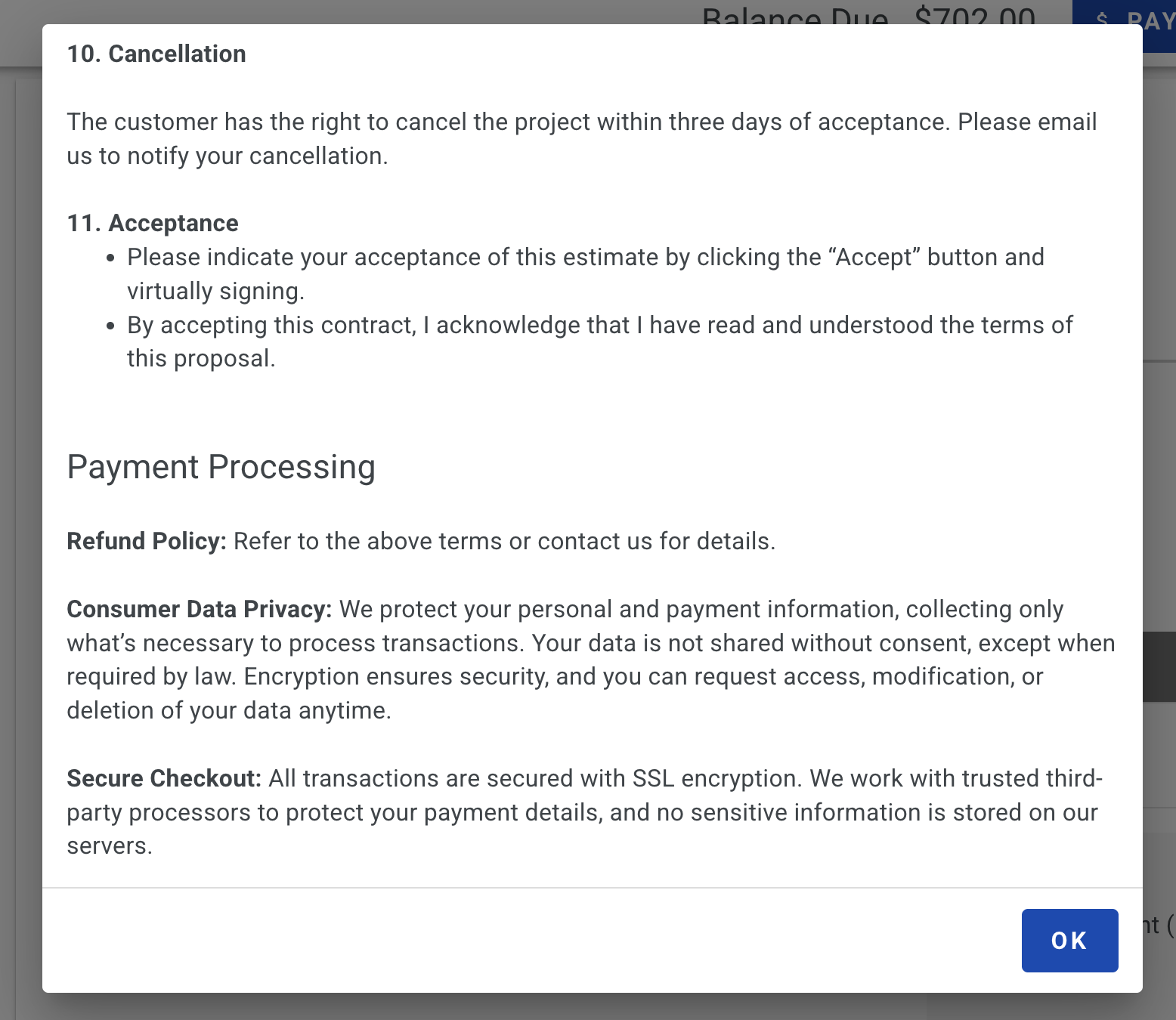
### Why is there extra information added to my terms and conditions when using PaintScout Payments?

In order to use PaintScout Payments, certain information regarding payment processing must be included in your terms and conditions for customers making payments.

A brief section about Payment Processing will be automatically added to the bottom of your terms. This section will only appear when the customer clicks the "Terms" button during the payment process and will not be visible in the terms section of your estimate or invoice at other times.

<figure><img src="/files/QZnzinWMOIwoMBaUpbWd" alt=""><figcaption></figcaption></figure>

### An error occurred on an invoice and now payments are temporarily disabled- How do I fix this?

Please reach out to <support@paintscout.com> for further assistance.

## Related articles

* [Payment Processing with Stripe](/support/invoicing-and-payments/payments/payment-processing-with-stripe.md) — Compare Stripe with PaintScout Payments
* [Adding Payment Methods](/support/invoicing-and-payments/payments/adding-payment-methods.md) — Choose which payment methods appear on invoices
* [Payment Requests Report](/support/dashboard-and-reports/reports/payment-requests-report.md) — Monitor open and paid payment requests
* [Payments Collected Report](/support/dashboard-and-reports/reports/payments-collected-report.md) — Review payments received across your account


---

# Agent Instructions
This documentation is published with GitBook. GitBook is the documentation platform designed so that both humans and AI agents can read, navigate, and reason over technical content effectively. Learn more at gitbook.com.

## Querying This Documentation
If you need additional information that is not directly available in this page, you can query the documentation dynamically by asking a question.

Perform an HTTP GET request on the current page URL with the `ask` query parameter:

```
GET https://help.paintscout.com/support/invoicing-and-payments/payments/paintscout-payments.md?ask=<question>
```

The question should be specific, self-contained, and written in natural language.
The response will contain a direct answer to the question and relevant excerpts and sources from the documentation.

Use this mechanism when the answer is not explicitly present in the current page, you need clarification or additional context, or you want to retrieve related documentation sections.
