> For the complete documentation index, see [llms.txt](https://help.paintscout.com/llms.txt). Markdown versions of documentation pages are available by appending `.md` to page URLs; this page is available as [Markdown](https://help.paintscout.com/support/invoicing-and-payments/payments/credit-card-surcharging.md).

# Credit Card Surcharging

Credit card surcharging lets you pass credit card processing fees to customers. When enabled, the surcharge is added automatically at payment.

## What is Surcharging?

Credit card surcharging adds the payment processing fee when a customer pays by credit card.

***

## Where is surcharging prohibited?

Surcharging is prohibited in some regions, including:

* **Connecticut, United States**
* **Massachusetts, United States**
* **California, United States**
* **Kansas, United States**
* **Puerto Rico**

Some regions also cap the maximum surcharge. For example, Colorado limits it to 2%.

{% hint style="warning" %}
Check your local rules before enabling surcharging. Some regions ban it. Others cap the fee.
{% endhint %}

***

## How to Enable a Surcharge

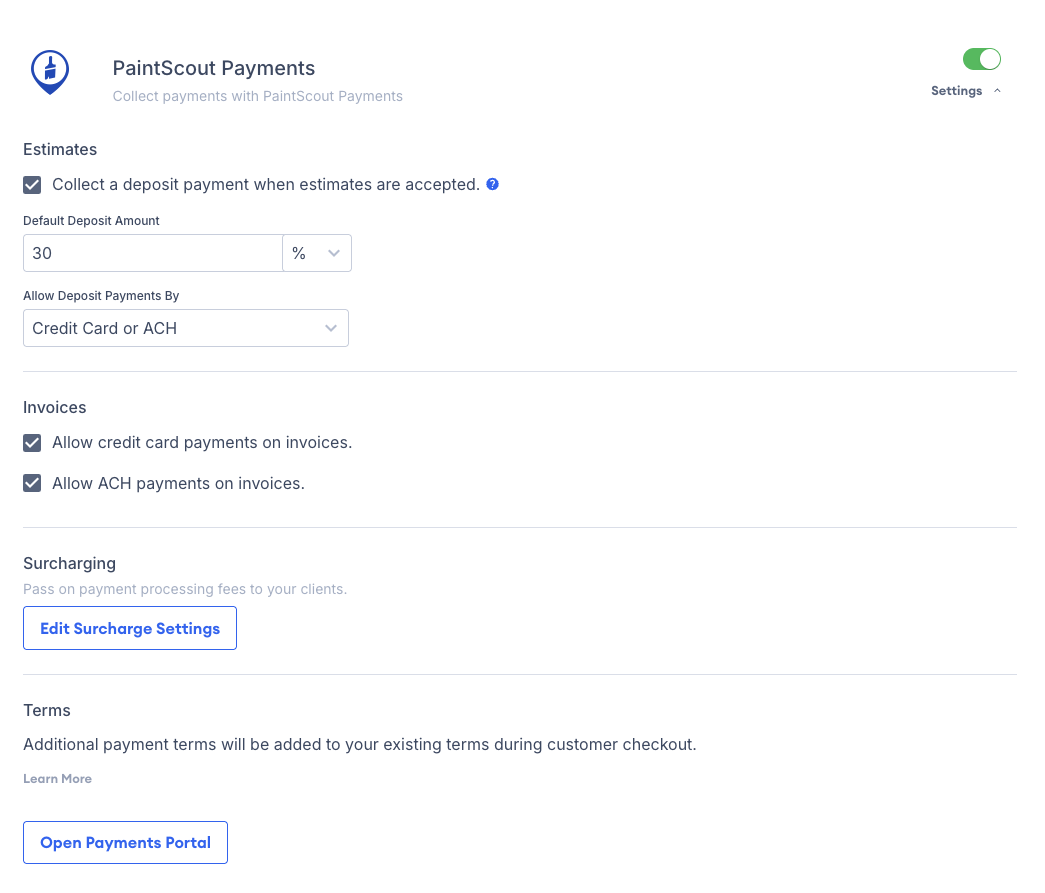
1. Go to **Account Settings** > **Integrations.**
2. Open your payment processor - **PaintScout Payments** or **Stripe**.
3. Open the menu and click **Edit Surcharge Settings**.

   <figure><img src="/files/h2MVbiYcjvRFYpimHTyW" alt="Screenshot showing the Stripe surcharging configuration in Account Settings Integrations"><figcaption></figcaption></figure>
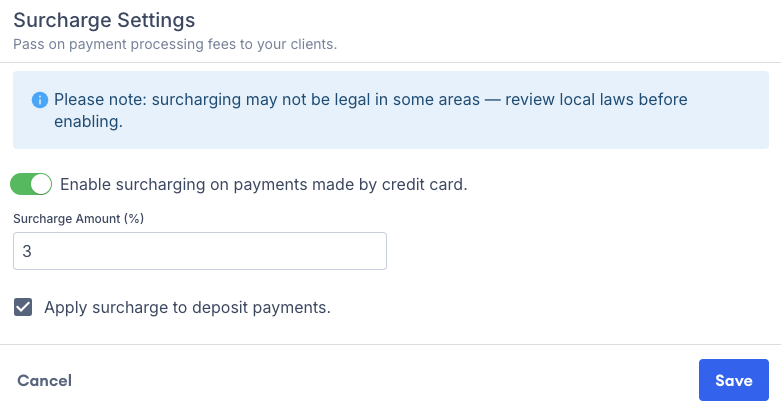
4. Select **Enable surcharging on payments made by credit card** to include surcharging on all payments — except deposit payments.
5. Select **Apply surcharge to deposit payments** if you want the surcharge to apply to deposits too.

<figure><img src="/files/aOQNIA7IGouWxA2k9imX" alt="" width="563"><figcaption></figcaption></figure>

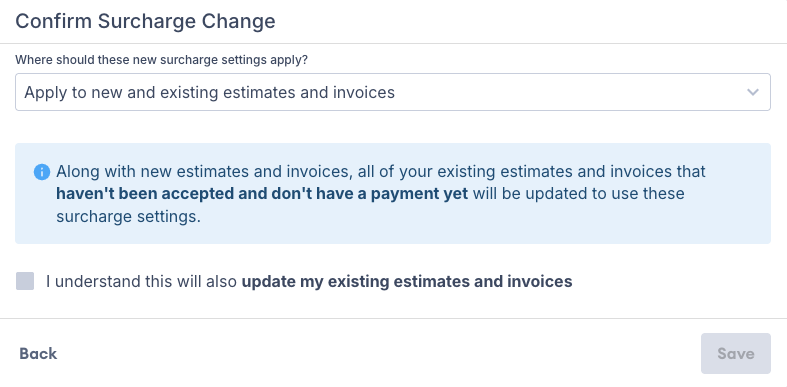
6. Choose where these settings apply:
   * **Apply to new and existing estimates and invoices** applies the surcharge to new documents and updates existing estimates and invoices that *haven't been accepted* and *don't have a payment yet*.
   * **Only apply to new estimates and invoices** applies the surcharge only to new estimates and invoices. Existing documents stay the same.

<figure><img src="/files/VS2afrJlRKcT74KfhGdR" alt="" width="563"><figcaption></figcaption></figure>

***

## How to Adjust or Remove a Surcharge

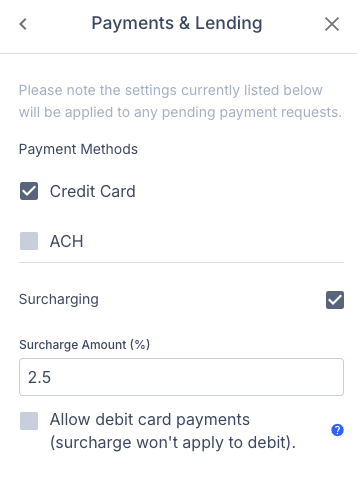
1. On an estimate or invoice, open the sidebar menu.
2. Select **Payments & Lending**.
3. Modify the surcharge percentage or uncheck the box to remove it entirely.

<figure><img src="/files/cYgDJ4RWScEtRQo4nPNA" alt="Screenshot showing the Payments and Lending section for adjusting or removing a surcharge on an estimate"><figcaption></figcaption></figure>

***

## How Surcharging Appears on Invoices

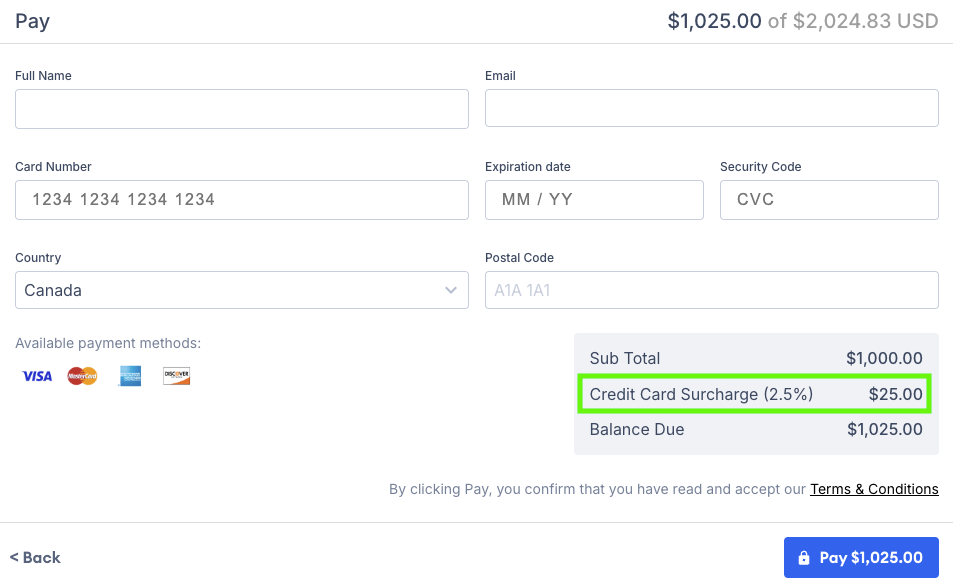
The surcharge is added to the total when a customer pays by credit card or when you send a payment request with credit cards enabled.

<figure><img src="/files/fMjGANSzf4bvARd0xWO2" alt="Screenshot showing the surcharge added to the invoice total during credit card payment processing"><figcaption></figcaption></figure>

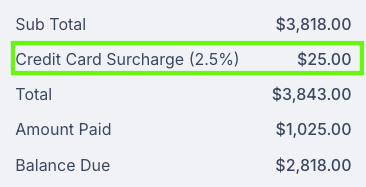
After the payment succeeds, the surcharge amount appears in the subtotal box.

<figure><img src="/files/lYIMR92rpmBjVJ0DfA8V" alt="Screenshot showing the surcharge amount included in the invoice subtotal after payment"><figcaption></figcaption></figure>

&#x20;&#x20;

## Related articles

<table data-card-size="large" data-view="cards"><thead><tr><th></th><th></th><th data-hidden data-card-target data-type="content-ref"></th></tr></thead><tbody><tr><td><strong>Payment Processing with Stripe</strong></td><td>Set up Stripe integration for credit card payments, deposits, and surcharging on estimates and invoices</td><td><a href="/pages/ZLe59xZCe0BnUc6RJ221">/pages/ZLe59xZCe0BnUc6RJ221</a></td></tr><tr><td><strong>How Customers Pay</strong></td><td>Understanding the customer payment experience from receiving invoice email to completing credit card payment</td><td><a href="/pages/QDWkcXek0HC1enwVM4WM">/pages/QDWkcXek0HC1enwVM4WM</a></td></tr></tbody></table>


---

# Agent Instructions
This documentation is published with GitBook. GitBook is the documentation platform designed so that both humans and AI agents can read, navigate, and reason over technical content effectively. Learn more at gitbook.com.

## Querying This Documentation
If you need additional information that is not directly available in this page, you can query the documentation dynamically by asking a question.

Perform an HTTP GET request on the current page URL with the `ask` query parameter, and the optional `goal` query parameter:

```
GET https://help.paintscout.com/support/invoicing-and-payments/payments/credit-card-surcharging.md?ask=<question>&goal=<endgoal>
```

`ask` is the immediate question: it should be specific, self-contained, and written in natural language.
`goal` is optional and describes the broader end goal you are ultimately trying to accomplish on behalf of the user. GitBook uses it to tailor the answer towards what is most useful for that goal.

The response will contain a direct answer to the question and relevant excerpts and sources from the documentation.

Use this mechanism when the answer is not explicitly present in the current page, you need clarification or additional context, or you want to retrieve related documentation sections.
