> For the complete documentation index, see [llms.txt](https://help.paintscout.com/llms.txt). Markdown versions of documentation pages are available by appending `.md` to page URLs; this page is available as [Markdown](https://help.paintscout.com/support/invoicing-and-payments/invoices/payments-table-overview.md).

# Payments Table Overview

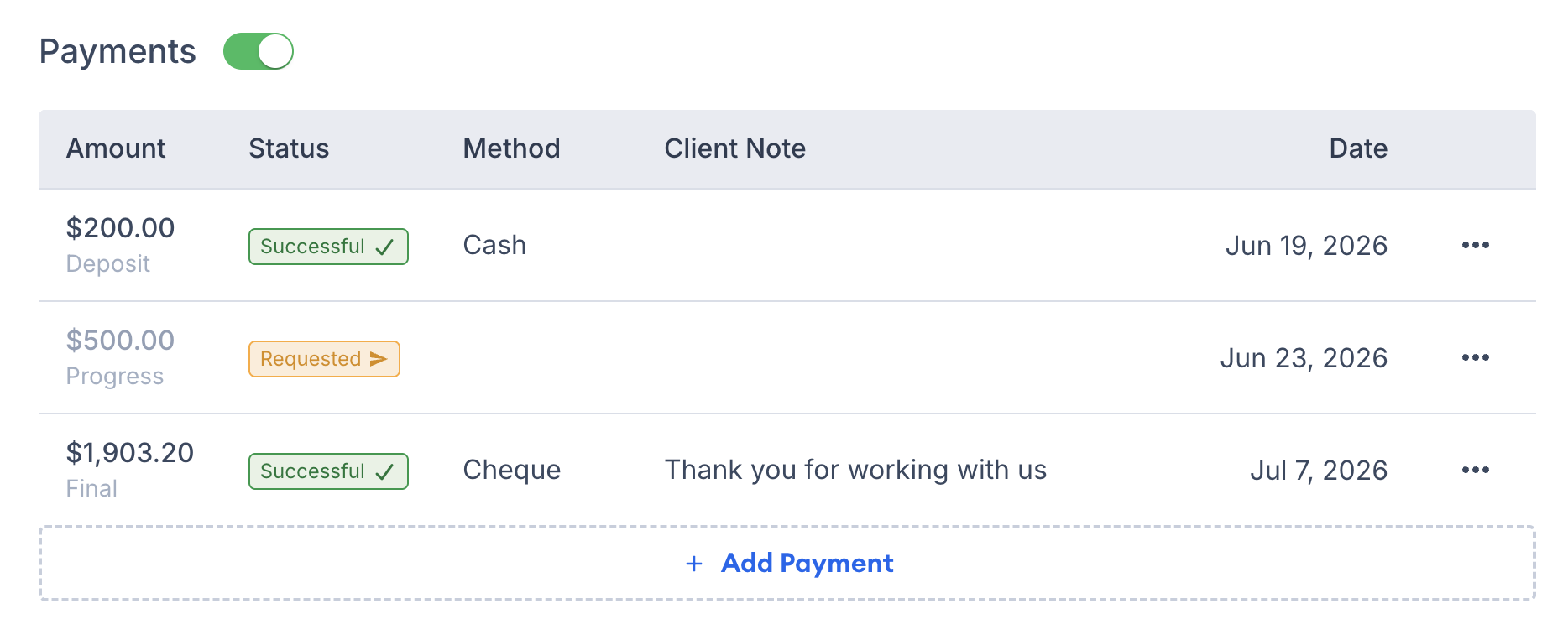
The Payments Table is a section on every PaintScout invoice where you manage payment requests, record manual payments, and process credit card charges. It is located between the Invoice and Options sections.

<figure><img src="/files/iOkGDhvyLNTLimVvt8Fd" alt="Screenshot showing the Payments Table located between the Invoice and Options sections on an invoice"><figcaption></figcaption></figure>

***

## Payment Requests

To initiate a Payment Request select the **+Add/Request Payment** section and select **Request Payment** from the pop-up.

<figure><img src="/files/a38thQOp9srNM0iUzDw8" alt="Screenshot showing the Add/Request Payment pop-up with the Request Payment option selected"><figcaption></figcaption></figure>

After your Payment Request has been sent it will show with a **Pending** status in the Payment Table.

<figure><img src="/files/FdsanmlrPhEpKjyzL4nr" alt="Screenshot showing a payment request with Pending status in the Payments Table"><figcaption></figcaption></figure>

* When your customer pays using their credit card through PaintScout Payments, the status of the Request will automatically update to **Paid** once the payment is received.

  <figure><img src="/files/fJ1zH8OV4i4FBrqxSxXJ" alt="Screenshot showing a payment request automatically updated to Paid status after credit card payment"><figcaption></figcaption></figure>
* If your customer is paying through another method, such as cash or check, you can manually mark the request as paid by selecting the three dots to the right of the request and choosing **mark as paid.**

  <figure><img src="/files/HuKXEla7ajaDpwsnWIkG" alt="Screenshot showing the three-dot menu with the Mark as Paid option for alternative payment methods"><figcaption></figcaption></figure>

***

## Record a Payment

To record a manual payment select the **+Add/Request Payment** section and select **Record Payment.**

<figure><img src="/files/kOswZ1SCFL7JjpSjziKI" alt="Screenshot showing the Add/Request Payment pop-up with the Record Payment option selected"><figcaption></figcaption></figure>

Enter the **payment method, the amount paid, and the payment date.** You may also leave a note regarding this payment, *such as a check number,* and mark this payment as a deposit if needed. When all details are entered select **Confirm.**

<figure><img src="/files/vFqwE85zjWfiFiQtzapW" alt="Screenshot showing the Record Payment form with fields for payment method, amount, date, and notes"><figcaption></figcaption></figure>

This will then show in the Payments Table with a status of **Paid.**

<figure><img src="/files/YGalhwISvGnJYsBES1T4" alt="Screenshot showing the manually recorded payment in the Payments Table with Paid status"><figcaption></figcaption></figure>

***

## Take Credit Card Payment

To manually take a credit card payment on-site with your customer, first, click on the **+Add Payment/Request** option, and select **Take Credit Card Payment.**

<figure><img src="/files/4VctVcUny5RNuZQOASQB" alt="Screenshot showing the Add/Request Payment pop-up with the Take Credit Card Payment option selected"><figcaption></figcaption></figure>

Enter the requested amount and directly input your customer's credit card details!

## Related articles

* [Create and Send an Invoice](/support/invoicing-and-payments/invoices/how-to-create-and-send-an-invoice.md) — Turn an accepted estimate into an invoice
* [Add Payments to Invoices](/support/invoicing-and-payments/recording-payments/adding-payments-to-invoices.md) — Record manual payments and credit card charges


---

# Agent Instructions
This documentation is published with GitBook. GitBook is the documentation platform designed so that both humans and AI agents can read, navigate, and reason over technical content effectively. Learn more at gitbook.com.

## Querying This Documentation
If you need additional information that is not directly available in this page, you can query the documentation dynamically by asking a question.

Perform an HTTP GET request on the current page URL with the `ask` query parameter:

```
GET https://help.paintscout.com/support/invoicing-and-payments/invoices/payments-table-overview.md?ask=<question>
```

The question should be specific, self-contained, and written in natural language.
The response will contain a direct answer to the question and relevant excerpts and sources from the documentation.

Use this mechanism when the answer is not explicitly present in the current page, you need clarification or additional context, or you want to retrieve related documentation sections.
