> For the complete documentation index, see [llms.txt](https://help.paintscout.com/llms.txt). Markdown versions of documentation pages are available by appending `.md` to page URLs; this page is available as [Markdown](https://help.paintscout.com/support/integrations/crm-and-automation/pipeline-crm-integration.md).

# Pipeline CRM

PaintScout's Pipeline CRM integration syncs your contacts, automatically updates deal stages based on estimate status, and attaches estimate PDFs to contact records.

## What is Pipeline CRM?

Pipeline CRM helps automate your sales process so you can spend more time closing deals. Grow your business with custom lead and deal tracking, make better decisions with customizable sales reporting and forecasting, and keep your best customers with flawless contact management and documentation.

[Learn more about Pipeline CRM >](https://www.pipelinecrm.com/)

## Why integrate Pipeline and PaintScout?

Linking your contact list in Pipeline CRM to PaintScout means you can streamline the estimate building process even further.

The integration also allows data transfer back to Pipeline CRM once the PaintScout estimate is sent or accepted. This ensures your leads stay current, and deal stages can be automatically updated.

## How do I integrate with Pipeline?

1. First, log into your Pipeline account.
2. Select your **Profile** in the top right corner of your Pipeline account and choose **Account Settings.**

   <figure><img src="/files/4jxHwrUt9m8bDWEiaQ8L" alt="Screenshot showing the Pipeline CRM profile menu with Account Settings option"><figcaption></figcaption></figure>
3. Choose **API Integrations** on the left-hand side and click on the **API Keys** tab. Ensure that you select **Enable API Access.**

   <figure><img src="/files/MglZZIgUK8Fet2mJloCj" alt="Screenshot showing the API Integrations section with the API Keys tab and Enable API Access option in Pipeline CRM"><figcaption></figcaption></figure>
4. Now, copy the API Key and paste it somewhere for safekeeping!

   <figure><img src="/files/gvuKmxw7qTRtYnEZKBtQ" alt="Screenshot showing the API Key displayed in Pipeline CRM settings ready to copy"><figcaption></figcaption></figure>
5. Back in PaintScout, go to your **Account Settings** > **Integrations** section.
6. Find the option for Pipeline CRM and toggle it on. Paste your Pipeline API key in the designated spot.

   <figure><img src="/files/3vxDh88dwJaTA3vgrgIn" alt="Screenshot showing the Pipeline CRM integration toggle and API key input field in PaintScout settings"><figcaption></figcaption></figure>

***

## Updating Deals

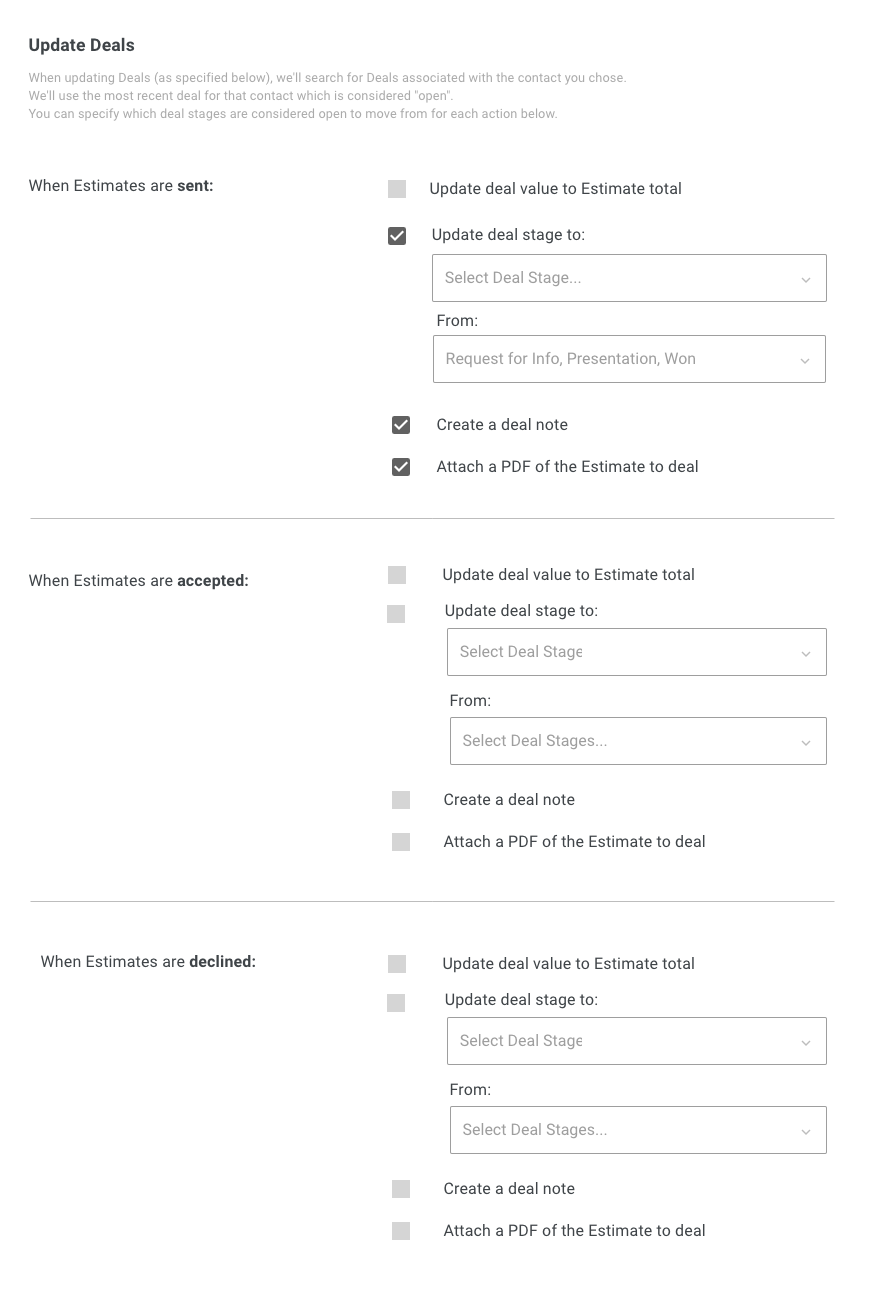
In the PaintScout Settings, you can set up the integration to automatically update deal stages in Pipeline CRM according to the status in PaintScout.

Customize your preferences using the checkboxes in the Update Deals section. The choices in the dropdowns will directly mirror your deal stages in Pipeline CRM.

**The most&#x20;*****recent*****&#x20;deal for the contact which is considered&#x20;*****open*****&#x20;will be updated.**

<figure><img src="/files/3ERDoaSK9SoK2E4OqLyQ" alt="Screenshot showing the Update Deals section with deal stage mapping dropdowns in PaintScout Pipeline integration settings"><figcaption></figcaption></figure>

***

## Searching for a Contact

When adding a new contact to an estimate select the **Pipeline CRM** tab to search your Pipeline contacts.

<figure><img src="/files/1H20q4Vdz3S8mzmxJjZs" alt="Screenshot showing the Pipeline CRM tab when searching for a contact on an estimate in PaintScout"><figcaption></figcaption></figure>

{% hint style="info" %}
By default, PaintScout will only show contacts associated with a **deal** in Pipeline. If this does not align with your workflow and you would like to expand the search to **all** contacts in Pipeline, please [reach out to our team!](mailto:support@paintscout.com)
{% endhint %}

***

## How does the integration work?

In addition to adding contacts to your estimates, this integration also allows you to send information back to Pipeline CRM:

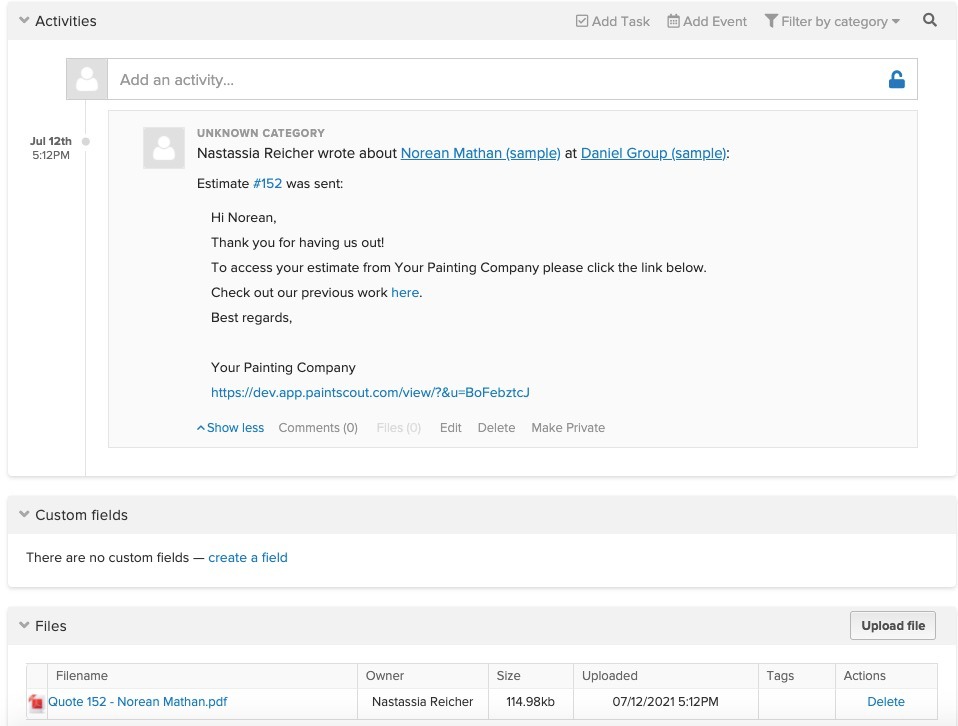
* When you send the estimate in PaintScout, it attaches a PDF of the estimate to the corresponding contact in Pipeline CRM.
* It also updates the activity section with the email you sent to the customer.

<figure><img src="/files/EppZIMVgdHpHB1Ajf7kX" alt="Screenshot showing the estimate PDF and activity log attached to a contact in Pipeline CRM"><figcaption></figcaption></figure>

## Related articles

* [Workglue](/support/integrations/crm-and-automation/workglue-integration.md) — Move estimates into projects for costing and scheduling
* [Integrating PaintScout with your CRM](/support/integrations/crm-and-automation/integrating-paintscout-with-your-crm.md) — Connect PaintScout to your CRM directly or through Zapier


---

# Agent Instructions
This documentation is published with GitBook. GitBook is the documentation platform designed so that both humans and AI agents can read, navigate, and reason over technical content effectively. Learn more at gitbook.com.

## Querying This Documentation
If you need additional information that is not directly available in this page, you can query the documentation dynamically by asking a question.

Perform an HTTP GET request on the current page URL with the `ask` query parameter:

```
GET https://help.paintscout.com/support/integrations/crm-and-automation/pipeline-crm-integration.md?ask=<question>
```

The question should be specific, self-contained, and written in natural language.
The response will contain a direct answer to the question and relevant excerpts and sources from the documentation.

Use this mechanism when the answer is not explicitly present in the current page, you need clarification or additional context, or you want to retrieve related documentation sections.
