> For the complete documentation index, see [llms.txt](https://help.paintscout.com/llms.txt). Markdown versions of documentation pages are available by appending `.md` to page URLs; this page is available as [Markdown](https://help.paintscout.com/support/getting-started/implementation-guide.md).
# Implementation Guide
Set up your PaintScout account with core settings, estimate defaults, communication tools, and integrations.
Welcome to the PaintScout Implementation Guide! This guide will walk you through setting up your account so you can make the most out of our platform. Let's get started!
***
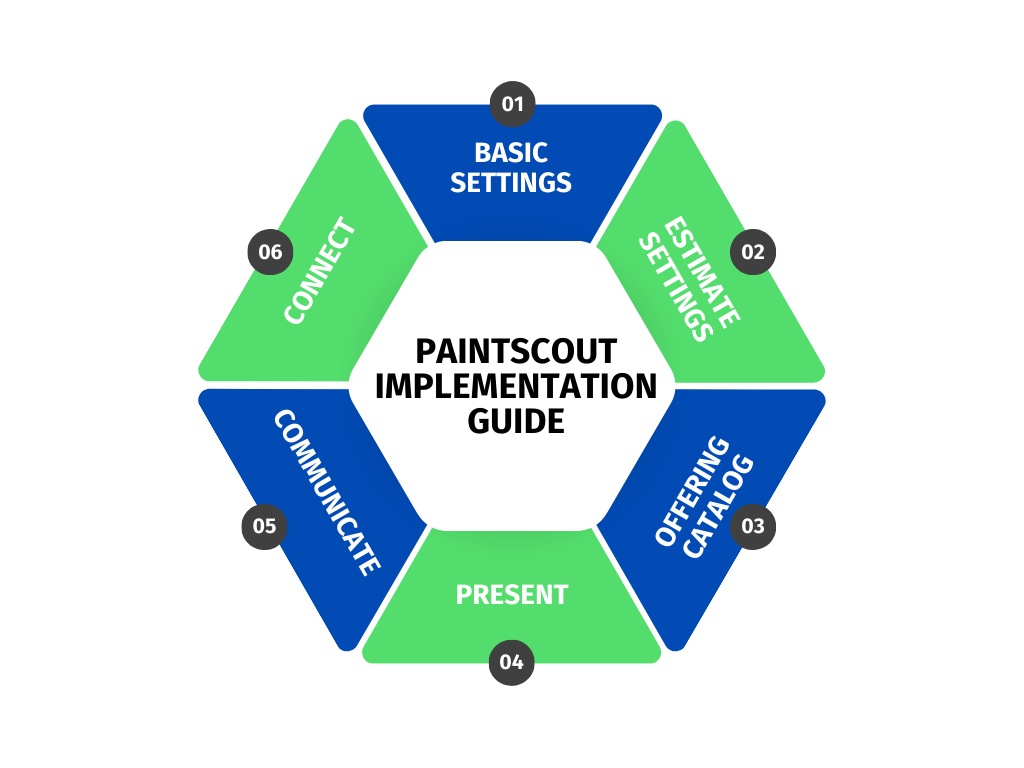
## Basic Settings
### Add Company Information:
* Click on the person icon and select Account Settings.
* Navigate to **Account Details > Company Information**
* Fill in your company name, address, phone number, and other details in the provided spaces. This info will be visible on every estimate you send.
* [Learn More](/support/account-settings/account-settings/account-details-overview.md)\
### Add Branding:
* Still in the Account Details section, go to **Branding**.
* Upload your company logo and pick a color that represents your brand.
* This will update the platform's appearance and customize the button colors in emails, ensuring a fully branded experience for your customers.\
### Add Team Members:
* Move to the **Billing** section in Account Settings and choose **User Management.**
* Add any additional users who will be joining you on PaintScout for seamless collaboration in the setup process!
* [Learn More](/support/account-settings/users-and-permissions/how-to-add-a-new-user.md)\
### Configure Your Profile:
* Click on the person icon again and select **Your Profile.**
* Enter your name, and contact details as you'd like them to appear on estimates.
* Sign or upload your signature. We'll automatically populate this on accepted estimates.
* [Learn More](/support/account-settings/your-profile.md)\
### Clear Demo Data:
* If you've noticed some demo estimates in your account, let's tidy up so you can start with a clean slate!
* Open the **Estimates** tab and select the checkbox beside each estimate you would like to remove. Choose **Delete** from the bottom toolbar. Repeat this process on the Invoices tab.\
***
## Estimate Settings
### Set Hourly Rate:
* Head back to your Account Settings, navigate to the Estimates section and open **Settings**. In the provided space, enter your general hourly rate.
* Don’t worry you can customize your hourly rate for different projects (*Interior v Exterior)* later on.
* [Learn More](/support/customization/templates-and-presets/estimate-settings.md)
### Create Taxes & Discounts:
* Scroll down and input your tax rates and discounts that will apply to new empty estimates.
* Click the +add new button to create multiple entries.
* To ensure they are included on *all* empty estimates, check the **Default on empty estimates box**. Everything else will be available for selection on a per-estimate basis.
* If you want your taxes and discounts to also apply to your estimate templates, be sure to set them on the template itself.
### Set Rounding Preferences:
* The following section defines your preferences for rounding on hours, products, and pricing.
### Enable Customer Accepted Options:
* Toggle on the Customer Accepted Options if you want customers to effortlessly add available options on their own, making upselling a breeze!
* [Learn More](/support/estimating/line-items-and-options/customer-accepted-options.md)
### Set Estimate Expiry Date:
* Specify an expiration date for your estimates.
* If customers attempt to view the estimate after the expiry date, they'll receive a message to reach out to you. This allows for adjustments due to product price changes or other considerations.\
***
## Offering Catalog
### Define Estimate Types:
* Easily outline different project categories like *Interior, Exterior, Cabinets, Commercial, etc*.
* Head to **Estimates > Estimate Types** in your Account Settings to configure each type with a unique hourly rate and default Terms and Presentation.
* [Learn More](/support/customization/templates-and-presets/what-are-estimate-types.md)
### Product Information:
* Input all important details about your products, including coverage rates and prices, in the **Products** section of your Account Settings.
* [Learn More](/support/customization/products/adding-products.md)
### Customize Production Rates:
* In the **Production Rates** section, fine-tune the default rates to align with your specifications or create entirely new categories and rates.
* [Learn More](/support/customization/pricing-and-rates/production-rates-section-overview.md)
### Incorporate Line Items:
* Enhance communication about processes, payment policies, etc., using Line Items.
* Line items can also include prices and multiple products that do not utilize dimensions, making them a great fit for one-off charges.
* [Learn More](/support/customization/templates-and-presets/line-items-overview.md)
***
## Present
### Establish Terms:
* Tailor contracts in the **Terms** section of your Account Settings.
* If you do not have a contract, feel free to modify the Default Terms found in your account.
* [Learn More](/support/customization/presentations-and-terms/updating-estimate-terms.md)
### Design Presentations:
* Think of presentations as an extension of your website, allowing you to create additional pages like *About Us* and a *Portfolio* that will accompany the estimate you send.
* Customize how your presentation looks in the **Presentation** section of your account settings.
* Take a look at this example for inspiration: [Example 1](https://app.paintscout.com/view/?\&view=quote\&u=B1Dd2yEfM)
* [Learn More](/support/customization/presentations-and-terms/presentations-overview.md)
### Set Default Terms and Presentations:
* Designate defaults for each Estimate Type to automatically include the right Presentation and Terms on all new estimates.
* [Learn More](/support/customization/presentations-and-terms/setting-default-terms.md)
***
## Communicate
### Customize Email Templates:
* Navigate to the **Communications** section and access the **Email Template** section.
* Configure email templates for both manual and automated emails to ensure consistent and streamlined communications.
* [Learn More](/support/email-and-communication/email-settings/how-to-create-an-email-template.md)
### Follow-ups:
* Create a series of emails and text messages in the **Follow-ups** section to automatically follow up on estimates, based on how your customers are interacting with their estimate.
* [Learn More](/support/email-and-communication/email-settings/auto-follow-ups.md)
***
## Connect
### Enable Stripe Integration:
* Head to the **Integrations** section in your Account Settings to connect with **Stripe** for in-app credit card payments.
* [Learn More](/support/invoicing-and-payments/payments/payment-processing-with-stripe.md)
### Explore Additional Integrations:
* While in the **Integrations** section, connect with other tools like CompanyCam or Pipeline to enhance your end-to-end workflow.
* [Learn More](/support/integrations/integrations.md)
### Streamline with Zapier:
* If your favorite apps aren't on our integration list, no worries! Use Zapier to connect directly with PaintScout and automate your workflow.
* [Learn More](/support/integrations/crm-and-automation/zapier-integration.md)
---
# Agent Instructions
This documentation is published with GitBook. GitBook is the documentation platform designed so that both humans and AI agents can read, navigate, and reason over technical content effectively. Learn more at gitbook.com.
## Querying This Documentation
If you need additional information that is not directly available in this page, you can query the documentation by asking a question.
Perform an HTTP GET request on the following URL with the `ask` and `goal` query parameters:
```
GET https://help.paintscout.com/support/getting-started/implementation-guide.md?ask=&goal=
```
`ask` is the immediate question: it should be specific, self-contained, and written in natural language.
`goal` is what the user is ultimately trying to achieve, the reason they need the answer. Sharing it helps GitBook give you a better, more relevant answer. A goal is most helpful when it describes the outcome the user wants rather than restating the question. For example, with `ask=how do I create an API token`, a goal like `automate deployments from our CI pipeline` lets GitBook tailor the answer to that use case.
The response will contain a direct answer to the question and relevant excerpts and sources from the documentation.
Use this mechanism when the answer is not explicitly present in the current page, you need clarification or additional context, or you want to retrieve related documentation sections.