
> For the complete documentation index, see [llms.txt](https://help.paintscout.com/llms.txt). Markdown versions of documentation pages are available by appending `.md` to page URLs; this page is available as [Markdown](https://help.paintscout.com/support/estimating/organizing-estimates/grouping-items.md).

# Grouping Items

Grouping in PaintScout lets you combine related areas, surfaces, or line items into a single named group on your estimate. This makes estimates cleaner and easier for customers to read.

## What is grouping?

The grouping function brings together a set of surfaces or areas to organize your estimate. Common examples:

* Arrange your estimate by floors: Main Floor, Upstairs, Basement, and more.
* Break down each side of a house: Front, Left, Right, Back, and then group them to display as the Whole House.
* Group by surface type: Group up all the trim components together (baseboards, windows, door frames)

***

## How do you make groups?

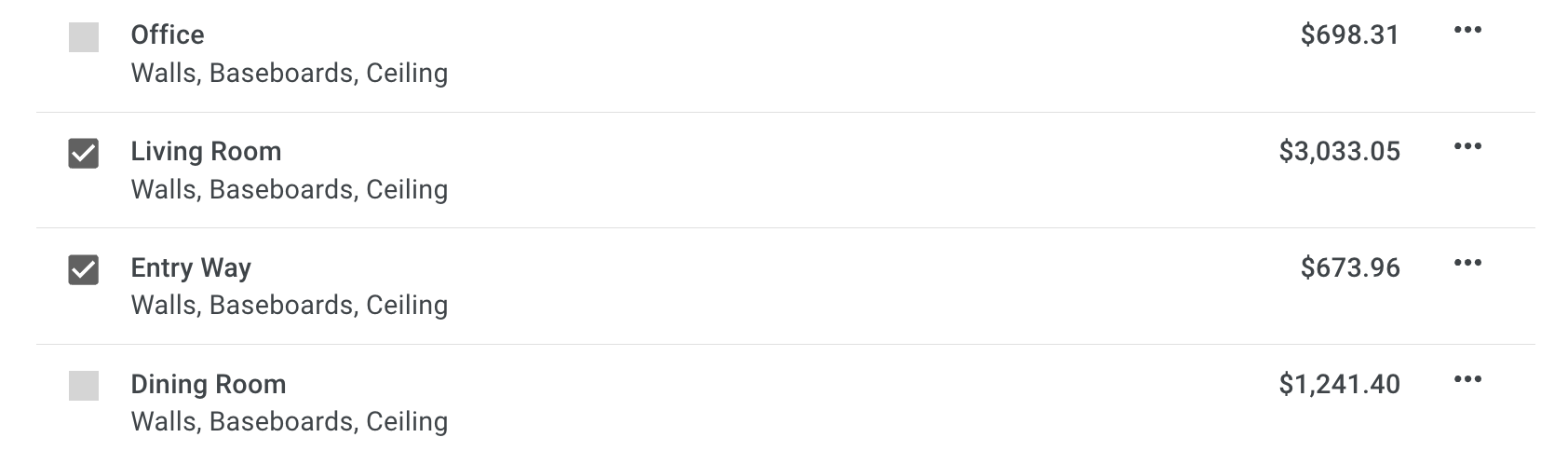
1\. Start by selecting the areas, surfaces, or line items you want to group by clicking the checkboxes to the left.

<figure><img src="/files/9b6TX5AUtslpquDqM3jl" alt="Screenshot showing items selected with checkboxes for grouping on the estimate"><figcaption></figcaption></figure>

2\. Once you have chosen all the items you want to group, select the **Group** option from the toolbar at the bottom of your screen.

<figure><img src="/files/OewQQ8uVci0TSGoalDSG" alt="Screenshot showing the Group option in the bottom toolbar after selecting items"><figcaption></figcaption></figure>

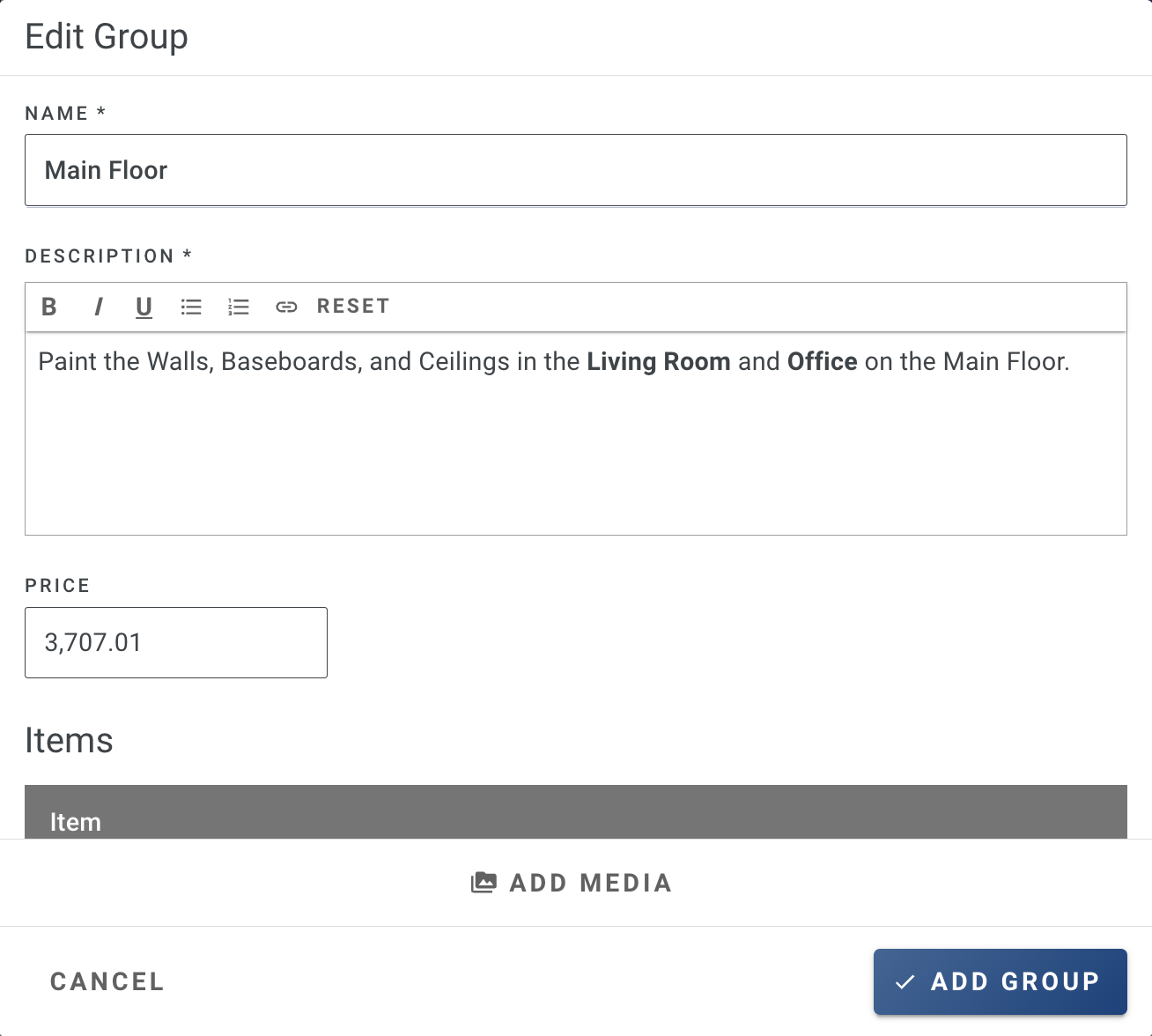
3\. A pop-up will appear, where you can then edit your group. You can add a name, adjust the price, and customize the description.

<figure><img src="/files/V1OeXngrKRBEc0n0ov6k" alt="Screenshot showing the group editing popup with name, price, and description fields"><figcaption></figcaption></figure>

4\. Scroll down on the window, and you'll find options to add photos to the group or edit individual areas/items by clicking the three dots.

<figure><img src="/files/CuaUhcPVmJW6AU6aROEn" alt="Screenshot showing group options for adding photos and editing individual areas or items"><figcaption></figcaption></figure>

5\. Finally, save your group and this is how it will appear:

<figure><img src="/files/Y0fHD6VphbAUZG2usjF0" alt="Screenshot showing the saved group as it appears on the estimate"><figcaption></figcaption></figure>

***

## How do you edit a group?

1\. Click directly on the group **or** press the three dots on the right side to edit and make changes to the group.

<figure><img src="/files/H20zUMUdUSsmY5aisD2g" alt="Screenshot showing the group with the three dots menu for editing options"><figcaption></figcaption></figure>

2\. You can then click the three dots to the right of the included area you would like to edit.

***

## How do you add more items to a group?

1\. If you've got an existing group, check the box to the left, and also select any additional areas or surfaces you want to include in the group.

2\. After that, hit the **Add to Group** option from the toolbar at the bottom.

<figure><img src="/files/IQJlsbt2dAEsJblJ32BT" alt="Screenshot showing the Add to Group option in the toolbar for adding items to an existing group"><figcaption></figcaption></figure>

**Please note that once you have grouped items, you can only add similar items to the group.**

* Areas can be grouped with other areas.
* Surfaces can be grouped with other surfaces.

For example, if you group 2 areas (rooms) together and then switch to surface view, you cannot add surfaces to that group, only other areas!

***

## How do you ungroup items?

You can ungroup items in three ways:

* Use the checkbox to highlight the group, then press **Ungroup**.

  <figure><img src="/files/Fz65kd6WcipjFhEqPWJH" alt="Screenshot showing the Ungroup option in the toolbar after selecting a group with the checkbox"><figcaption></figcaption></figure>
* Click on the group, as though you are going to edit it, and then press **Ungroup Items.**

  <figure><img src="/files/82l4lCQg3RNh2Bg9PklF" alt="Screenshot showing the Ungroup Items button inside the group editor"><figcaption></figcaption></figure>
* Click the three dots on the far right side of the group, then select **Ungroup.**

  <figure><img src="/files/552YM2NR3e8OYidWGYDw" alt="Screenshot showing the Ungroup option in the three dots menu on the group"><figcaption></figcaption></figure>

## Related articles

* [Hidden Items](/support/estimating/organizing-estimates/hidden-items.md) — Keep internal items off the customer estimate.
* [Using the Copy Feature](/support/estimating/organizing-estimates/how-to-use-the-copy-feature.md) — Duplicate areas and items without rebuilding them.


---

# Agent Instructions
This documentation is published with GitBook. GitBook is the documentation platform designed so that both humans and AI agents can read, navigate, and reason over technical content effectively. Learn more at gitbook.com.

## Querying This Documentation
If you need additional information that is not directly available in this page, you can query the documentation dynamically by asking a question.

Perform an HTTP GET request on the current page URL with the `ask` query parameter:

```
GET https://help.paintscout.com/support/estimating/organizing-estimates/grouping-items.md?ask=<question>
```

The question should be specific, self-contained, and written in natural language.
The response will contain a direct answer to the question and relevant excerpts and sources from the documentation.

Use this mechanism when the answer is not explicitly present in the current page, you need clarification or additional context, or you want to retrieve related documentation sections.
