> For the complete documentation index, see [llms.txt](https://help.paintscout.com/llms.txt). Markdown versions of documentation pages are available by appending `.md` to page URLs; this page is available as [Markdown](https://help.paintscout.com/support/estimating/notes-and-communication/notes-in-paintscout.md).

# Notes Overview

PaintScout has five types of notes, each visible to different audiences: client notes, crew notes, estimator notes, contact notes, and status change notes. Choose the right type based on who needs to see the information.

## Client Notes

### Estimate Notes

You can leave a note that will appear on the estimate underneath the totals box. Open the sidebar menu on your right and select **Advanced,** then leave your note under the **Client Note** section.

<figure><img src="/files/dp1TLOPDDtJMUF0InMkO" alt="Screenshot showing the Client Note section under Advanced in the sidebar menu"><figcaption></figcaption></figure>

### Area Notes

If you want to add a note to your customer about a specific area, open the area > click the **edit** at the top > **Notes** button > **Client Note**.

<figure><img src="/files/29OXcKadIiLmBwHHoh8v" alt="Animated walkthrough showing how to add a client note to a specific area via the Edit and Notes buttons"><figcaption></figcaption></figure>

***

## Crew Notes

👀 **Crew notes are only visible to your team and will not be seen by your customers.**

### General Notes

You can add crew-related information or any important details for your production team in the **Crew Note** section on work orders.

To update the general crew note, navigate to the work order and select the **Edit Crew Note** button or the pencil icon.

<figure><img src="/files/sgWbwthny0nmj20Ydk5u" alt="Screenshot showing the general Crew Note section on the work order with the Edit Crew Note button"><figcaption></figcaption></figure>

### Surface Notes

You can leave crew notes on individual surfaces by clicking on an area, selecting the surface, and scrolling to the **Crew Note** section (or click the notes button at the bottom).

<figure><img src="/files/0PpfzB6ZOQ3iPSlmQQrp" alt="Screenshot showing the Crew Note input field on an individual surface within an area"><figcaption></figcaption></figure>

The note will appear on the work order under the surface.

<figure><img src="/files/ntUmcBBNz8XWoCNYRIVs" alt="Screenshot showing a surface crew note displayed on the work order under the surface"><figcaption></figcaption></figure>

### Area Notes

You can add a crew note to an entire area by clicking the area > **Edit** at the top > **Notes** button > fill in your information in the **Crew Note** box.

<figure><img src="/files/NFL0IeHRa36WpLoDSV8c" alt="Animated walkthrough showing how to add a crew note to an area via Edit, Notes, and the Crew Note box"><figcaption></figcaption></figure>

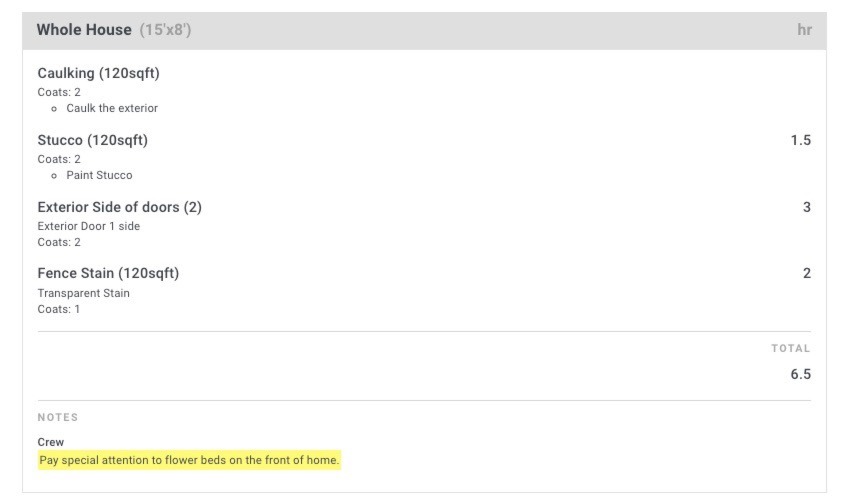
The note will appear on the work order under the area.

<figure><img src="/files/DE8xb9B7I46pfDStZaRz" alt="Screenshot showing a highlighted area crew note displayed on the work order"><figcaption></figcaption></figure>

{% hint style="info" %}
If you would like your Crew Notes to be highlighted as seen above, [reach out to our support team](mailto:support@paintscout.com) to have the feature activated!
{% endhint %}

***

## Estimator Notes

During your initial walk-through, you can use the Estimator Notes section as your virtual scratch pad to jot down important details. These notes remain completely internal and are only visible to other PaintScout users. They will not be shown on the work order or estimate.

To add Estimator notes, click the **Notes** tab within your estimate.

<figure><img src="/files/LXiLBuewmSrErJE9sijG" alt="Screenshot showing the Estimator Notes tab used as an internal scratch pad"><figcaption></figcaption></figure>

***

## Contact Notes

You can use the Notes section on contact profiles to leave important information about your customers. These contact notes are strictly internal and will not be visible on the work order or estimate. However, they will show up on the exported report of your contact list.

To add a contact note, simply edit the contact directly on the estimate or go to their profile under the People tab and use the provided Notes section.

<figure><img src="/files/wcqBnnwVphZcmSp8sAAu" alt="Screenshot showing the Notes section on a contact profile for internal customer notes"><figcaption></figcaption></figure>

***

## Status Change Notes

Sometimes, you may need to indicate the reasons behind a customer's decision, such as a declined estimate or putting it on hold. In such cases, you can leave a note by clicking the **Status** in the estimate and typing your message in the **Status Change Reason Box**.

These notes won't be displayed on the estimate or work order but will appear as an internal banner along the top of the estimate, visible to other PaintScout users.

<figure><img src="/files/hC80tHzFqdehGxKLuwUW" alt="Screenshot showing the Status Change Reason box for adding internal notes when changing estimate status"><figcaption></figcaption></figure>

## Related articles

* [Estimator Notes](/support/estimating/notes-and-communication/estimator-notes.md) — Keep private job notes for your internal team.
* [Crew Notes](/support/estimating/notes-and-communication/adding-crew-notes.md) — Add instructions that appear only on work orders.


---

# Agent Instructions
This documentation is published with GitBook. GitBook is the documentation platform designed so that both humans and AI agents can read, navigate, and reason over technical content effectively. Learn more at gitbook.com.

## Querying This Documentation
If you need additional information that is not directly available in this page, you can query the documentation dynamically by asking a question.

Perform an HTTP GET request on the current page URL with the `ask` query parameter:

```
GET https://help.paintscout.com/support/estimating/notes-and-communication/notes-in-paintscout.md?ask=<question>
```

The question should be specific, self-contained, and written in natural language.
The response will contain a direct answer to the question and relevant excerpts and sources from the documentation.

Use this mechanism when the answer is not explicitly present in the current page, you need clarification or additional context, or you want to retrieve related documentation sections.
