Working With Work Orders
Create and manage work orders with hour breakdowns, crew notes, hours display options, downloading, and sharing with your team.
Last updated
Was this helpful?
Create and manage work orders with hour breakdowns, crew notes, hours display options, downloading, and sharing with your team.
A work order in PaintScout is a crew-facing document that shows the breakdown of painting hours, surfaces, products, and crew notes for a project — without exposing customer pricing.
A work order provides all project execution details including painting hours per surface and related notes. It is generated automatically as you build your estimate.
Click the Work Order tab at the top of your estimate. The work order generates automatically as you build the estimate.

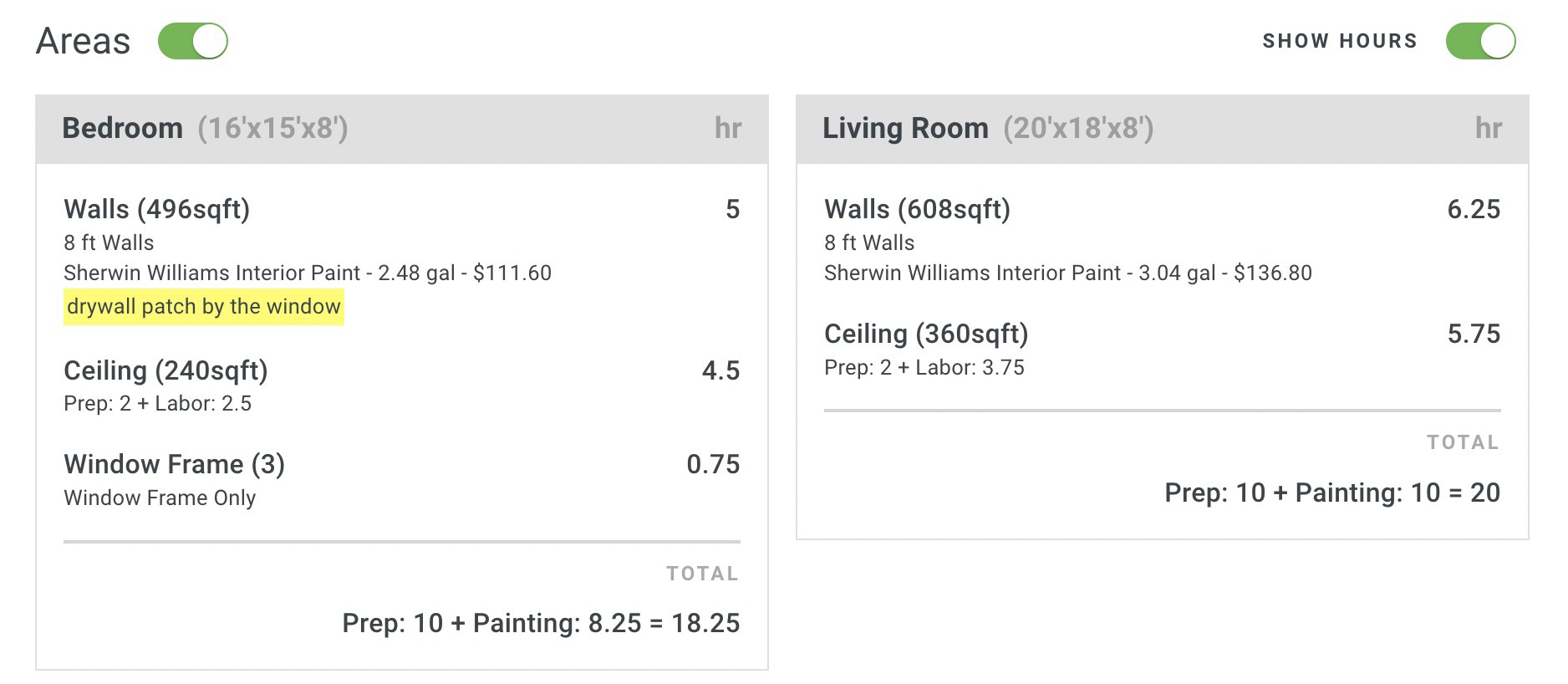
There will be a breakdown of the total number of hours it will take to complete each area of the project, along with the individual surfaces.

Edit the total number of hours by clicking “Total Hours” and updating the value.
You can also select from three different options when it comes to showing or hiding your work order hours across both Area and Surface views:
Show all hours: Displays both the hours for each individual item and the total hours on the work order.
Hide item hours: Hides the hours associated with each item while still showing total project hours.
Hide all hours: Hides all hour details on the work order, including both item-level and total hours.
Example of "Hide item hours":
Example of "Hide all hours":
Crew notes communicate information to your production team. They do not appear on the customer-facing estimate. Add notes in three places:
1. At the top of the Work Order: Click the Edit Crew Note button and add in your note.

2. On specific areas (like rooms or spaces): Click on the area and select the add notes button along the bottom. Type your note in the Crew Note box.

3. On individual surfaces: Click on a surface, scroll down to the crew note box, and add your note there. This can be done from the estimate or work order!

Click the drop-down arrow beside the send button and choose Download Work Order to save it as a PDF.

Share work orders using any of these three methods:
1. By Email or Text: Click the Send button and then email or text the work order.
2. Share the work order link with your team. Click the drop-down arrow beside the send button and choose Copy Work Order Link, then provide that URL to your team.

3. Click the drop-down arrow beside the send button and choose 'Download Work Order' - this will download as a PDF that you can then share with your team.
If you would like any of the following options enabled, please contact our support team.
Your crew notes to be highlighted in yellow
Your work to show in a single column as opposed to the default 2-column layout.
Last updated
Was this helpful?
Was this helpful?