> For the complete documentation index, see [llms.txt](https://help.paintscout.com/llms.txt). Markdown versions of documentation pages are available by appending `.md` to page URLs; this page is available as [Markdown](https://help.paintscout.com/support/estimating/line-items-and-options/additional-work-change-orders.md).

# Additional Work/Change Orders

PaintScout's Additional Work feature lets you add change orders to accepted estimates or invoices when customers request extra work after a project starts.

## How does additional work function?

Once an estimate is accepted, you add change orders to the **Additional Work** section. These changes require approval from the customer, office, estimator, or whoever is responsible before they affect the total.

You can add additional work to both estimates and invoices. If you invoice out of PaintScout, add additional work only to the invoice.

## How do you add additional work to an estimate or invoice?

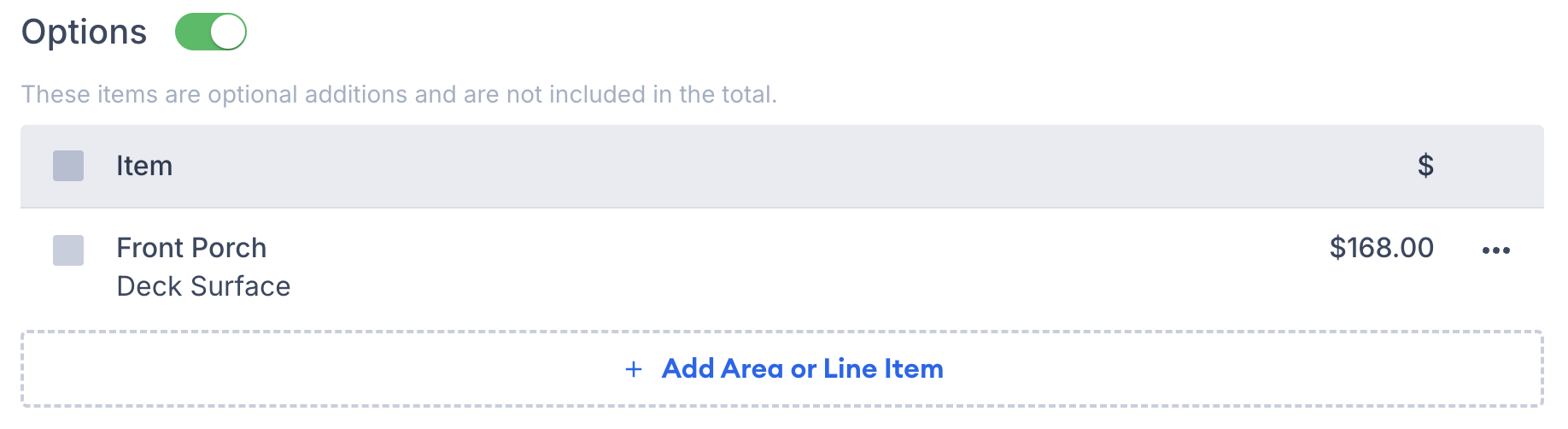
1\. Create an Area or Line Item as an option.

<figure><img src="/files/RKMgS91U7DFB40zrPMJp" alt="Screenshot showing creating an area or line item as an option on the estimate"><figcaption></figcaption></figure>

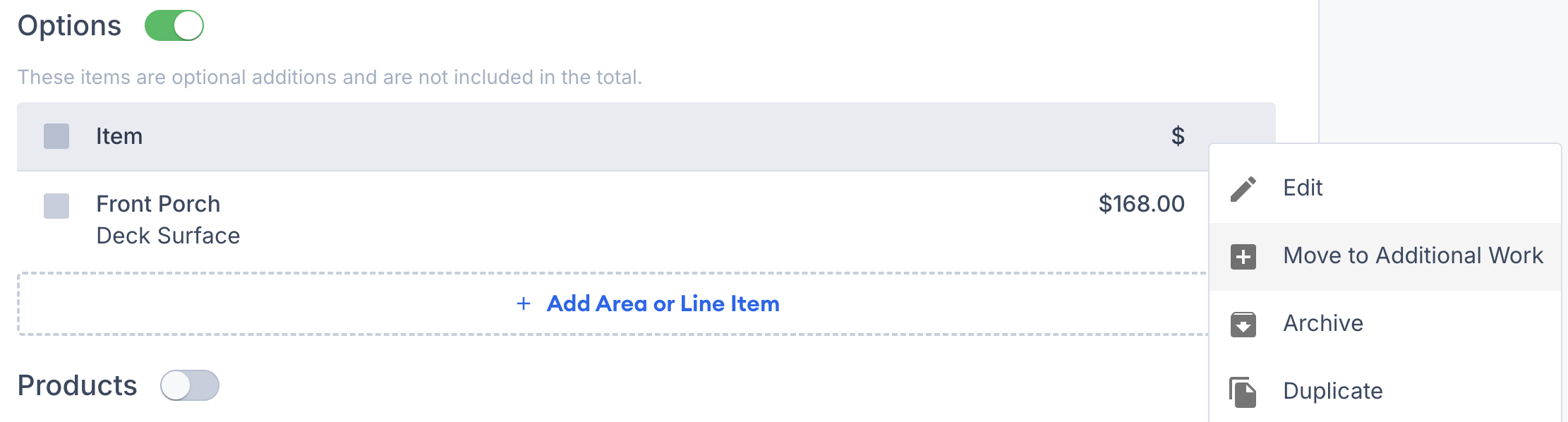
2\. Select the item and choose **Move to Additional Work** from the toolbar that has appeared along the bottom of the screen.

<figure><img src="/files/SOdHtH8OcC0WfvNvHy5E" alt="Screenshot showing the Move to Additional Work option in the bottom toolbar"><figcaption></figcaption></figure>

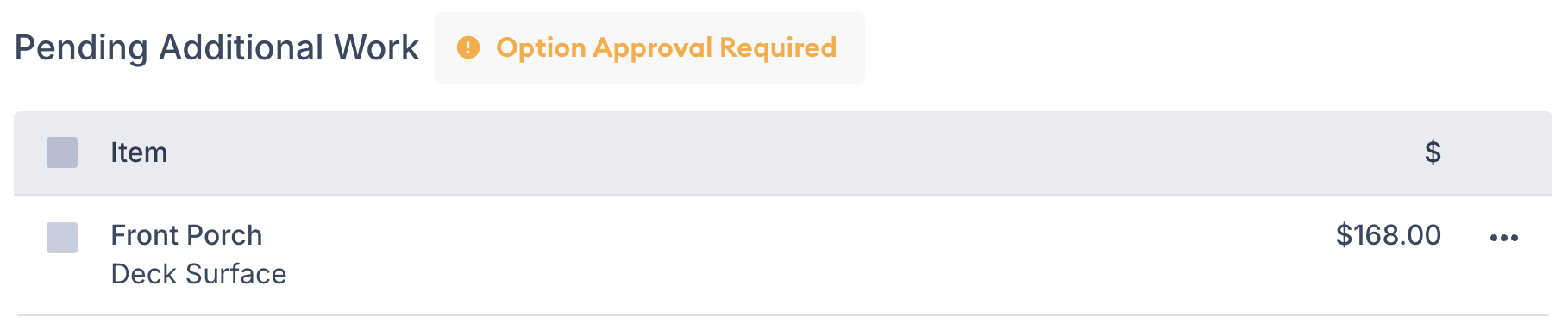
3\. The additional work will now appear in a **Pending Additional Work** section separate from the rest of the items on the estimate/invoice. The additional work will not be officially added to the estimate/invoice until it has been approved.

<figure><img src="/files/BwvrTeLKbXJweeowBjZE" alt="Screenshot showing the Pending Additional Work section on the estimate"><figcaption></figcaption></figure>

4\. You can accept the additional items in two ways:

* Click the orange **Option Approval Required** button to sign and approve the item(s). This is great for on-site approval.

  <figure><img src="/files/b4PcO0vEeSn12ZaEeZc6" alt="Screenshot showing the orange Option Approval Required button for on-site approval"><figcaption></figcaption></figure>
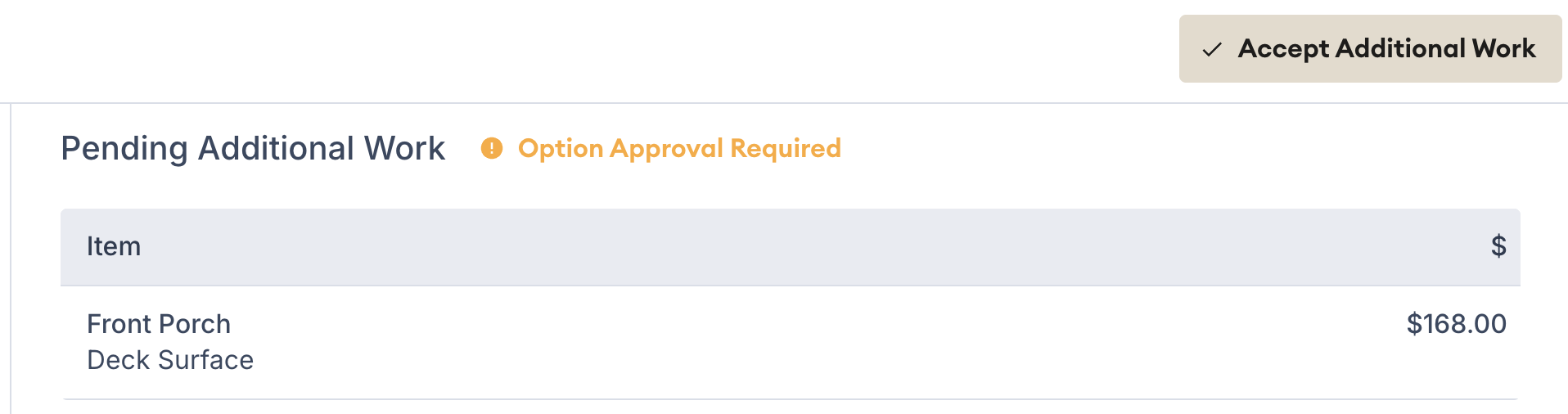
* Alternatively, you can send the estimate to the customer. They will now see a new button along the top to **Accept Additional Items.**

  <figure><img src="/files/15JQzXFv82xvYTq1Ewdy" alt="Screenshot showing the Accept Additional Items button on the customer-facing estimate"><figcaption></figcaption></figure>

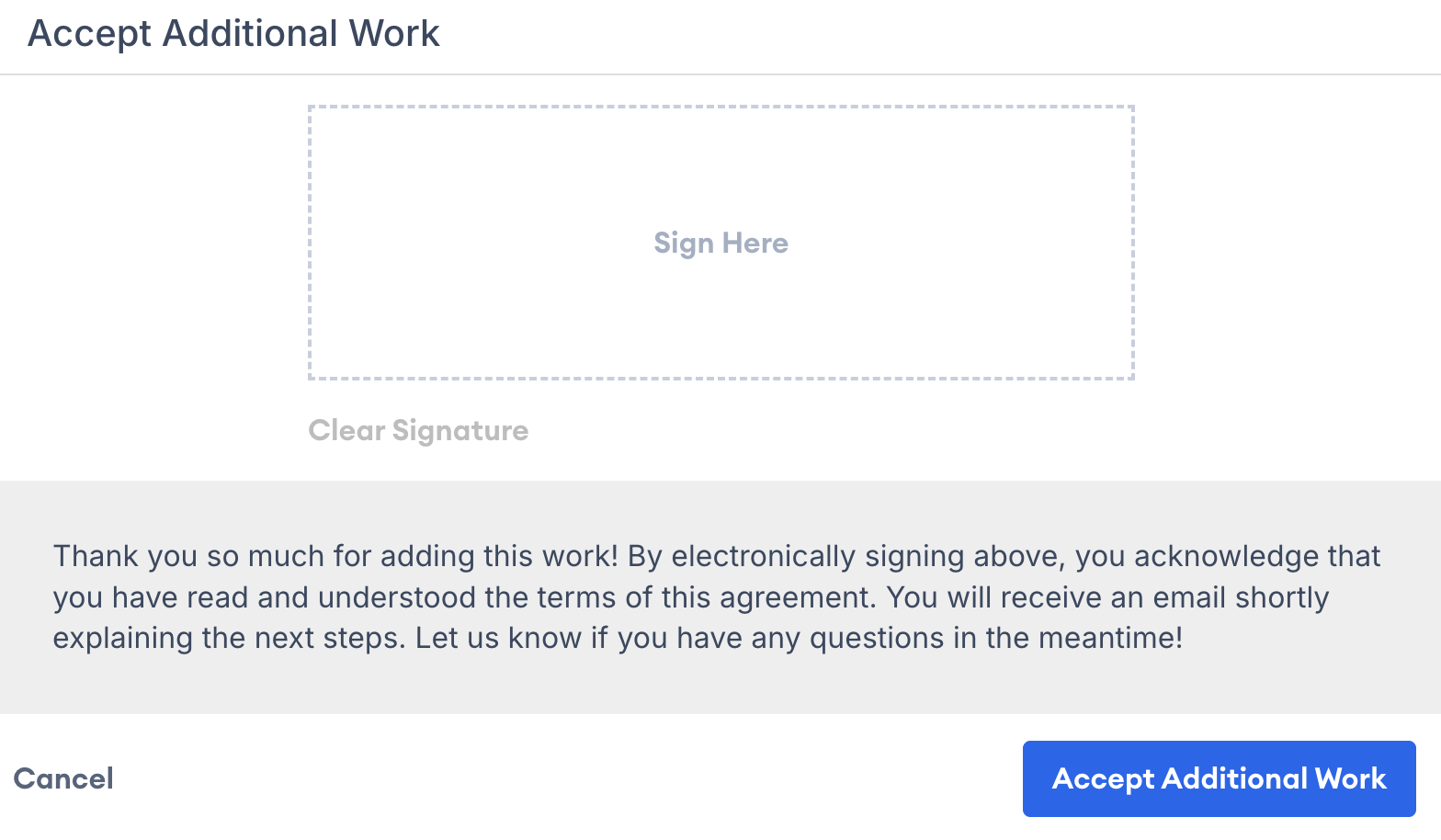
5\. A window will appear where the customer can virtually sign and accept the additional work.

<figure><img src="/files/L0yit60mSVq94gQASErL" alt="Screenshot showing the virtual signature window for accepting additional work"><figcaption></figcaption></figure>

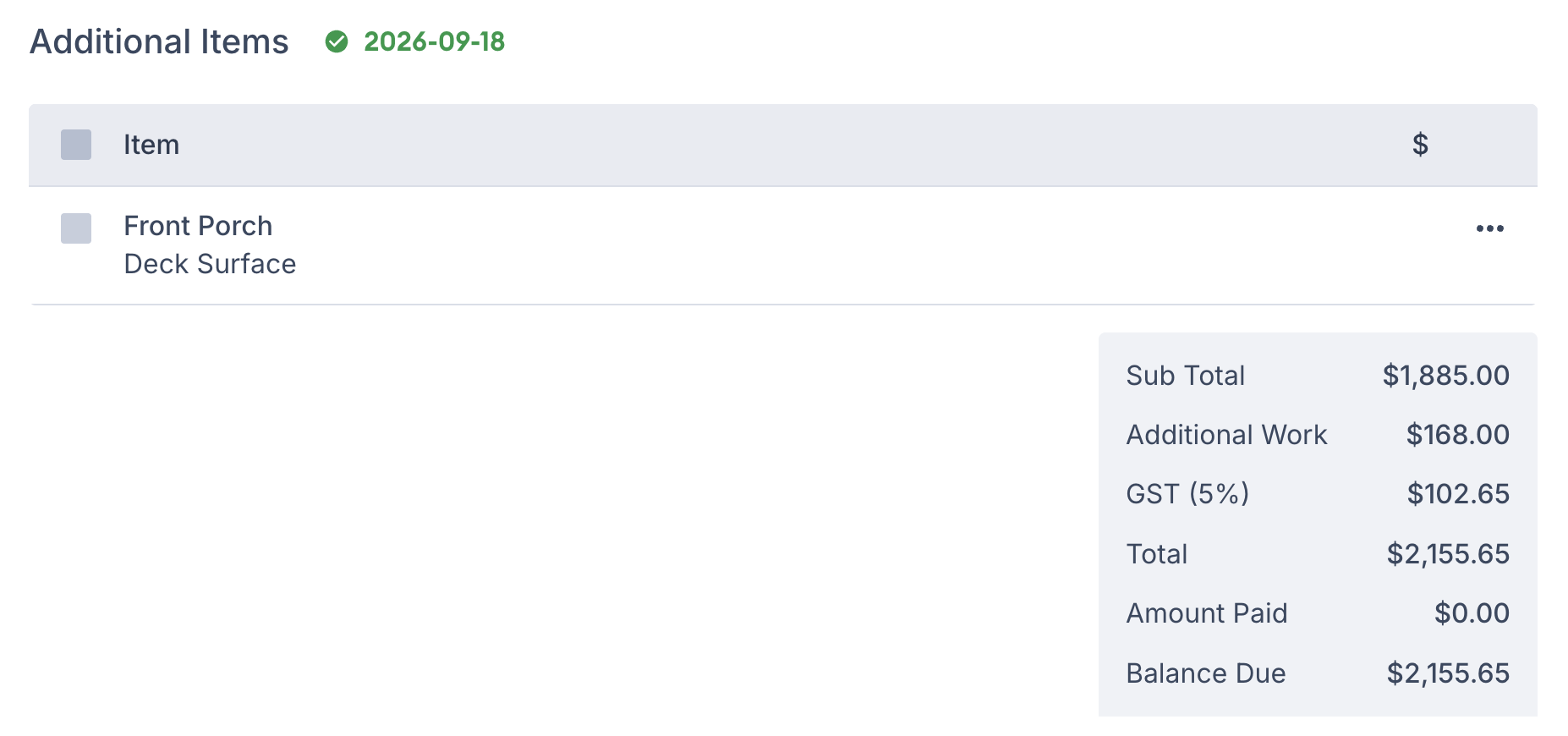
6\. The additional work will then show as accepted (along with the date) and added to the total of the estimate/invoice.

<figure><img src="/files/sdhM8zYzLxMaivZfwaBD" alt="Screenshot showing accepted additional work with acceptance date and updated total"><figcaption></figcaption></figure>

## Related articles

* [Working With Options](/support/estimating/line-items-and-options/working-with-options.md) — Create optional add-ons customers can choose before accepting.
* [Customer Accepted Options](/support/estimating/line-items-and-options/customer-accepted-options.md) — Let customers add optional items before accepting.


---

# Agent Instructions
This documentation is published with GitBook. GitBook is the documentation platform designed so that both humans and AI agents can read, navigate, and reason over technical content effectively. Learn more at gitbook.com.

## Querying This Documentation
If you need additional information that is not directly available in this page, you can query the documentation dynamically by asking a question.

Perform an HTTP GET request on the current page URL with the `ask` query parameter:

```
GET https://help.paintscout.com/support/estimating/line-items-and-options/additional-work-change-orders.md?ask=<question>
```

The question should be specific, self-contained, and written in natural language.
The response will contain a direct answer to the question and relevant excerpts and sources from the documentation.

Use this mechanism when the answer is not explicitly present in the current page, you need clarification or additional context, or you want to retrieve related documentation sections.
