> For the complete documentation index, see [llms.txt](https://help.paintscout.com/llms.txt). Markdown versions of documentation pages are available by appending `.md` to page URLs; this page is available as [Markdown](https://help.paintscout.com/support/estimating/creating-estimates/sidebar-overview.md).

# Sidebar Overview

The sidebar menu in PaintScout appears on the right side of every estimate. It provides access to activity tracking, chat, follow-ups, calculations, presentation, terms, advanced settings, and payment options.

<figure><img src="/files/bkccgUmt5ufMxlmkO3sL" alt="Animated overview showing the sidebar menu on the right side of the estimate and its expandable sections"><figcaption></figcaption></figure>

***

## Activity

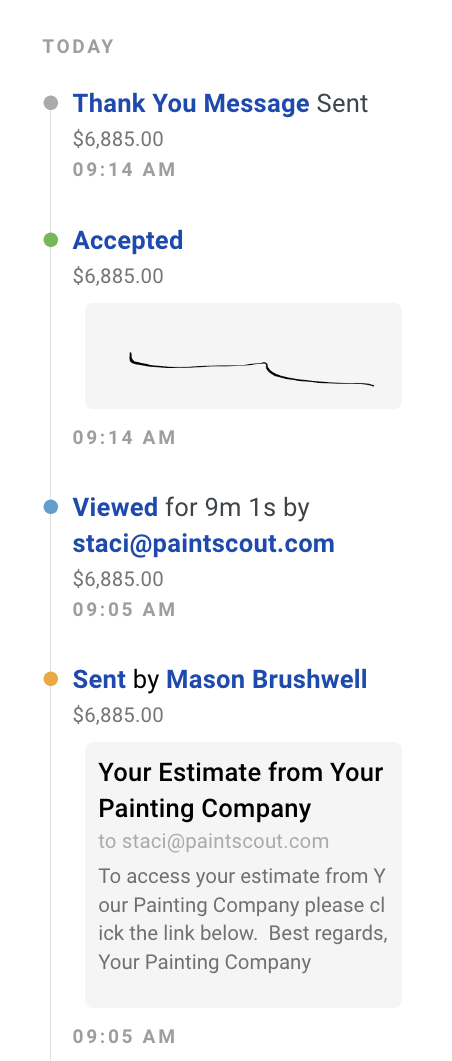
The activity section shows all events on the estimate, including when it was sent, viewed, accepted, and paid.

* **Estimate Sent:** Find out when the estimate was sent, what the email contained, and even restore the estimate to this version if needed.
* **Estimate Viewed:** Track when and how long your customer checked out the estimate.
* **Estimate Accepted:** Keep tabs on when your customer accepted the estimate, complete with their signature.
* **Thank You Message Sent:** Verify that the automatic thank-you message reached your customer.
* **Payment Added:** Spot the moment a successful payment is made via Stripe or reported directly on the estimate.

<figure><img src="/files/VMjDQ3xptTtpYBncAEN3" alt="Screenshot showing the Activity section with sent, viewed, accepted, and payment activity entries"><figcaption></figcaption></figure>

***

## Chat

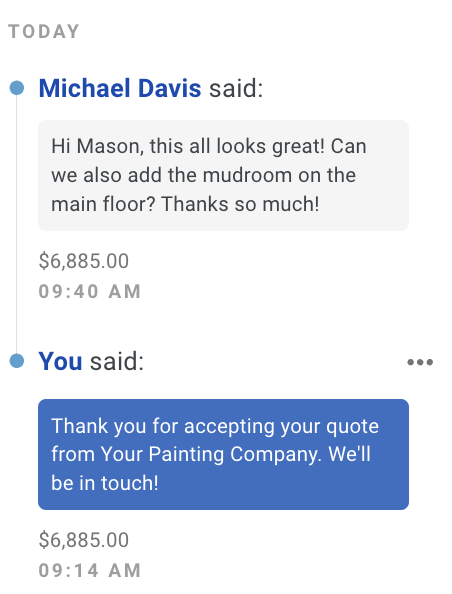
* View messages customers send through the chat button on their estimate.
* Respond via email — the conversation is logged in the sidebar.
* Automatic emails (thank you messages, follow-ups) also appear here.

<figure><img src="/files/MRk9VoxCNldDUgGlfthN" alt="Screenshot showing the Chat section with customer messages and email conversation log"><figcaption></figcaption></figure>

***

## Follow-ups

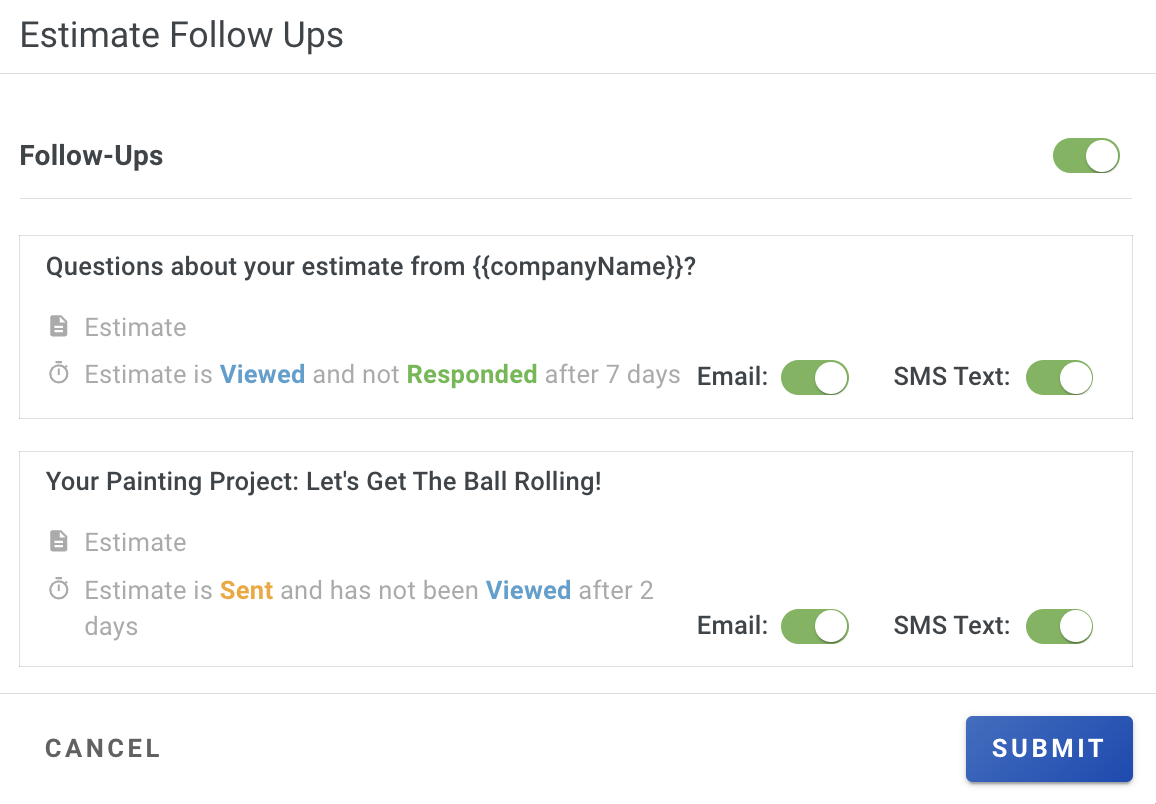
Take charge of your follow-ups for each estimate by heading to the follow-ups section in the sidebar. Toggle follow-ups on or off for each estimate, giving you complete control over the communications sent.

<figure><img src="/files/A2Chsa185gND6hhuebuZ" alt="Screenshot showing the Follow-ups section with toggles to enable or disable individual follow-up messages"><figcaption></figcaption></figure>

***

## Calculations

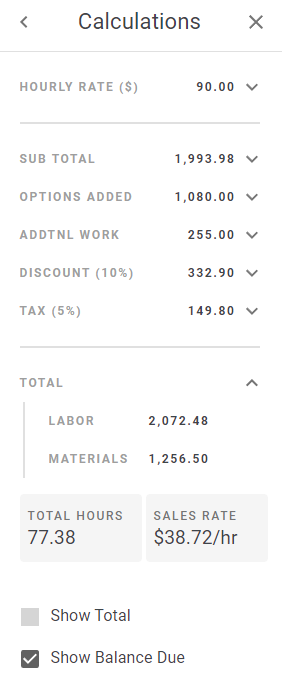
View and adjust how the estimate is calculated:

* **Hourly Rate:** Modify your hourly rate for this estimate.
* **Subtotal:** Manually adjust the subtotal using either a $ or % value *please note: this will turn off area pricing on the estimate.*
* **Options Added:** See options added by the customer into the estimate.
* **Addtnl Work:** See additional work added.
* **Discounts:** Include a pre-made or custom discount.
* **Tax:** Add or remove tax from the estimate.
* **Total:** The total amount of the estimate, including options, additional work, discounts, and tax.
* **Labor & Materials:** Review the breakdown of labor and materials.
* View the estimate's **Total Hours & Sales Rate.**
* **Show Total:** Choose to show or hide the subtotal box on the estimate.
* **Show Balance Due:** Choose to show or hide the balance due *(only on invoices)*

<figure><img src="/files/968esJ4LcrxTZL2fgh6d" alt="Screenshot showing the Calculations section with hourly rate, subtotal, discounts, tax, total, and labor breakdown"><figcaption></figcaption></figure>

***

## Presentation

Adjust or change the presentation attached to the estimate including uploading additional documents.

<figure><img src="/files/2vSpfCOsRsdJjQwkKCOm" alt="Animated walkthrough showing how to change or adjust the presentation attached to an estimate"><figcaption></figcaption></figure>

***

## Terms

In the Terms tab, you have the flexibility to update the attached terms or craft and personalize a new set of terms specifically for this estimate.

<figure><img src="/files/MGelpmF3QiASqhyS2Roy" alt="Animated walkthrough showing how to update or customize the contract terms for an estimate"><figcaption></figcaption></figure>

***

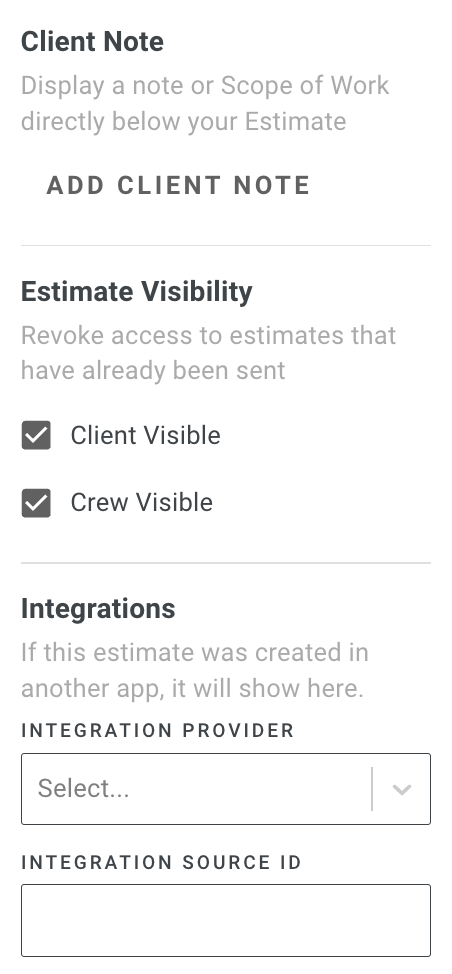
## Advanced

Apply further customization to your estimate through the use of notes, integrations and visibility.

* **Client Note:** Include a note for the client to appear below the total on the estimate.
* **Estimate Visibility:** Take control over who sees the estimate by toggling visibility for both the client on the estimate and the crew on the work order.
* **Integrations:** Access details if your estimate originated from another application.

<figure><img src="/files/47TwcxCgiYsFEDy9R2Ka" alt="Screenshot showing the Advanced section with client note, estimate visibility toggles, and integrations"><figcaption></figcaption></figure>

***

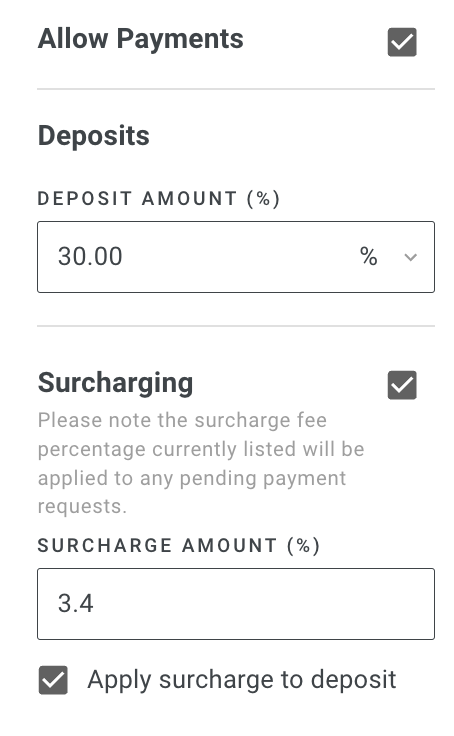
## Payments & Lending

This section will appear if you have connected the Stripe integration.

* **Allow Payments:** Decide if you want to accept credit card payments on the estimate.
* **Deposits:** Choose the deposit amount, either as a percentage or a fixed dollar amount.
* **Surcharging:** Turn on surcharging for the estimate and specify the surcharge amount applied to credit card payments.

<figure><img src="/files/tv302sTfD5cC0ecV1isr" alt="Screenshot showing the Payments and Lending section with deposit, surcharging, and allow payments options"><figcaption></figcaption></figure>

## Related articles

* [The Estimate Page](/support/estimating/creating-estimates/introduction-to-the-estimate-page.md) — Learn the main layout and controls on an estimate
* [Estimate Actions](/support/estimating/creating-estimates/estimate-actions.md) — Use the action menu to preview, share, invoice, and archive


---

# Agent Instructions
This documentation is published with GitBook. GitBook is the documentation platform designed so that both humans and AI agents can read, navigate, and reason over technical content effectively. Learn more at gitbook.com.

## Querying This Documentation
If you need additional information that is not directly available in this page, you can query the documentation dynamically by asking a question.

Perform an HTTP GET request on the current page URL with the `ask` query parameter:

```
GET https://help.paintscout.com/support/estimating/creating-estimates/sidebar-overview.md?ask=<question>
```

The question should be specific, self-contained, and written in natural language.
The response will contain a direct answer to the question and relevant excerpts and sources from the documentation.

Use this mechanism when the answer is not explicitly present in the current page, you need clarification or additional context, or you want to retrieve related documentation sections.
