> For the complete documentation index, see [llms.txt](https://help.paintscout.com/llms.txt). Markdown versions of documentation pages are available by appending `.md` to page URLs; this page is available as [Markdown](https://help.paintscout.com/support/dashboard-and-reports/reports/payments-collected-report.md).

# Payments Report

The Payments Report tracks payments across your account. Sort, filter, and export payments by their current status.

***

## Access the report

1\. Go to the **Reports** tab on your sidebar navigation.

2\. Navigate to the **Payments** section and select the **Payments** report.

<figure><img src="/files/UXkVBMJUZOkJHlHzfYYg" alt="Screenshot showing the Reports tab navigation in PaintScout"><figcaption></figcaption></figure>

***

## What the report shows

The summary table lists payments collected across your account and their status.

<figure><img src="/files/dihKEAifnANvIXHjDG2k" alt="Screenshot showing the Payments report with payment status breakdown"><figcaption></figcaption></figure>

Sort payments by date. Select a client's name to open their profile. Select a document number to open its invoice or estimate.

The report also includes columns that provide payment context:

* **Status** shows the payment's current state.
* **Request** shows whether the payment came from a payment request.
* **Deposit** identifies payments marked as deposits.

<figure><img src="/files/oQFMNTQ6RPChOkW8hwiE" alt="Screenshot showing payment sorting options and deposit column with checkmark indicators"><figcaption></figcaption></figure>

{% hint style="info" %}
If you'd like to view all **Requested** payments, head to your [Payment Requests report](/support/dashboard-and-reports/reports/payment-requests-report.md).
{% endhint %}

***

## Filter the report

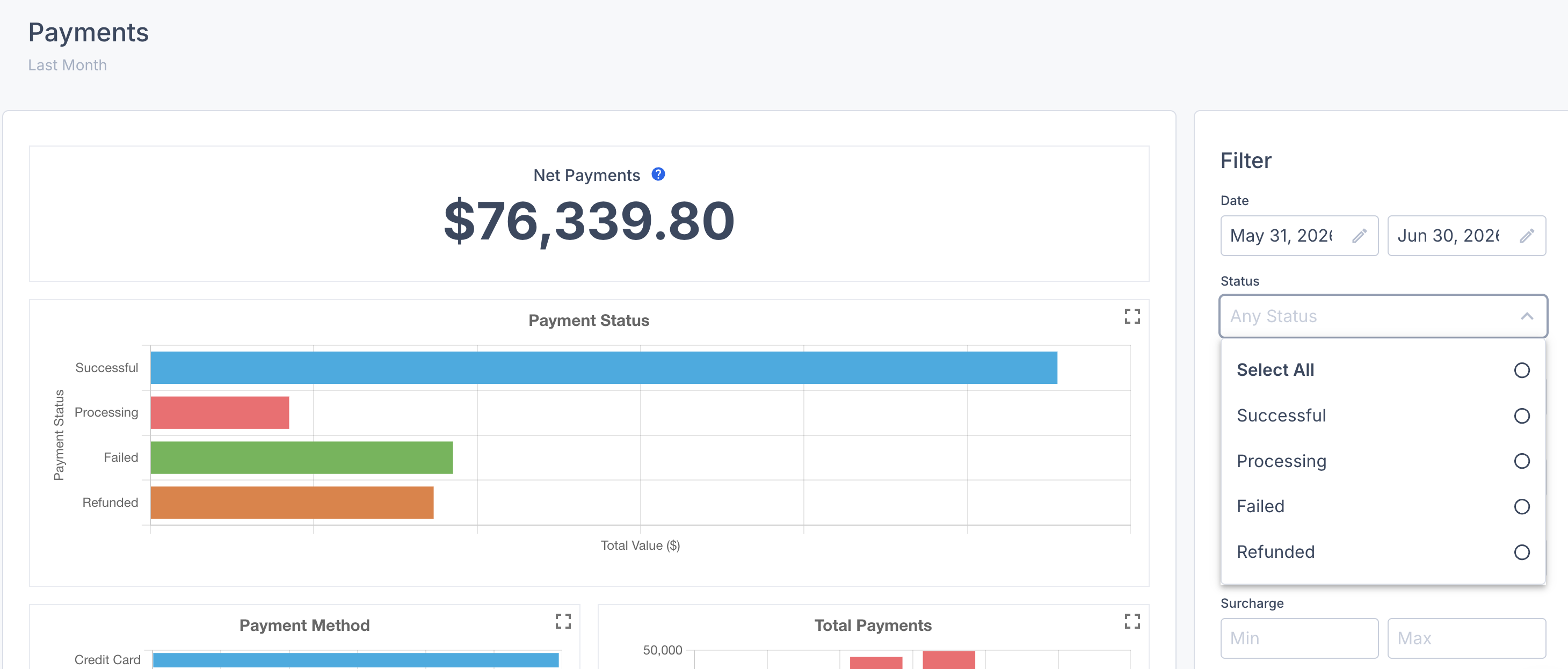
Narrow your results by setting parameters in the **Filters** section on the right side of the page.

Filter by payment status to find **Successful**, **Processing**, **Failed**, or **Refunded** payments faster.

<figure><img src="/files/IFRG2gAiwaOeY7GY3aCJ" alt="Screenshot showing the Filters section for the Payments report with parameter options"><figcaption></figcaption></figure>

***

## Export the report

Select **Export** in the Summary header to download a CSV file.

<figure><img src="/files/yyqCibnlkmUSVVyDcGyO" alt="Screenshot showing the Export button in the Payments report header for downloading a CSV file"><figcaption></figcaption></figure>

{% hint style="info" %}
**Have feedback on this report?** We'd love to hear your thoughts! [Click here](https://form.asana.com/?k=e-HTmvq2b_NFPbJCzN3JXA\&d=1200228571330231) to share your feedback and help us improve.
{% endhint %}

&#x20;&#x20;

## Related articles

* [Payment Requests Report](/support/dashboard-and-reports/reports/payment-requests-report.md) — Review sent payment requests by status.
* [Payments Table Overview](/support/invoicing-and-payments/invoices/payments-table-overview.md) — Request, record, take, and refund payments.


---

# Agent Instructions
This documentation is published with GitBook. GitBook is the documentation platform designed so that both humans and AI agents can read, navigate, and reason over technical content effectively. Learn more at gitbook.com.

## Querying This Documentation
If you need additional information that is not directly available in this page, you can query the documentation dynamically by asking a question.

Perform an HTTP GET request on the current page URL with the `ask` query parameter, and the optional `goal` query parameter:

```
GET https://help.paintscout.com/support/dashboard-and-reports/reports/payments-collected-report.md?ask=<question>&goal=<endgoal>
```

`ask` is the immediate question: it should be specific, self-contained, and written in natural language.
`goal` is optional and describes the broader end goal you are ultimately trying to accomplish on behalf of the user. GitBook uses it to tailor the answer towards what is most useful for that goal.

The response will contain a direct answer to the question and relevant excerpts and sources from the documentation.

Use this mechanism when the answer is not explicitly present in the current page, you need clarification or additional context, or you want to retrieve related documentation sections.
