

> For the complete documentation index, see [llms.txt](https://help.paintscout.com/llms.txt). Markdown versions of documentation pages are available by appending `.md` to page URLs; this page is available as [Markdown](https://help.paintscout.com/support/customization/templates-and-presets/line-items-overview.md).

# Line Items Overview

## What is a Line Item?

A line item in PaintScout is a project element with an optional price that does not rely on dimensions for calculation. Line items work like production rates but for fixed-price services, quantities, or custom charges. Create commonly used line items in Settings to avoid recreating them on every estimate.

***

## How to add a Line Item in the Settings

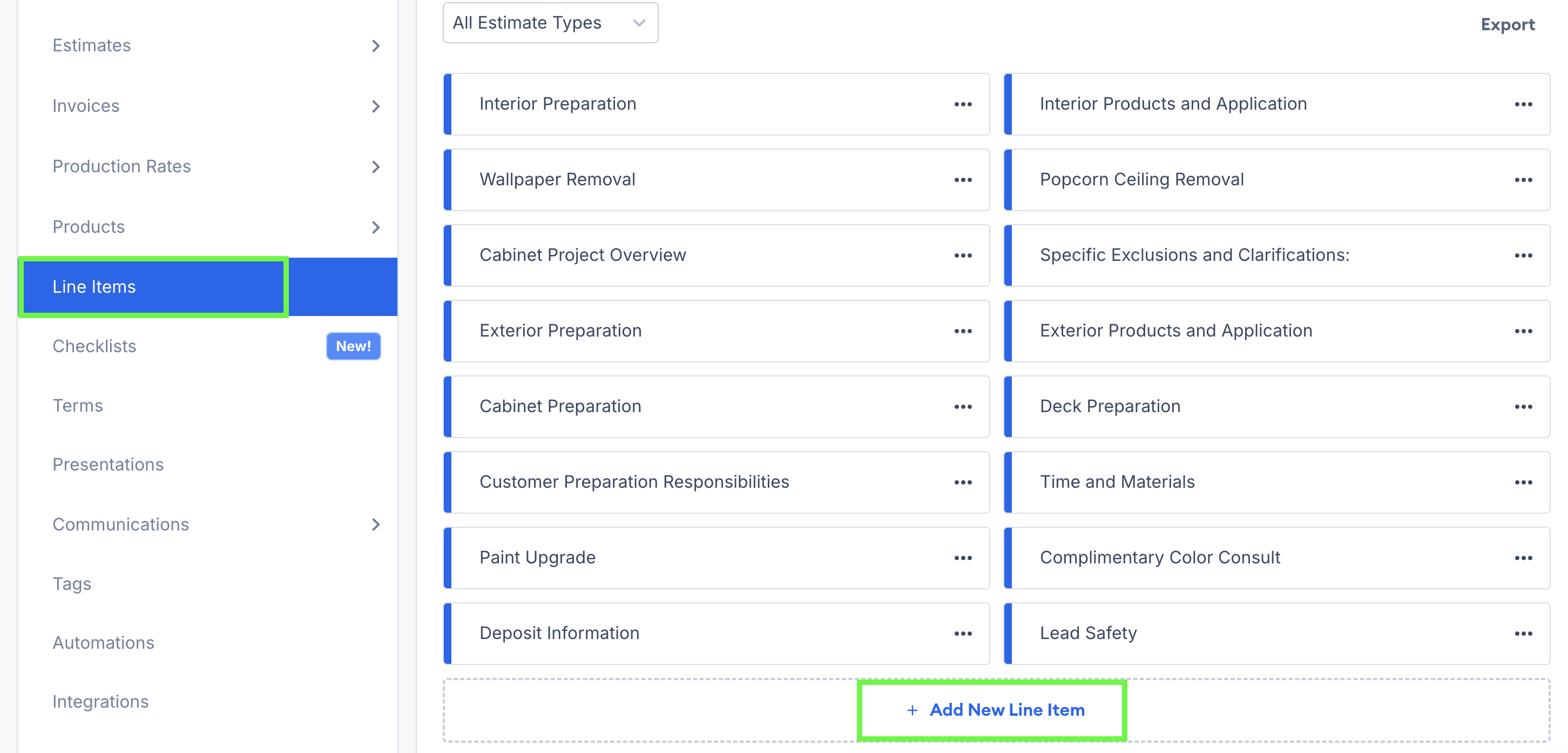
1\. Click the person icon in the top right and go to your **Account Settings** > **Line Items** section.

2\. Click the **+Add New Line Item** button.

<figure><img src="/files/bQ6TDajdICPyy94LtFil" alt="Screenshot showing the Line Items settings page with the Add New Line Item button"><figcaption></figcaption></figure>

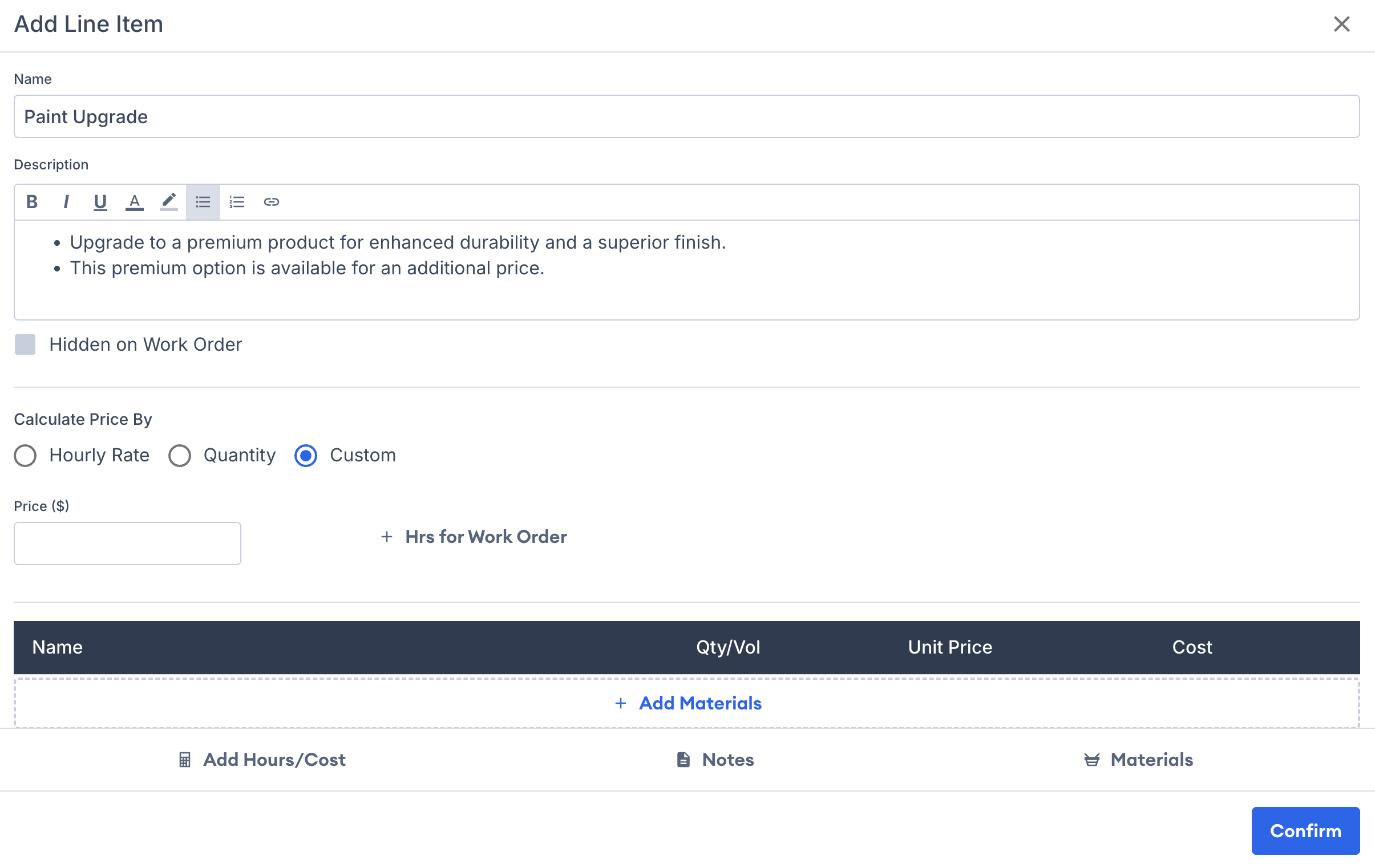
3\. Label the line item and add a description.

<figure><img src="/files/mI2mGt28fjQm4SynQXHw" alt="Screenshot showing the line item label and description input fields"><figcaption></figcaption></figure>

***

## Line Item Pricing

You can price a line item in three ways: by hourly rate, by quantity, or with a custom amount.

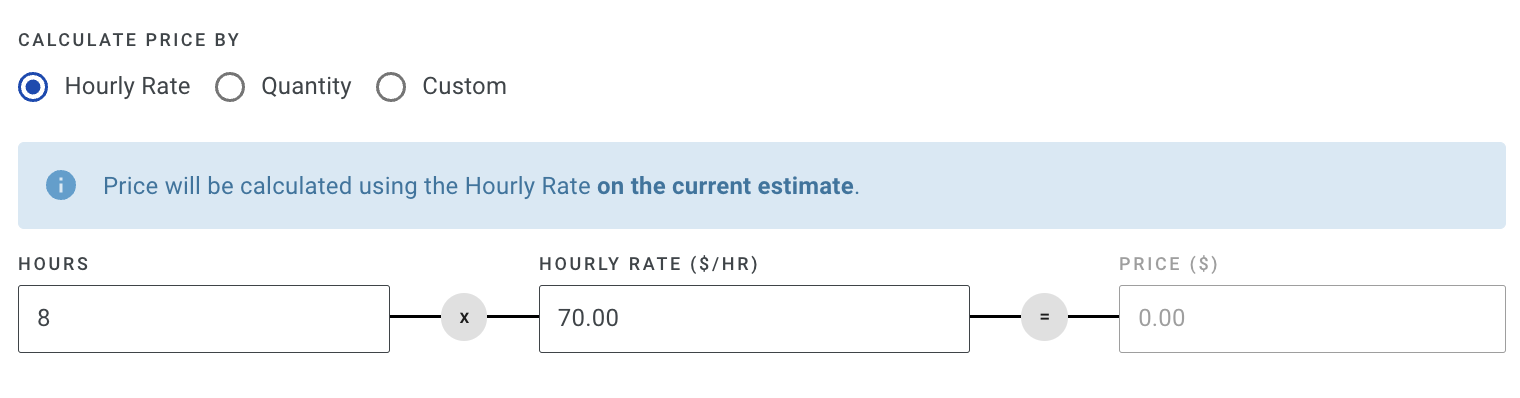
#### 1. By Hourly Rate

Click the **Hourly Rate** option and enter your hours. PaintScout calculates the price using the hourly rate set on the current estimate.

<figure><img src="/files/5yNQyykX2PrsrAUHD4ni" alt="Screenshot showing the Hourly Rate pricing option with hours input field for a line item"><figcaption></figcaption></figure>

#### 2. By Quantity

To calculate the total price for a line item, follow these steps:

1. Click on the Quantity option.
2. Enter the number of units and the corresponding price/unit.
3. The system will automatically calculate the total price for you.

You can click the **+HRS FOR WORK ORDER** button to add the total number of hours associated with this line item (will not affect price).

<figure><img src="/files/UEdrnt7KSqEv3HETEbFw" alt="Screenshot showing the Quantity pricing option with units, price per unit, and hours for work order fields"><figcaption></figcaption></figure>

#### 3. Custom

Click the **Custom** option and add your price. Select the **+HRS FOR WORK ORDER** button to factor hours into the work order.

<figure><img src="/files/sKIf7sBGJXs9sZzcY1vH" alt="Screenshot showing the Custom pricing option with price and hours for work order fields"><figcaption></figcaption></figure>

***

## What are line item notes?

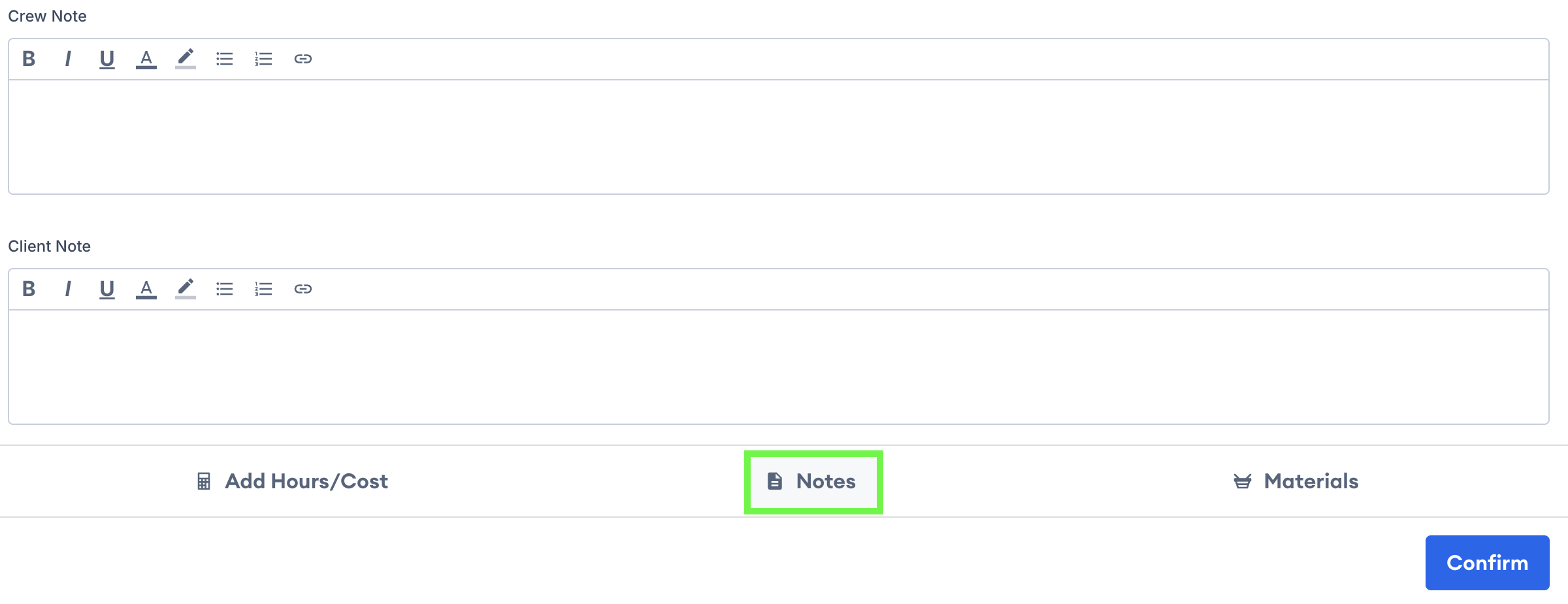
Default notes are applied every time you use a line item on an estimate. You can change them while editing the estimate. Click the **Notes** button to add a crew or client note.

* **Client Note:** Appears on the estimate for the customer to see
* **Crew Note:** Appears on the work order for your team to see

<figure><img src="/files/neBQ44gohx5pvrLXytpM" alt="Screenshot showing the line item Notes section with Client Note and Crew Note fields"><figcaption></figcaption></figure>

***

## Line Item Materials

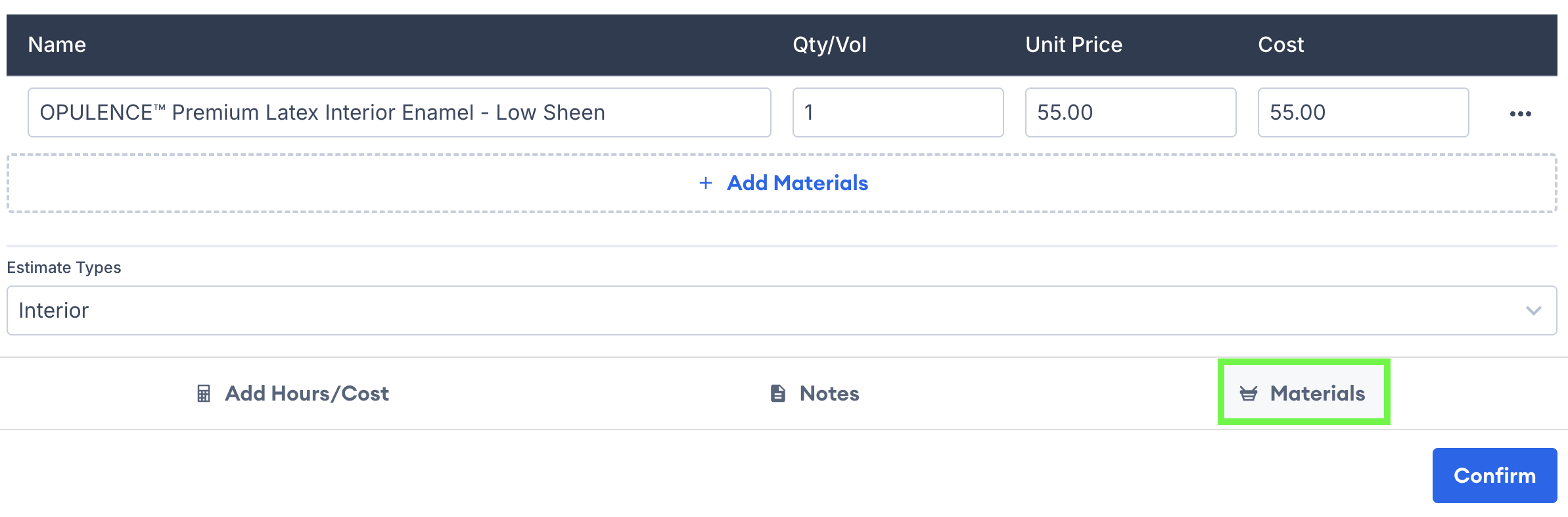
Click the **Materials** button to add materials to your line item.

{% hint style="info" %}
Please note, that the number of gallons is not calculated automatically, you will need to enter the quantity manually.
{% endhint %}

<figure><img src="/files/nai1tfn4YT09bpzI1bC6" alt="Screenshot showing the line item Materials section for adding product materials and quantities"><figcaption></figcaption></figure>

***

## How do you deactivate a line item?

Toggle off the **Active** option for the line item. It will remain in your settings for reference but will no longer appear in the selection list when building an estimate.

<figure><img src="/files/pH0U7xjPAUKS3nOWXaU7" alt="Screenshot showing the Active toggle for deactivating a line item from the selection list"><figcaption></figcaption></figure>

***

## How do you reorder line items?

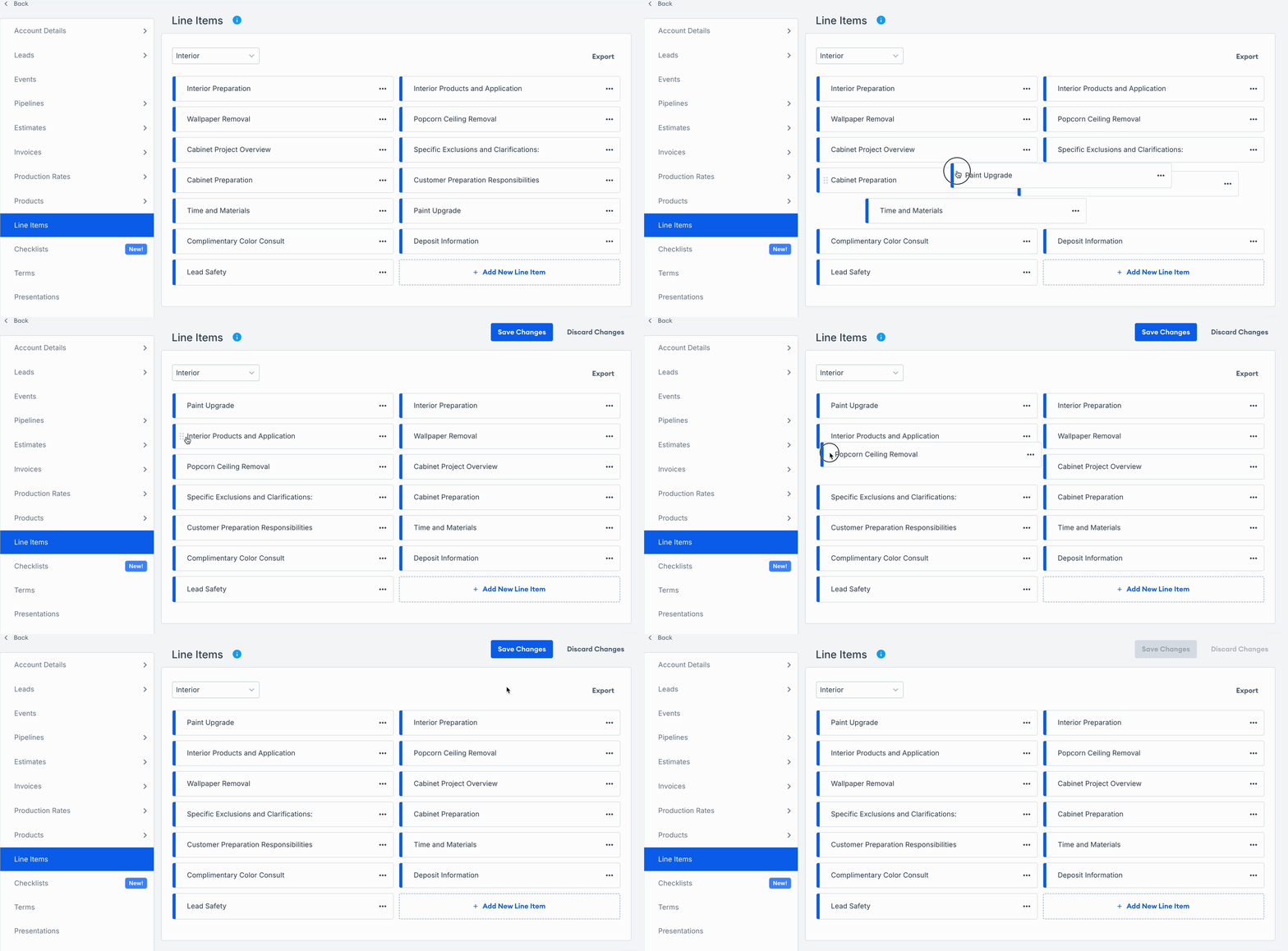
Line items appear on estimates in the same order as in Settings. Move frequently used items toward the top for faster access, especially on tablets and phones.

Click and hold a line item, then drag it to the desired position. Click **Save** when finished.

<figure><img src="/files/hNdoLcjSJCqOVNUh94hV" alt="Animated screen recording showing drag and drop reordering of line items in settings"><figcaption></figcaption></figure>

## Related articles

* [Area Names](/support/customization/templates-and-presets/area-names.md) — Create reusable room and location labels for faster estimating
* [Add & Edit Line Items](/support/estimating/line-items-and-options/how-to-add-and-edit-a-line-item.md) — Add pricing, materials, notes, and photos to line items
* [Working With Options](/support/estimating/line-items-and-options/working-with-options.md) — Offer optional add-ons customers can accept with the quote


---

# Agent Instructions
This documentation is published with GitBook. GitBook is the documentation platform designed so that both humans and AI agents can read, navigate, and reason over technical content effectively. Learn more at gitbook.com.

## Querying This Documentation
If you need additional information that is not directly available in this page, you can query the documentation dynamically by asking a question.

Perform an HTTP GET request on the current page URL with the `ask` query parameter:

```
GET https://help.paintscout.com/support/customization/templates-and-presets/line-items-overview.md?ask=<question>
```

The question should be specific, self-contained, and written in natural language.
The response will contain a direct answer to the question and relevant excerpts and sources from the documentation.

Use this mechanism when the answer is not explicitly present in the current page, you need clarification or additional context, or you want to retrieve related documentation sections.
