> For the complete documentation index, see [llms.txt](https://help.paintscout.com/llms.txt). Markdown versions of documentation pages are available by appending `.md` to page URLs; this page is available as [Markdown](https://help.paintscout.com/support/customization/products/product-rounding.md).

# Product Rounding

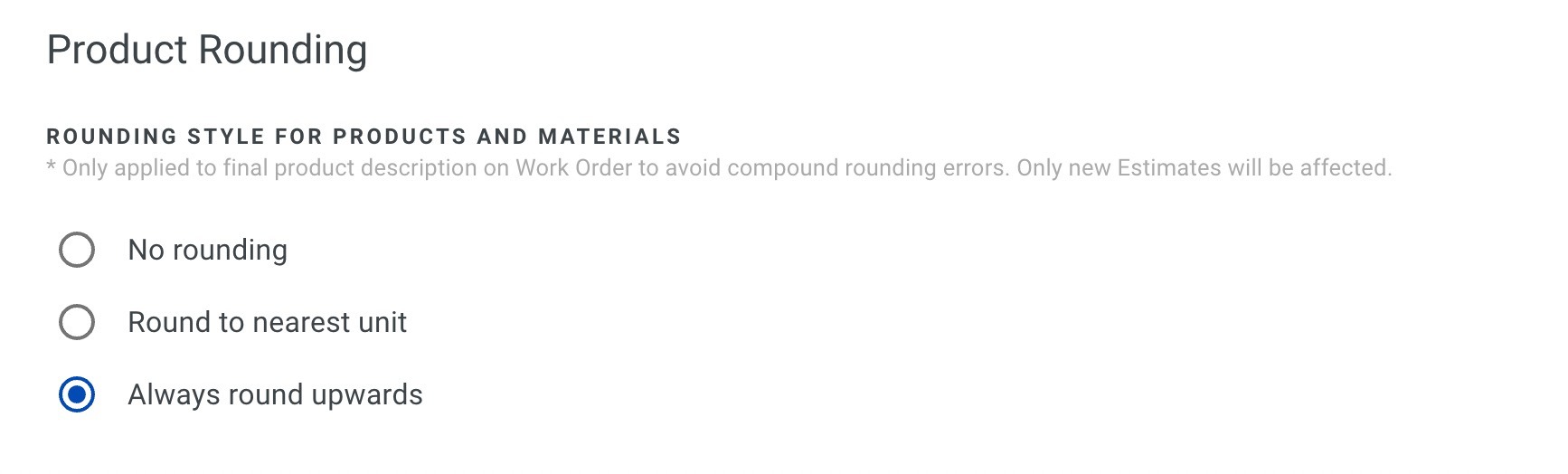
Product rounding in PaintScout controls how calculated material quantities are displayed on work orders. You can choose to show exact values, round to the nearest unit, or always round up to ensure your crew has enough product on hand.

## How Does Product Rounding Work?

PaintScout calculates product usage per item using exact values. **Pricing is always based on exact quantities**, regardless of your rounding setting. Rounding only affects the quantity displayed on the work order — the total your customer sees on the estimate is always based on the precise calculation.

By default, PaintScout sums the exact product quantities across all items and then rounds the **total** on the work order. The rounding variance will never be more than 0.5 gallons per product.

### Example

If you have 5 bedrooms with baseboards, and each calculates to 0.1 gallons of trim paint, at $50/gallon, each room costs $5 — totaling 0.5 gallons and $25. On the work order, 0.5 gallons rounds to **1 gal**, so there can be a small gap between what's charged and what's listed for purchasing. That gap is capped at half a gallon.

## What Rounding Options Are Available?

PaintScout offers three rounding modes:

<details>

<summary><strong>No Rounding (Default)</strong></summary>

Product quantities are displayed as exact calculated values. The work order shows the precise amount needed (e.g., 2.2 gal). This gives you the most accurate view of material usage but may not align with how you purchase paint.

</details>

<details>

<summary><strong>Round to Nearest Unit</strong></summary>

Quantities are rounded to the nearest whole number using standard rounding rules. For example, 2.6 gal rounds to **3 gal** and 2.4 gal rounds to **2 gal**.

Be aware that this can round small quantities **down to zero**. If several items each need a fraction of a gallon and the total comes to less than 0.5 gallons, the work order will show **0 gal** — even though you still need to buy at least one. If your jobs frequently have small product quantities, consider using **Always Round Upwards** instead.

</details>

<details>

<summary><strong>Always Round Upwards</strong></summary>

Quantities are always rounded up to the next whole number. For example, 2.1 gal rounds to **3 gal**. This ensures the work order never underestimates the amount of product to purchase, which is the safest option if you want your crew to always have enough material on hand.

</details>

## How Do I Change My Rounding Settings?

1. Click the person icon and go to **Account Settings** > **Estimates** > **Settings**.
2. Scroll to the **Product Rounding** section and select your preferred option.

<figure><img src="/files/5aysZ2mV4yfMMf4zPeX2" alt="Screenshot showing the Product Rounding settings with options to round to nearest unit or always round upwards"><figcaption></figcaption></figure>

## Related articles

* [Assign a Product to a Rate](/support/customization/products/how-to-assign-a-product-to-a-rate.md) — Link products to rates for automatic material calculations
* [Working With Work Orders](/support/estimating/work-orders/working-with-work-orders.md) — Share labor, materials, and notes with your crew


---

# Agent Instructions
This documentation is published with GitBook. GitBook is the documentation platform designed so that both humans and AI agents can read, navigate, and reason over technical content effectively. Learn more at gitbook.com.

## Querying This Documentation
If you need additional information that is not directly available in this page, you can query the documentation dynamically by asking a question.

Perform an HTTP GET request on the current page URL with the `ask` query parameter:

```
GET https://help.paintscout.com/support/customization/products/product-rounding.md?ask=<question>
```

The question should be specific, self-contained, and written in natural language.
The response will contain a direct answer to the question and relevant excerpts and sources from the documentation.

Use this mechanism when the answer is not explicitly present in the current page, you need clarification or additional context, or you want to retrieve related documentation sections.
