> For the complete documentation index, see [llms.txt](https://help.paintscout.com/llms.txt). Markdown versions of documentation pages are available by appending `.md` to page URLs; this page is available as [Markdown](https://help.paintscout.com/support/customization/pricing-and-rates/production-rate-descriptions.md).

# Production Rate Descriptions

Production rate descriptions in PaintScout let you add default text to your rates that automatically appears on estimates and work orders. You can set descriptions for Area View, Substrate View, and Crew Notes.

{% hint style="info" %}
Before diving into this article, make sure you have a solid grasp of the fundamentals of production rates. [Learn more here>](/support/customization/pricing-and-rates/production-rates-section-overview.md)
{% endhint %}

## How Do I Add Descriptions to a Production Rate?

1\. Click the person icon and go to your **Account Settings**. Navigate to the **Production Rates** section and select one of your rates.

<figure><img src="/files/vCZ6xVPf60862m1wdy0Z" alt="Animated screen recording showing navigation to Account Settings and selecting a production rate"><figcaption></figcaption></figure>

2. Scroll down to your descriptions and fill them out accordingly.

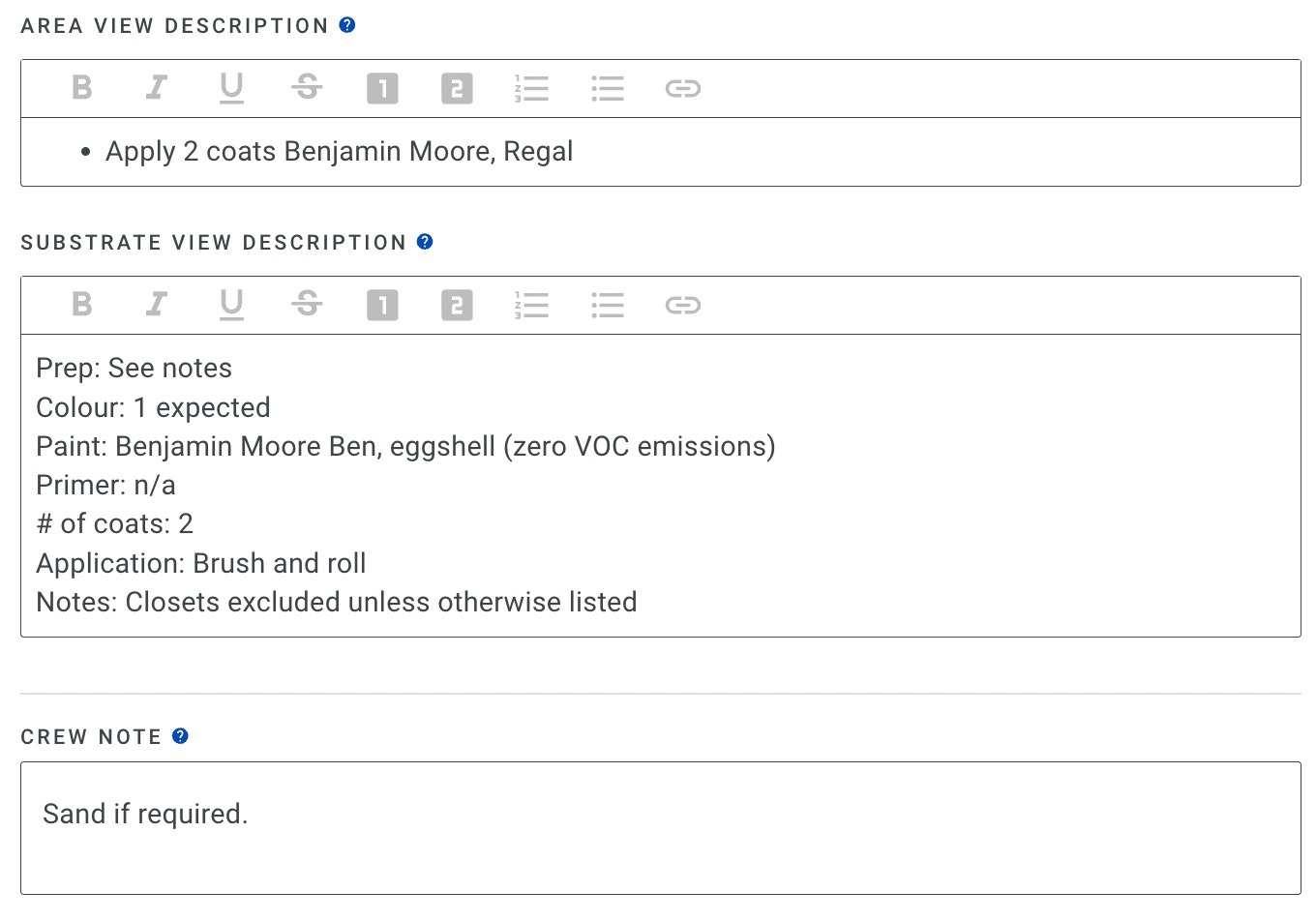
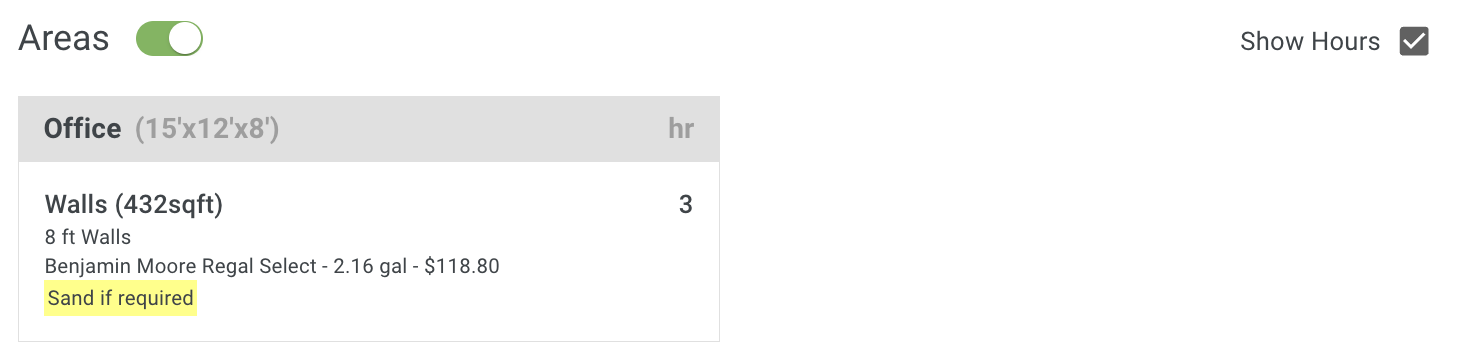
* **Area View:** Displays within the area when your estimate is in Area View. Since this appears beneath the specific room, you can include detailed surface-specific information.
* **Substrate View:** Displays under the surface when your estimate is in Substrate View.
* **Crew Note:** A note associated with the surface that only appears on the work order. Your customers will not see this.

<figure><img src="/files/ZQtmcuR6uBF92GwjPpXi" alt="Screenshot showing the Area View, Substrate View, and Crew Note description fields for a production rate"><figcaption></figcaption></figure>

***

## Area View Description - How it Displays on the Estimate

<figure><img src="/files/LOnlse54yFXYlqQGVLa6" alt="Screenshot showing how the Area View description displays under the area on an estimate"><figcaption></figcaption></figure>

## Substrate View Description - How it Displays on the Estimate

<figure><img src="/files/vPkbpu3apbCLQKmjUMbs" alt="Screenshot showing how the Substrate View description displays under the surface on an estimate"><figcaption></figcaption></figure>

## Crew Notes - How it Displays on the Work Order

<figure><img src="/files/Wu6OzkIT5B1nafnLRNua" alt="Screenshot showing how Crew Notes display on the work order for the team"><figcaption></figcaption></figure>

## Related articles

* [Advanced Production Rate Options](/support/customization/pricing-and-rates/advanced-production-rate-options.md) — Control visibility, coats, pricing display, and custom hourly rates
* [Coverage Rates](/support/customization/pricing-and-rates/coverage-rates.md) — Set product coverage so materials calculate correctly


---

# Agent Instructions
This documentation is published with GitBook. GitBook is the documentation platform designed so that both humans and AI agents can read, navigate, and reason over technical content effectively. Learn more at gitbook.com.

## Querying This Documentation
If you need additional information that is not directly available in this page, you can query the documentation dynamically by asking a question.

Perform an HTTP GET request on the current page URL with the `ask` query parameter:

```
GET https://help.paintscout.com/support/customization/pricing-and-rates/production-rate-descriptions.md?ask=<question>
```

The question should be specific, self-contained, and written in natural language.
The response will contain a direct answer to the question and relevant excerpts and sources from the documentation.

Use this mechanism when the answer is not explicitly present in the current page, you need clarification or additional context, or you want to retrieve related documentation sections.
