
> For the complete documentation index, see [llms.txt](https://help.paintscout.com/llms.txt). Markdown versions of documentation pages are available by appending `.md` to page URLs; this page is available as [Markdown](https://help.paintscout.com/support/customization/presentations-and-terms/presentation-sections.md).

# Presentation Sections

Presentation sections are the building blocks of PaintScout proposals. Each section type serves a different purpose — from cover pages and testimonials to galleries, documents, and custom HTML. Add sections to presentation pages to create professional, multi-page proposals.

<details open>

<summary><strong>Cover Page</strong></summary>

<figure><img src="/files/QNUK2tbCvd2qGLECzBUE" alt="Screenshot showing the Cover Page section type in the presentation editor"><figcaption></figcaption></figure>

The Cover Page section adds a header to your presentation page. Include a title, subtitle, and logo with horizontal alignment options. Click the Text Editor icon to customize font, size, and color. Add a background color from the **Style** tab.

<figure><img src="/files/NWXbhajYuVHw1AatRGs3" alt="Screenshot showing the Cover Page editor with title, subtitle, logo, and alignment options"><figcaption></figcaption></figure>

</details>

<details>

<summary><strong>Two-Column and Three-Column</strong></summary>

<figure><img src="/files/J9PJXyufb6e6zfCgwGmI" alt="Screenshot showing the Two-Column and Three-Column section types in the presentation editor"><figcaption></figcaption></figure>

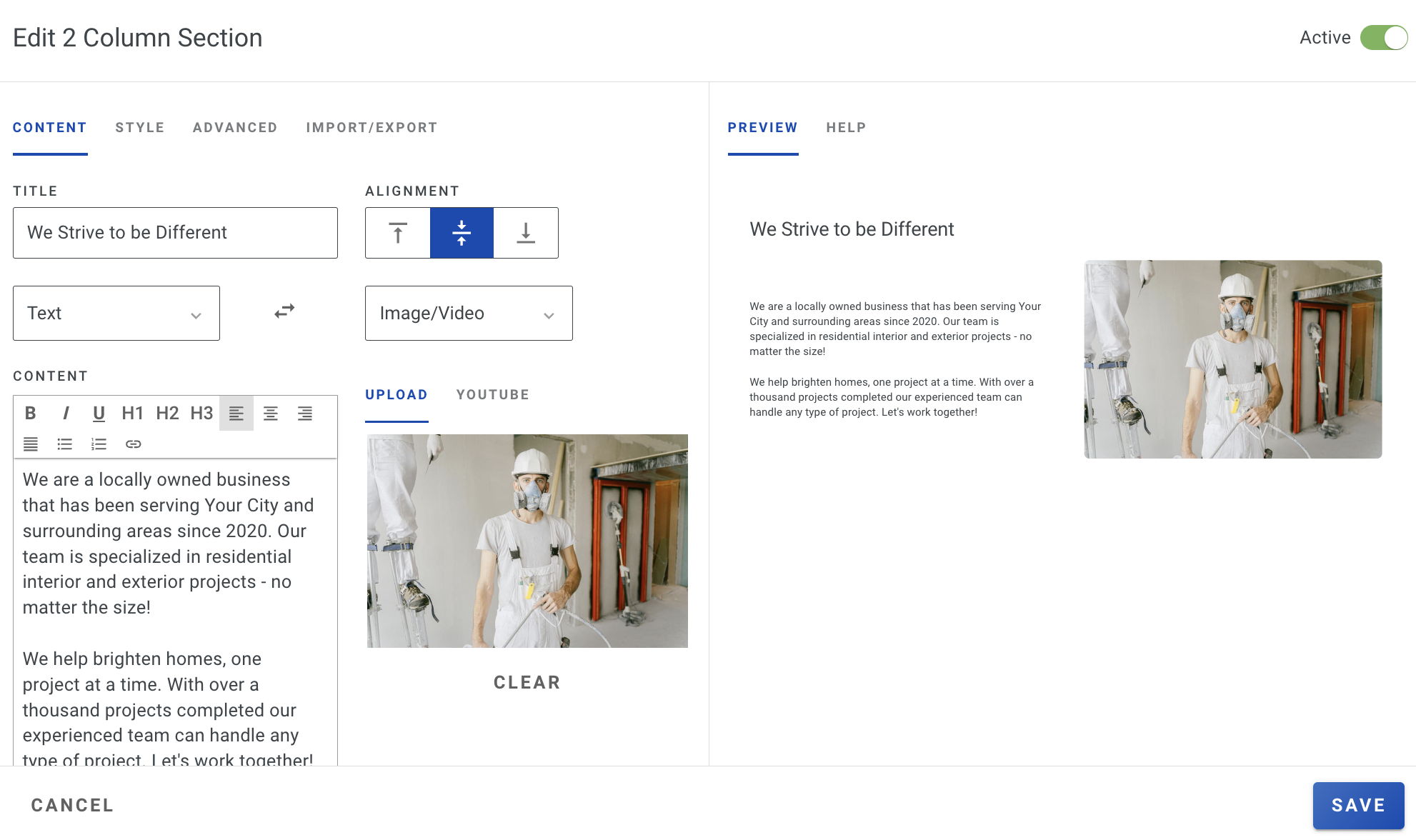
These two sections are very similar - one with two columns and the other with three. Each column can contain either text or an image/video.

* **Text:** Add a title and write in the text content.
* **Image/Video:** Upload your file, or paste a Youtube URL.

Use the **Alignment** options to move your text to the top, middle, or bottom.

<figure><img src="/files/vmBEp8Xd24U5x2OQv4Rz" alt="Screenshot showing the column section editor with text and image content options and alignment settings"><figcaption></figcaption></figure>

{% hint style="info" %}
If your text content is smaller than your image, add the title directly into the content box instead of using the **Title** box (leave that blank). Depending on the content, this option might look better!
{% endhint %}

<figure><img src="/files/rCsihGEvvAIeFasJtBQg" alt="Screenshot showing a two-column section example with the title placed in the content box for better layout"><figcaption></figcaption></figure>

</details>

<details>

<summary><strong>Centered Text</strong></summary>

<figure><img src="/files/p23xFq7d8klBCzJ9EMmi" alt="Screenshot showing the Centered Text section type in the presentation editor"><figcaption></figcaption></figure>

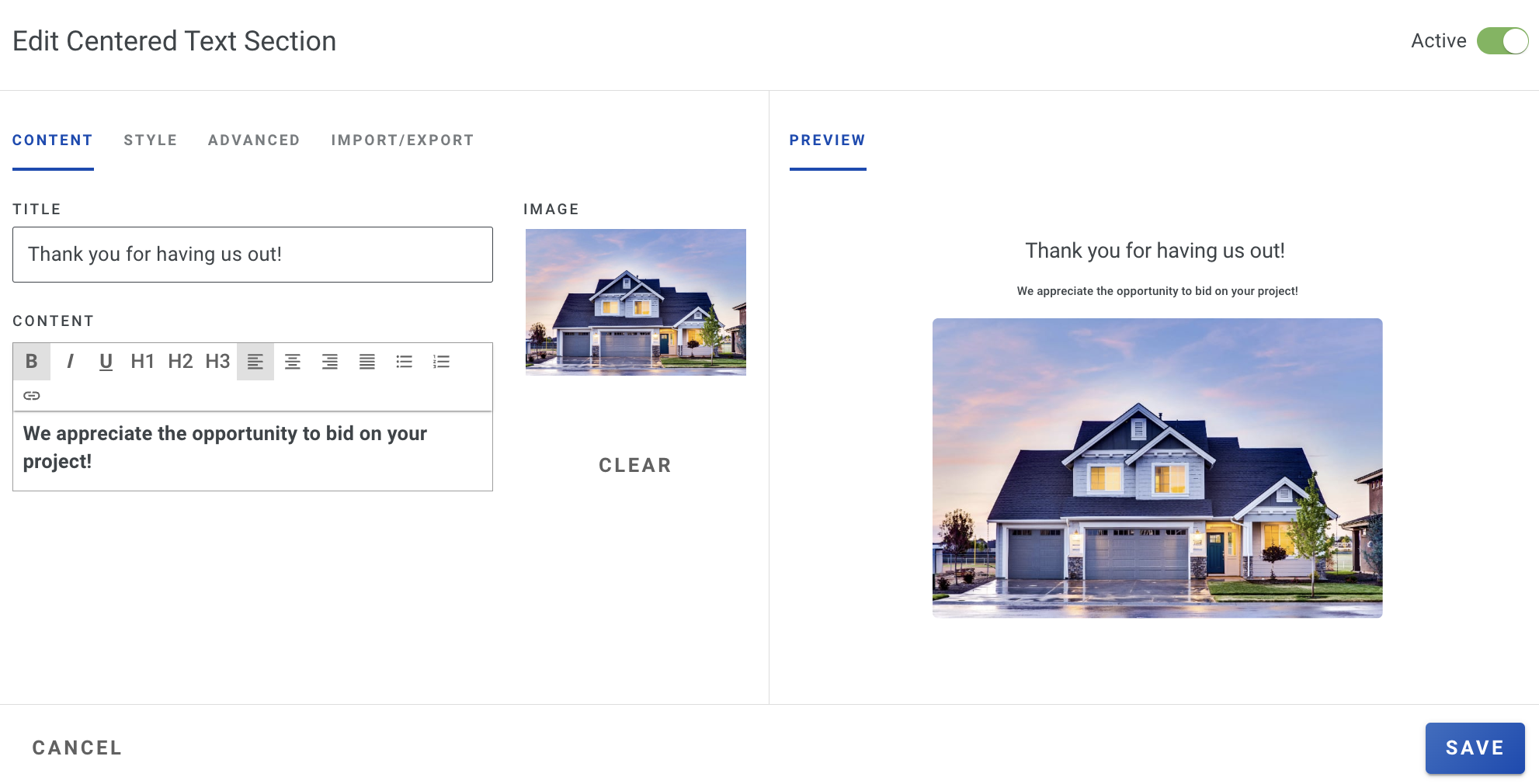
This section lets you add a title, text, and an image, all neatly centered on the page.

<figure><img src="/files/UPSt01mTP4pSY1fopE9Z" alt="Screenshot showing the Centered Text editor with title, text, and image fields centered on the page"><figcaption></figcaption></figure>

</details>

<details>

<summary><strong>Divider</strong></summary>

<figure><img src="/files/PF2Euj0QUrbKCKnphNPJ" alt="Screenshot showing the Divider section type in the presentation editor"><figcaption></figcaption></figure>

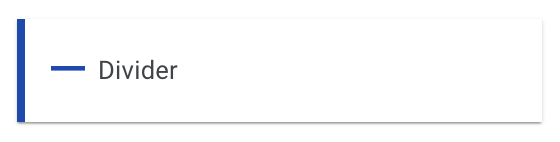
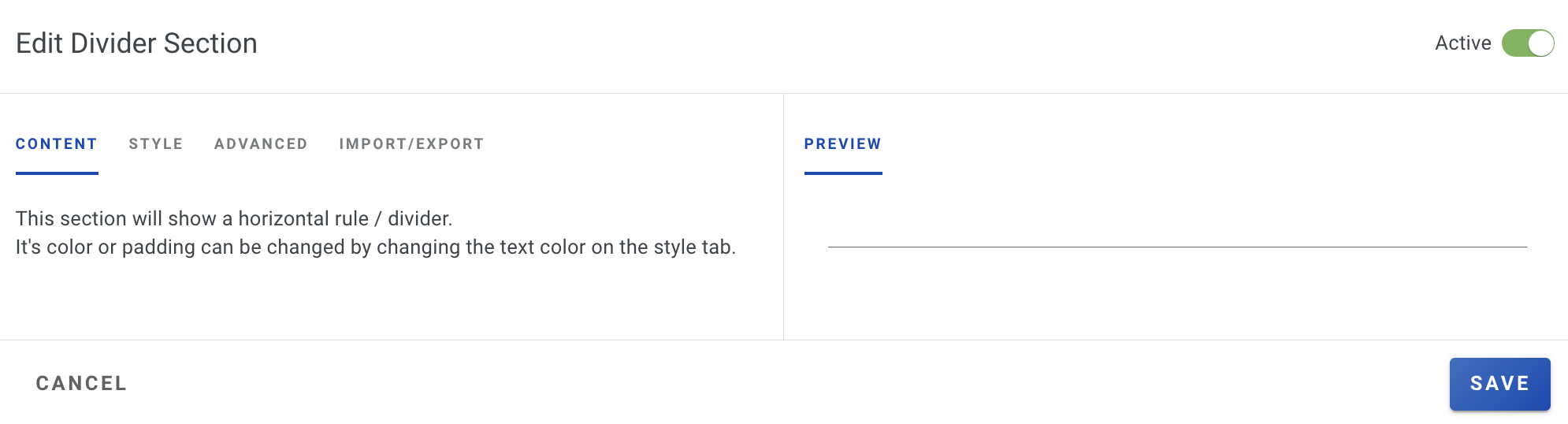
You can use this horizontal divider to separate sections. To customize it, go to the Style tab, where you can adjust the line color, background color, and padding.

<figure><img src="/files/eIqZ0dMN1NtBMOORWVkF" alt="Screenshot showing the Divider style options for line color, background color, and padding"><figcaption></figcaption></figure>

</details>

<details>

<summary><strong>Documents</strong></summary>

<figure><img src="/files/uLofq4lekzHb6y4qRj36" alt="Screenshot showing the Documents section type in the presentation editor"><figcaption></figcaption></figure>

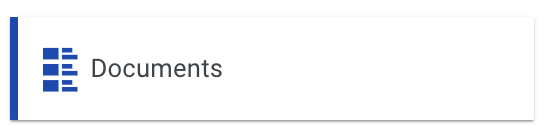
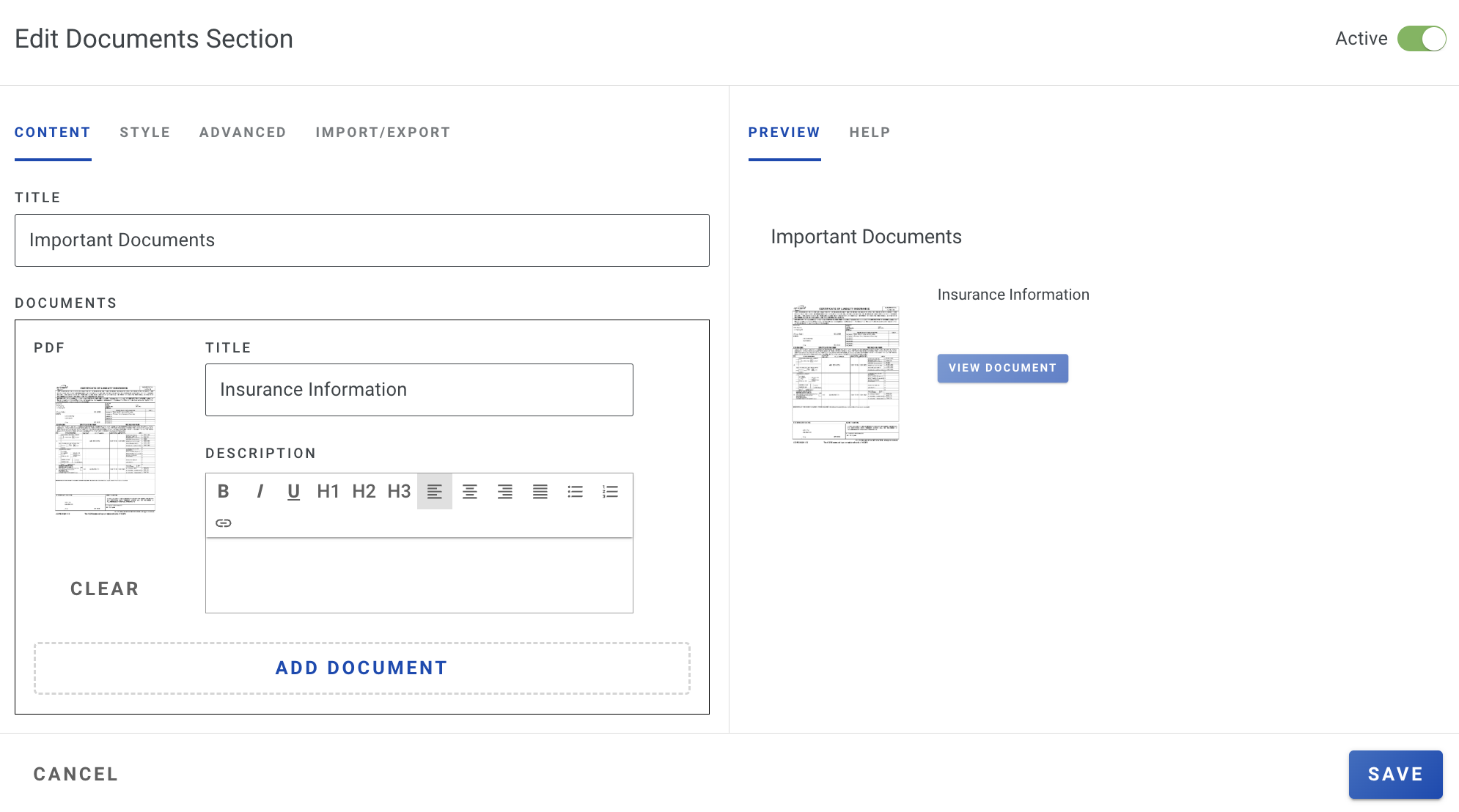
Upload key documents like insurance info, warranties, or safety pamphlets. Add a section title and upload each document with its own title and description. Customers click any PDF to view it.

<figure><img src="/files/UiuuE5vVcAqttfxj1MRX" alt="Screenshot showing the Documents editor with document upload, title, and description fields"><figcaption></figcaption></figure>

</details>

<details>

<summary><strong>Gallery</strong></summary>

<figure><img src="/files/duhb54mEVVGCPrtTNbyD" alt="Screenshot showing the Gallery section type in the presentation editor"><figcaption></figcaption></figure>

Build a photo gallery with ease. Just add a section title, choose the number of columns from the dropdown, and, if you'd prefer no border around the images, simply uncheck the border option.

<figure><img src="/files/r8ZkH4DUfVw5SapvKvSg" alt="Animated screen recording showing the Gallery editor with column selection and image uploads"><figcaption></figcaption></figure>

</details>

<details>

<summary><strong>Image</strong></summary>

<figure><img src="/files/Cr2T7Foia8Y3szafGg9Y" alt="Screenshot showing the Image section type in the presentation editor"><figcaption></figcaption></figure>

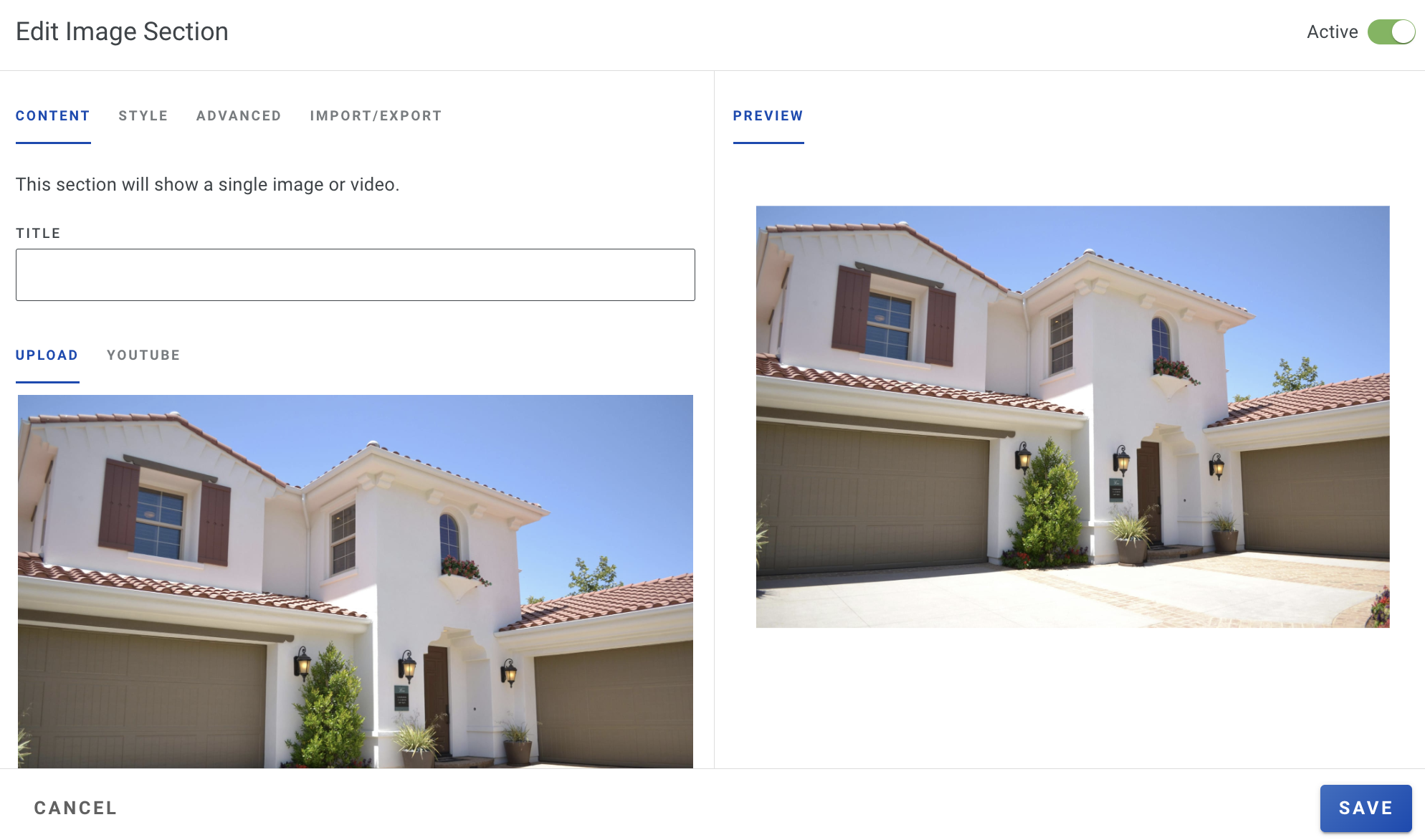
This section will show a single image or video. Choose to upload the file, or insert the Youtube URL link. You can also hyperlink to image to your website or other websites by using the **link** box at the bottom of the screen.

{% hint style="info" %}
If you are uploading a YouTube Shorts URL, you will need to manually change the word "shorts" in the URL to "embed".

For example, change the link from [www.youtube.com/](https://www.youtube.com/)**shorts**/cbF7i3xY6Zg to [www.youtube.com/](https://www.youtube.com/)**embed**/cbF7i3xY6Zg before pasting into the image presentation section.
{% endhint %}

<figure><img src="/files/5eVoDQMxfNpJbHKyGXQC" alt="Screenshot showing the Image section editor with file upload, YouTube URL, and link options"><figcaption></figcaption></figure>

</details>

<details>

<summary><strong>Images Row</strong></summary>

<figure><img src="/files/cDE3Mzz7Ebxtwa8GH79A" alt="Screenshot showing the Images Row section type in the presentation editor"><figcaption></figcaption></figure>

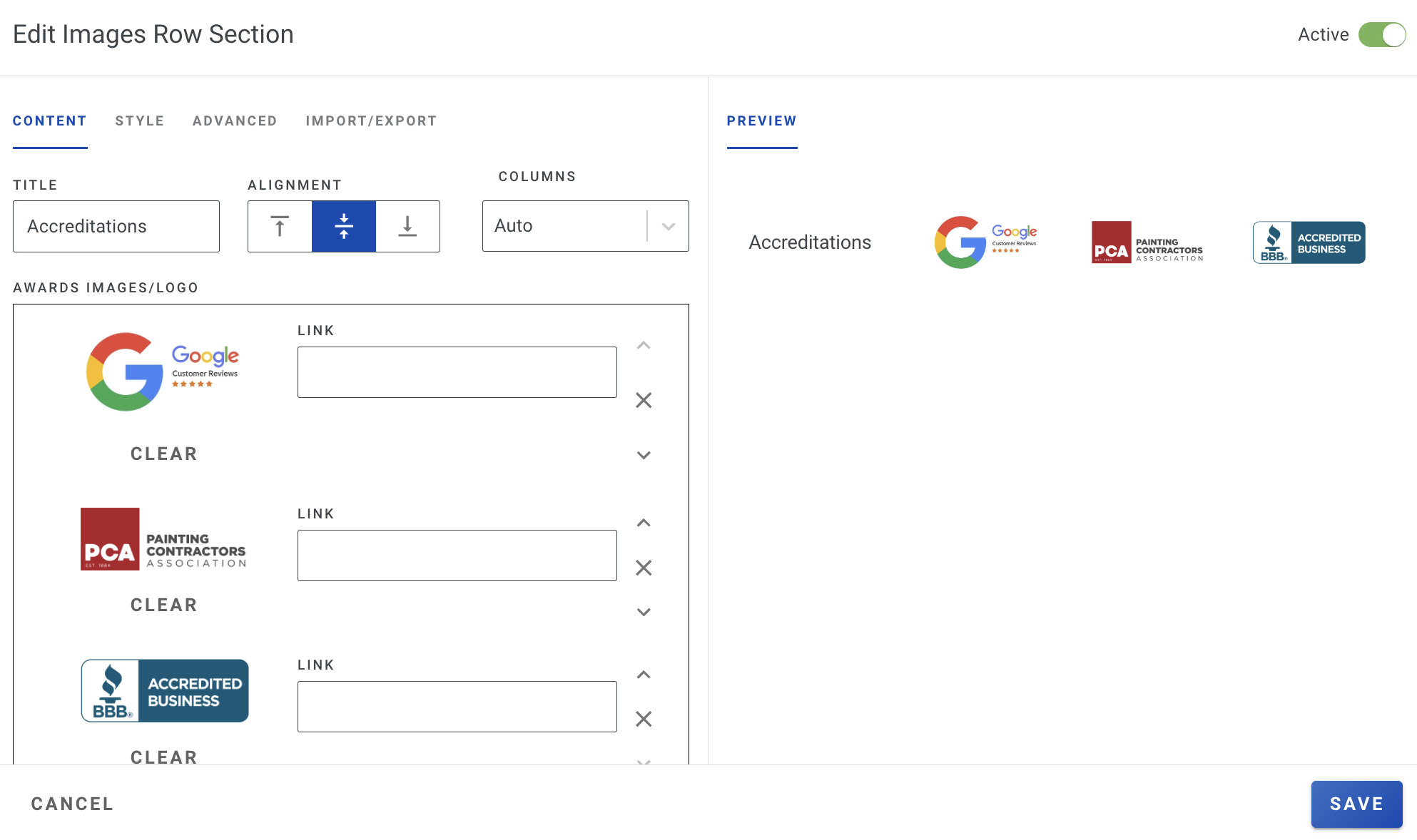
In this section, you can add multiple images with a title on the left—perfect for showcasing awards or credentials. You can also link each image, making it easy for customers to click through for more details, like your Google Reviews page.

<figure><img src="/files/QqN24iPeTcI7OqR4YF33" alt="Screenshot showing the Images Row editor with title, multiple image uploads, and link fields"><figcaption></figcaption></figure>

</details>

<details>

<summary><strong>Testimonials</strong></summary>

<figure><img src="/files/69nr4QbubM4L9VIPTSZU" alt="Screenshot showing the Testimonials section type in the presentation editor"><figcaption></figcaption></figure>

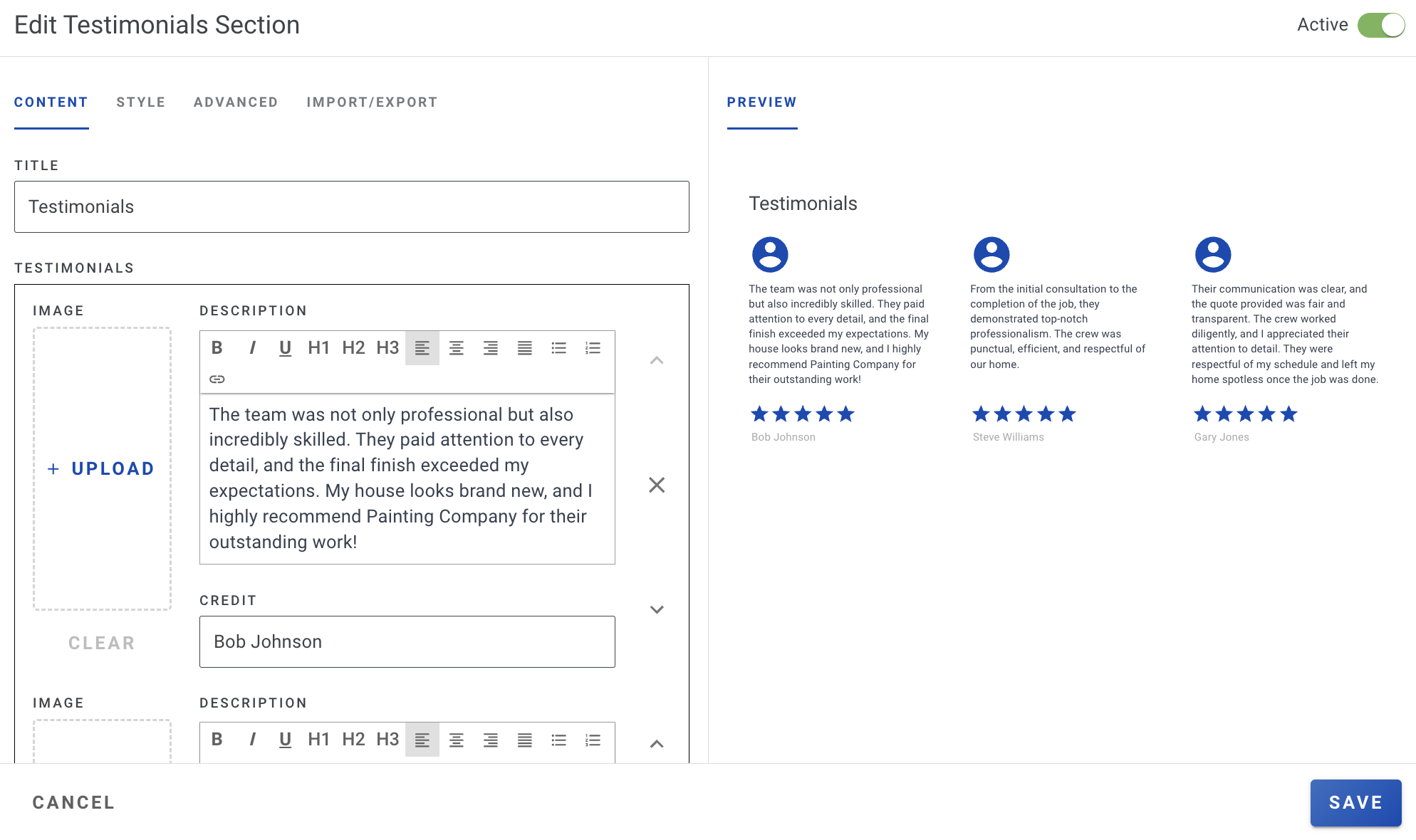
Display customer reviews with reviewer credits and optional photos. If no photo is uploaded, a profile icon in your brand color appears instead. Add a section title or leave it blank.

<figure><img src="/files/ltvfzq1m4KoYOcCFqXjn" alt="Screenshot showing the Testimonials editor with review content, reviewer credit, and photo upload fields"><figcaption></figcaption></figure>

</details>

<details>

<summary><strong>Text Block</strong></summary>

<figure><img src="/files/KMcq71MTfe6WzvvudcQg" alt="Screenshot showing the Text Block section type in the presentation editor"><figcaption></figcaption></figure>

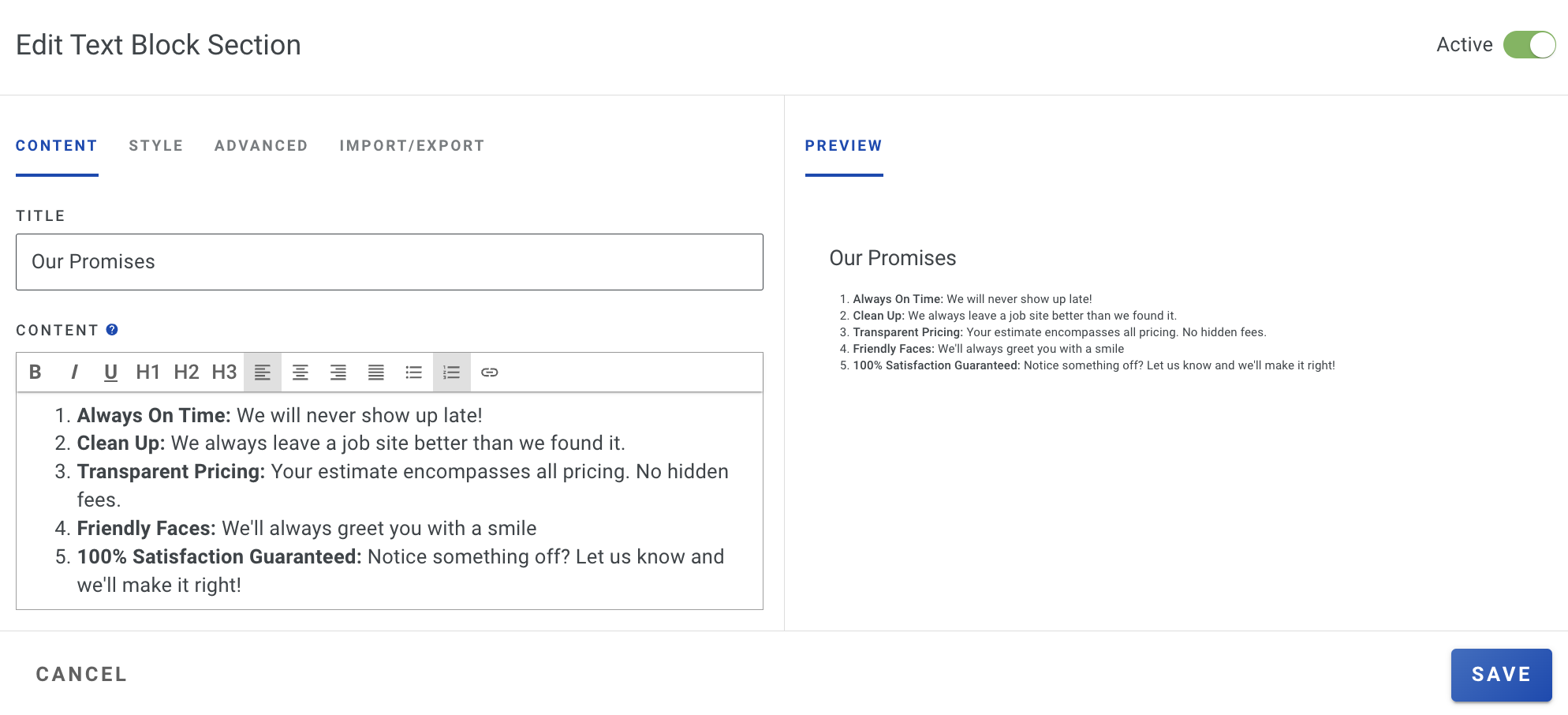
In this section, you can add text content.

<figure><img src="/files/AvFAklgYQhk7kvmMQ8nM" alt="Screenshot showing the Text Block editor with a text content input field"><figcaption></figcaption></figure>

</details>

<details>

<summary><strong>Two Column Rows</strong></summary>

<figure><img src="/files/qXIAisvHDJr5QfS9qpmN" alt="Screenshot showing the Two Column Rows section type in the presentation editor"><figcaption></figcaption></figure>

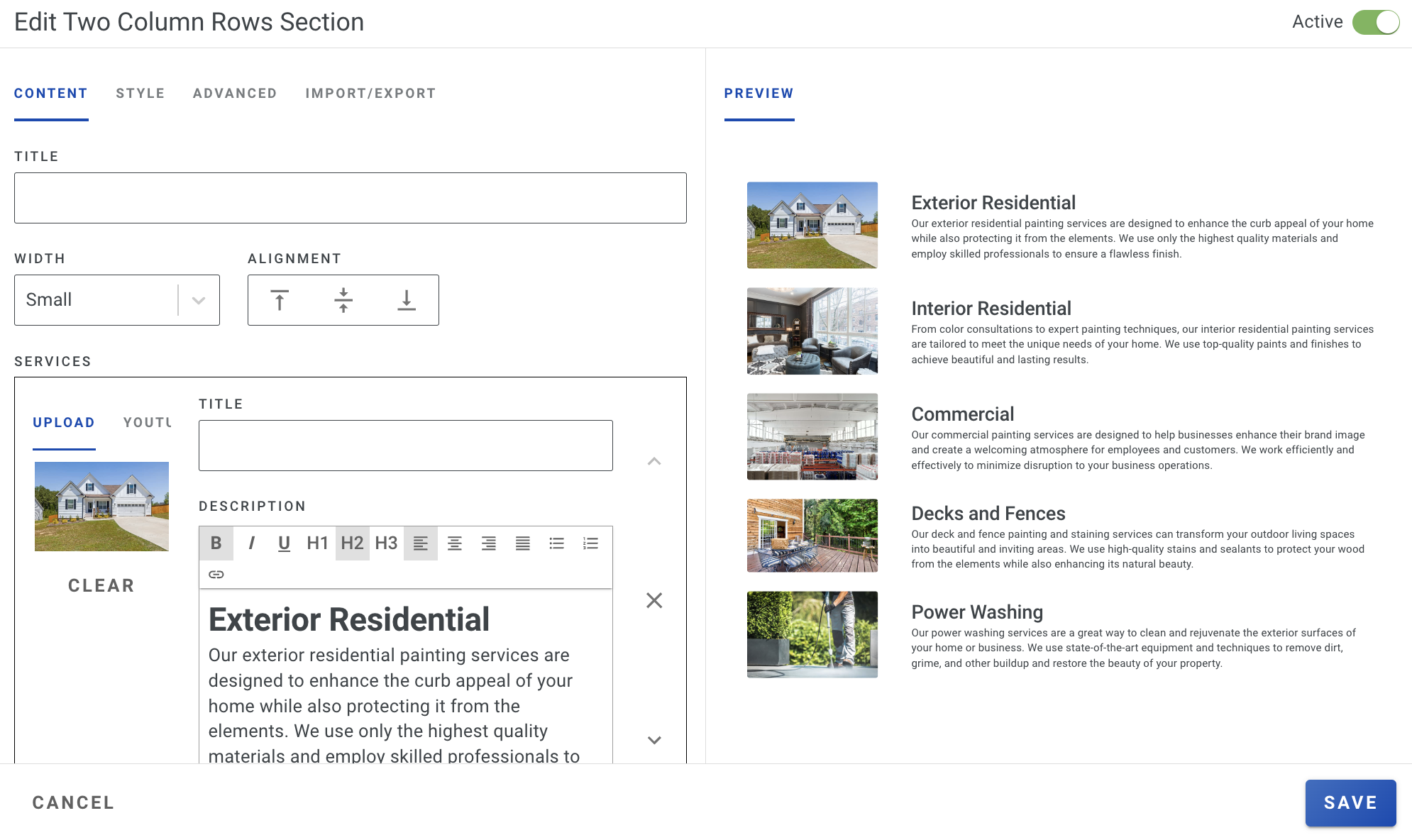
This section places a photo on the left with content on the right — ideal for showcasing services, painting processes, or list-style items. Customize image size and alignment (top, bottom, or middle). Include a title for the section and individual titles for each row.

<figure><img src="/files/JgmJ4Y0vnkRLjrhrriRg" alt="Screenshot showing the Two Column Rows editor with image, title, content, and alignment options"><figcaption></figcaption></figure>

</details>

<details>

<summary><strong>Custom HTML/CSS</strong></summary>

<figure><img src="/files/PNxcRhhqm07Dn6OaqEty" alt="Screenshot showing the Custom HTML/CSS section type in the presentation editor"><figcaption></figcaption></figure>

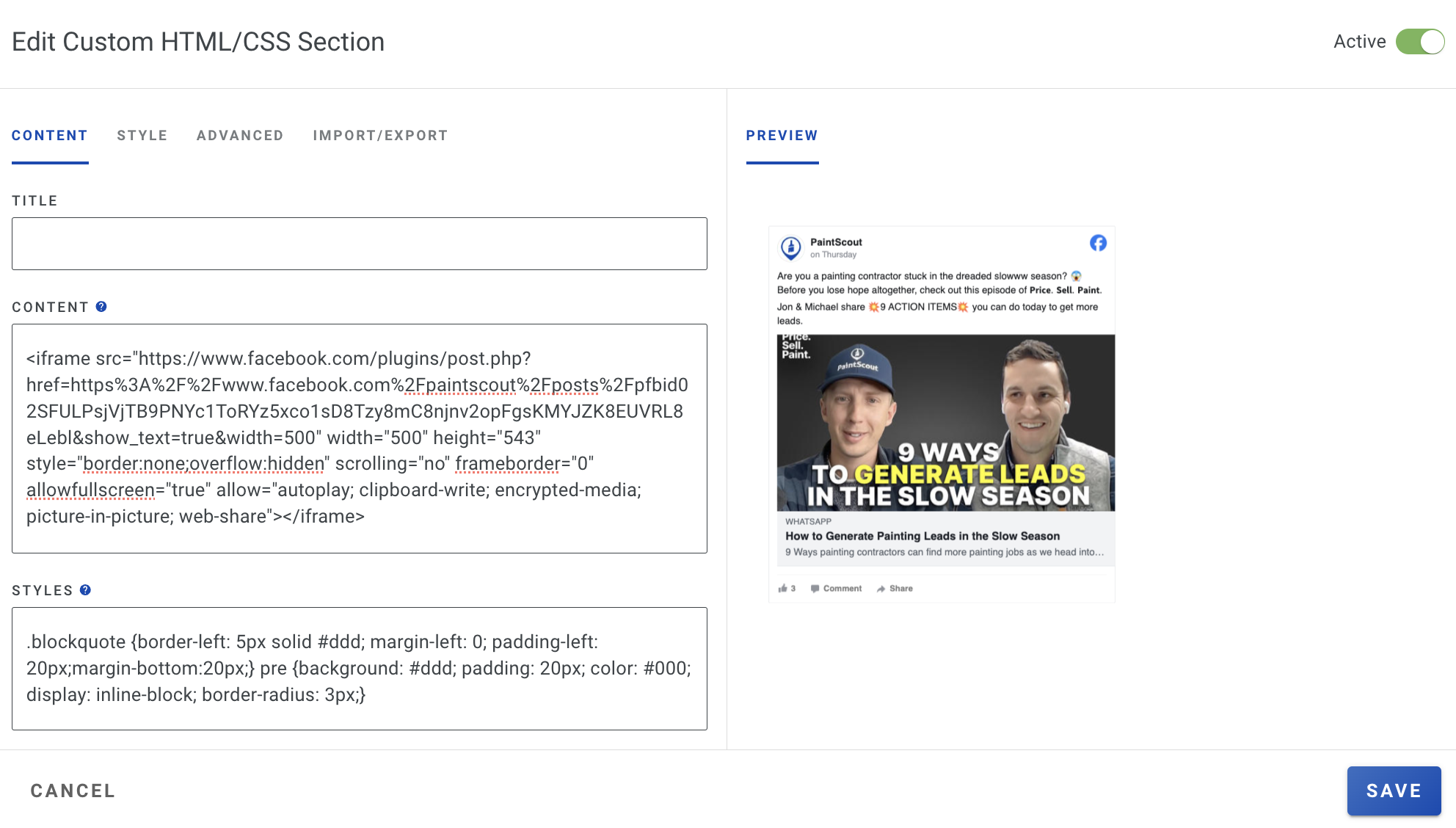
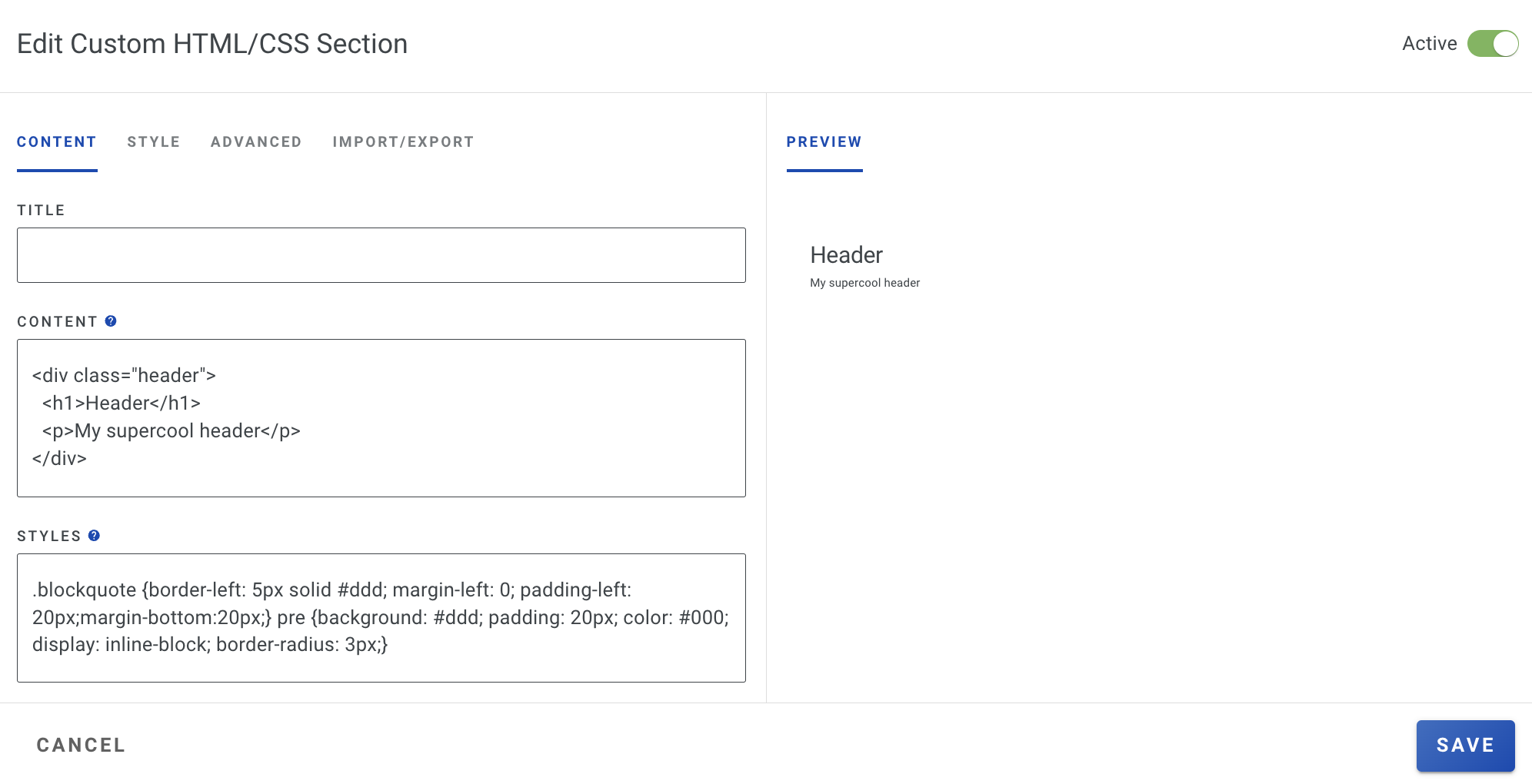
Add custom code for designs not available in the standard section types. Use the **Content** box for HTML code and the **Styles** box for CSS.

**Example 1:**

<figure><img src="/files/XVqvPsStj5byUfmwIT7d" alt="Screenshot showing Custom HTML/CSS example 1 with custom code and rendered output"><figcaption></figcaption></figure>

**Example 2:**

<figure><img src="/files/4UZpaHug1Ym5miTEOlpP" alt="Screenshot showing Custom HTML/CSS example 2 with custom styled output"><figcaption></figcaption></figure>

</details>

<details>

<summary><strong>Before &#x26; After Image Slider</strong></summary>

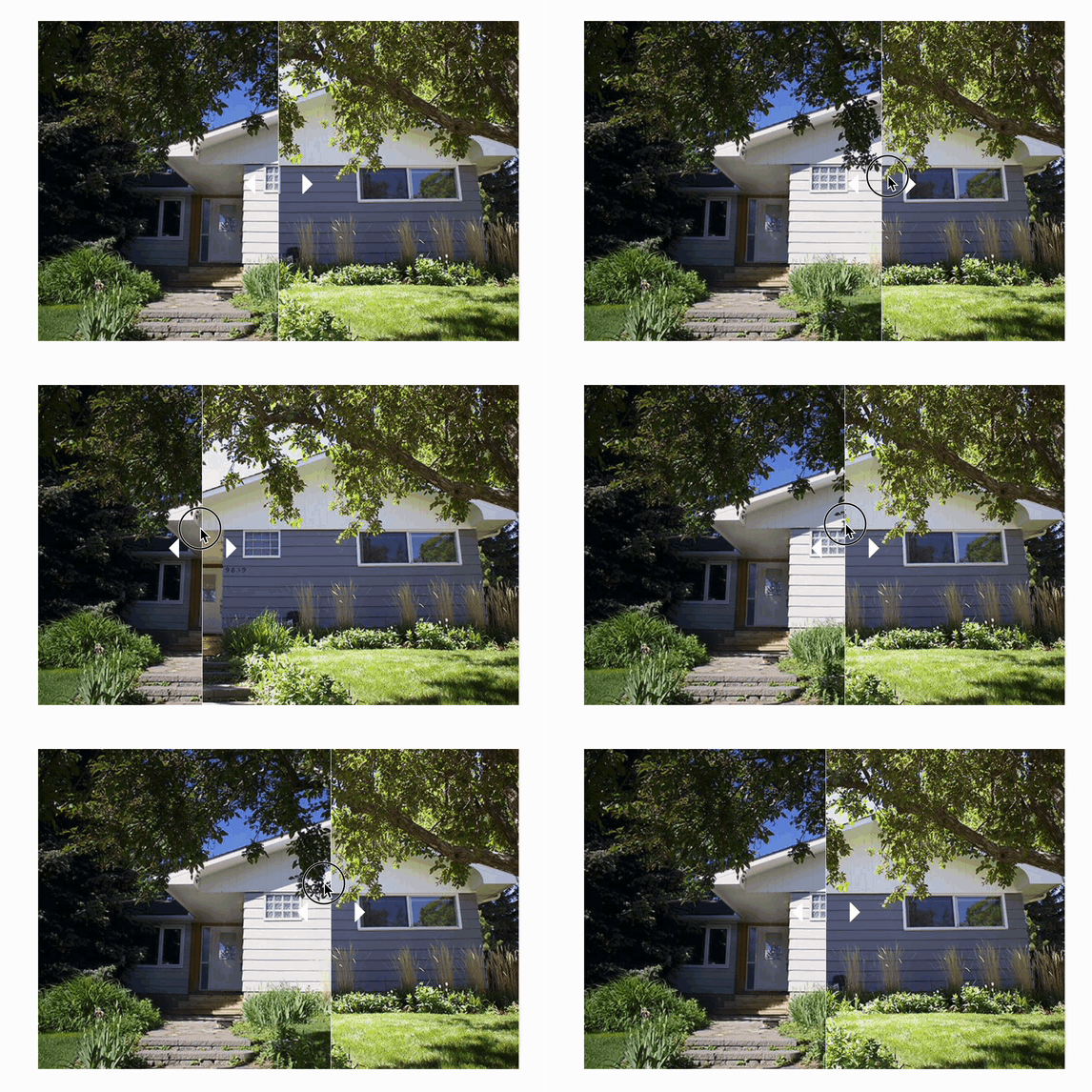
You can easily showcase transformations by sliding between two images. Perfect for highlighting your work in a visually engaging way!

<figure><img src="/files/Dmndwo3WRkvS1aen6toi" alt="Screenshot showing the Before and After Image Slider section preview in the presentation"><figcaption></figcaption></figure>

Upload your before & after pictures, and add a title if you want!

<figure><img src="/files/PQ90mCzLU0gtwIdCYTQM" alt="Screenshot showing the Before and After Image Slider editor with upload fields for before and after pictures"><figcaption></figcaption></figure>

Drag the arrows and watch the image transform!

<figure><img src="/files/7V2P0LcyS61lU776L3AP" alt="Animated recording showing the Before and After Image Slider in action with draggable comparison arrows"><figcaption></figcaption></figure>

</details>

<details>

<summary><strong>Social Media Section</strong></summary>

This section allows you to easily create quicklinks to your social media.

<figure><img src="/files/qeUetr9WgnVMDHuFuBgE" alt="Screenshot showing the Social Media section preview with social media quicklinks in the presentation"><figcaption></figcaption></figure>

Select the socials you want to display and include the link in the provided box.

<figure><img src="/files/fiRm8oVRWwLq5iZQ39Zg" alt="Screenshot showing the Social Media section editor with platform selection and link input fields"><figcaption></figcaption></figure>

</details>

<details>

<summary><strong>Estimate, Estimate Pictures, Terms &#x26; Work Order</strong></summary>

When you initially set up a presentation, these sections will automatically appear on the **Estimate** page. However, you can also add or remove them at different locations within your presentation. Each section will retrieve the information as specified for each estimate.

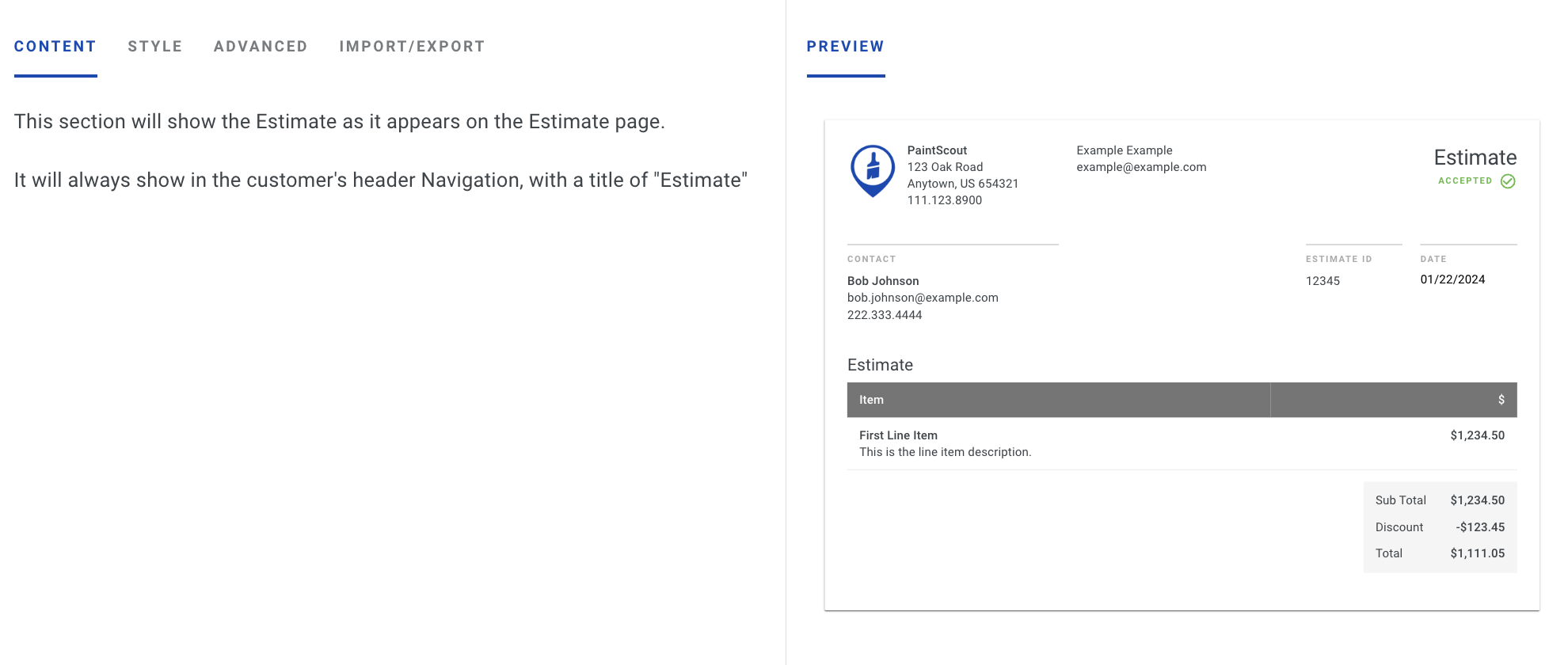
**Estimate:** This section will show the details as they appear on the Estimate.

<figure><img src="/files/rIsDUkMtfkaGzAIxIFIq" alt="Screenshot showing the Estimate section type in the presentation section list"><figcaption></figcaption></figure>

<figure><img src="/files/qZ5TGBhqthkUQjxTvwVG" alt="Screenshot showing how the Estimate section appears on the customer-facing presentation"><figcaption></figcaption></figure>

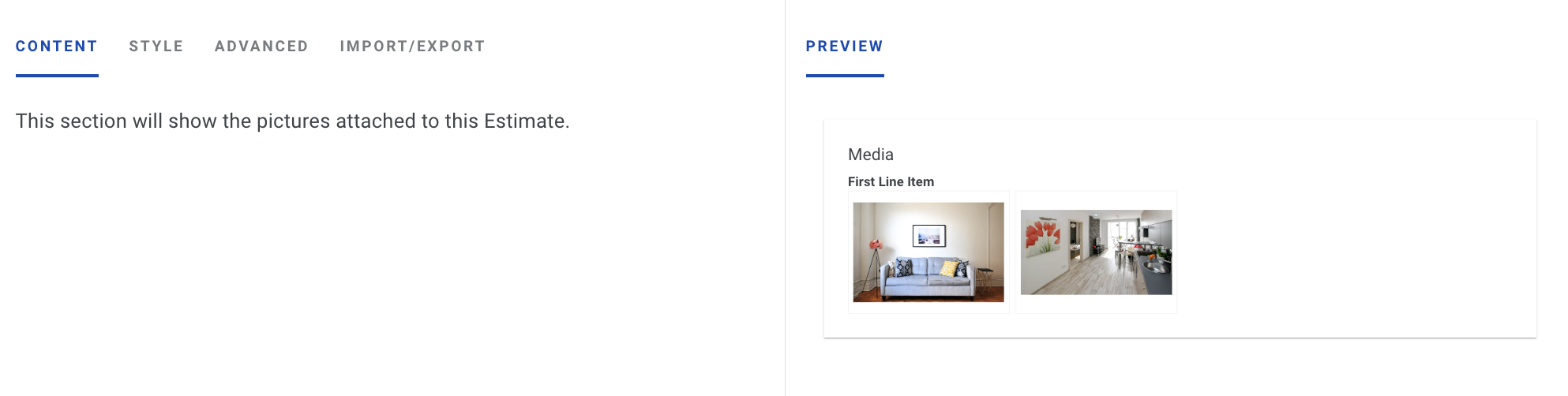
**Estimate Pictures:** This section will show the pictures attached to the Estimate.

<figure><img src="/files/KCwLnONYRGaOnAT5YN5o" alt="Screenshot showing the Estimate Pictures section type in the presentation section list"><figcaption></figcaption></figure>

<figure><img src="/files/Tk2rwruRqyq8F83qrchf" alt="Screenshot showing how the Estimate Pictures section displays attached photos on the presentation"><figcaption></figcaption></figure>

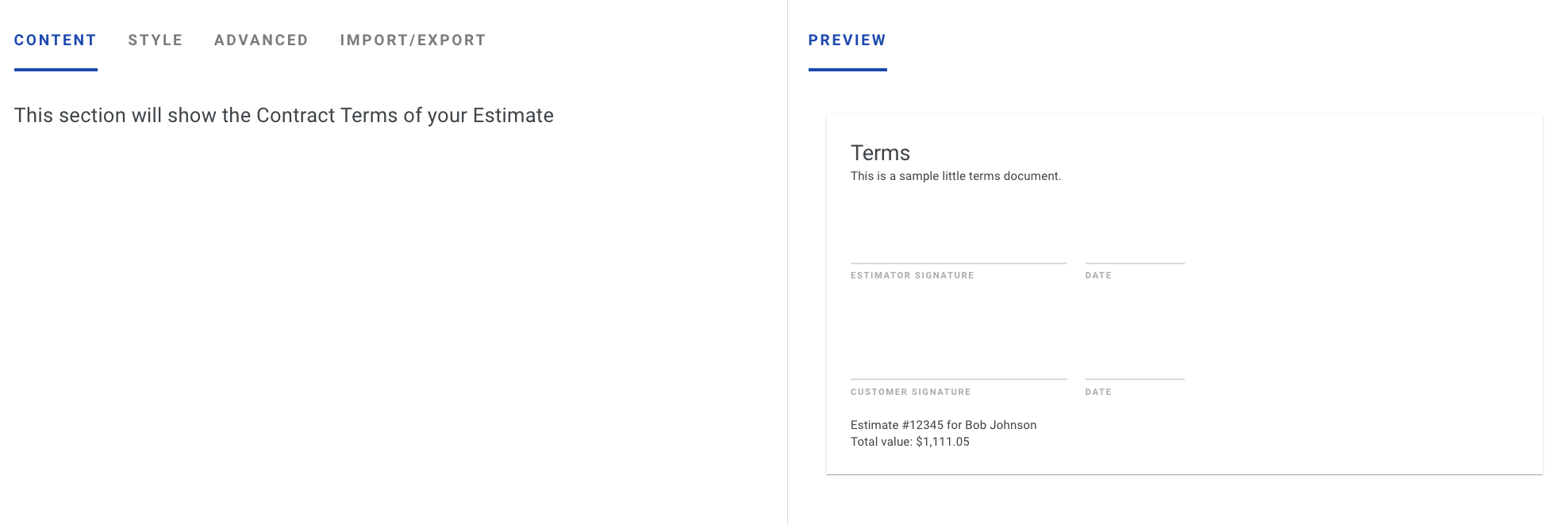
**Terms:** This section will show the Contract Terms of your Estimate.

<figure><img src="/files/sTowmG3l0E7ypvloQVdd" alt="Screenshot showing the Terms section type in the presentation section list"><figcaption></figcaption></figure>

<figure><img src="/files/6GW0g4bPf1CDtqXqncWp" alt="Screenshot showing how the contract Terms section appears on the customer-facing presentation"><figcaption></figcaption></figure>

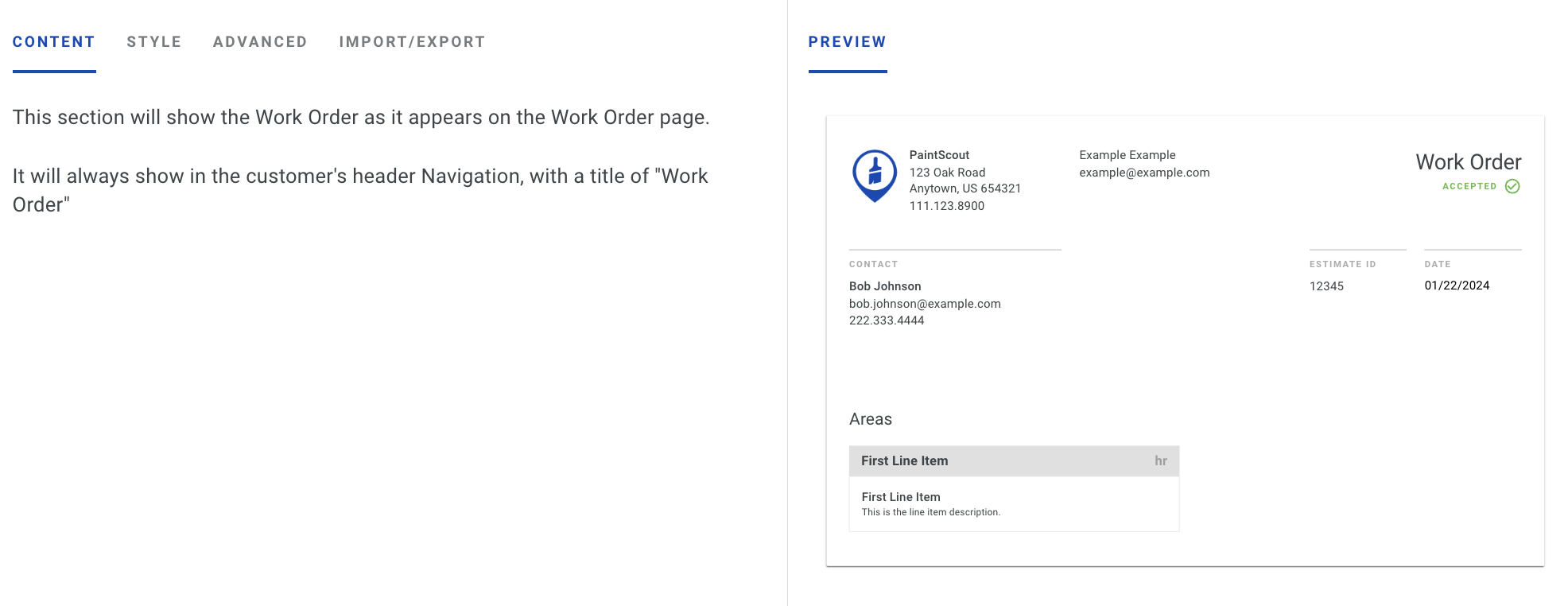
**Work Order:** This section will show the Work Order as it appears on the Work Order page.

<figure><img src="/files/1dvri6fMgtOdckWRdZqE" alt="Screenshot showing the Work Order section type in the presentation section list"><figcaption></figcaption></figure>

<figure><img src="/files/OyL3CQIAbbvzSF0PTtzG" alt="Screenshot showing how the Work Order section appears on the customer-facing presentation"><figcaption></figcaption></figure>

</details>

## Related articles

* [Presentations Overview](/support/customization/presentations-and-terms/presentations-overview.md) — Build branded multi-page presentations for your estimates
* [Setting a Default Presentation](/support/customization/presentations-and-terms/setting-a-default-presentation.md) — Apply the right presentation automatically to new estimates


---

# Agent Instructions
This documentation is published with GitBook. GitBook is the documentation platform designed so that both humans and AI agents can read, navigate, and reason over technical content effectively. Learn more at gitbook.com.

## Querying This Documentation
If you need additional information that is not directly available in this page, you can query the documentation dynamically by asking a question.

Perform an HTTP GET request on the current page URL with the `ask` query parameter:

```
GET https://help.paintscout.com/support/customization/presentations-and-terms/presentation-sections.md?ask=<question>
```

The question should be specific, self-contained, and written in natural language.
The response will contain a direct answer to the question and relevant excerpts and sources from the documentation.

Use this mechanism when the answer is not explicitly present in the current page, you need clarification or additional context, or you want to retrieve related documentation sections.
