> For the complete documentation index, see [llms.txt](https://help.paintscout.com/llms.txt). Markdown versions of documentation pages are available by appending `.md` to page URLs; this page is available as [Markdown](https://help.paintscout.com/support/account-settings/users-and-permissions/user-permissions.md).

# Custom Permissions

PaintScout has three user types: Sales, Team, and Painter. Each type has different default access. You can turn on extra permissions to customize each user's access to align more closely with their role.

To invite someone new, see [Add a New User](/support/account-settings/users-and-permissions/how-to-add-a-new-user.md).

{% tabs %}
{% tab title="Sales" %}
**Sales User**

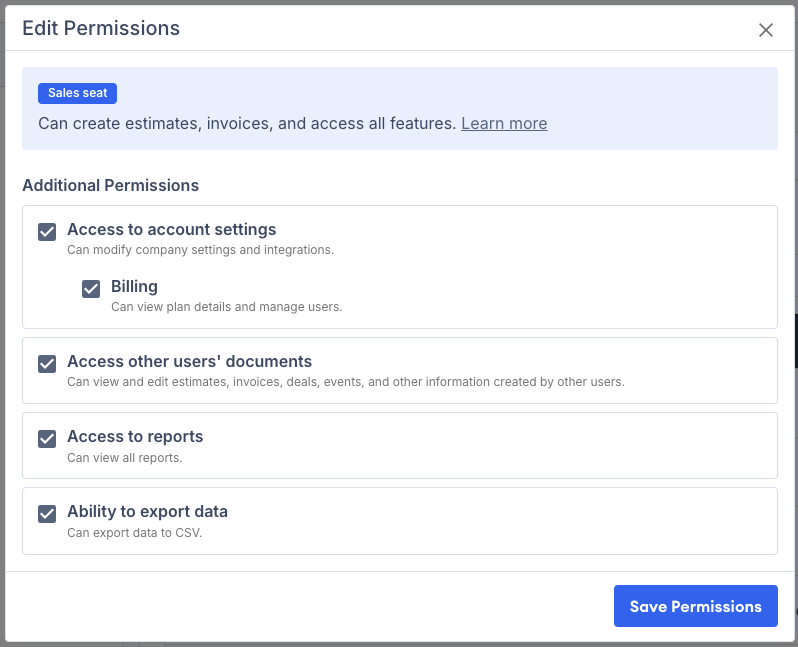
Use Sales for owners, estimators, and sales reps. Sales users can create and edit their own estimates, invoices and deals by default (though they can also access records they are linked to in some way— i.e. through a sales event, task, or job).

Non-owner Sales users can also get extra permissions based on their role.

**Custom permissions:**

* Access to account settings.
* Access to Billing.
* Access to other users' estimates, invoices, deals etc.
* Access to reports.
* Ability to export data.

See [Sales User](/support/account-settings/users-and-permissions/sales-user.md) for a full breakdown of this type.

<figure><img src="/files/MhwdpDhl5pOXvMroEj0J" alt=""><figcaption></figcaption></figure>
{% endtab %}

{% tab title="Team" %}
**Team User**

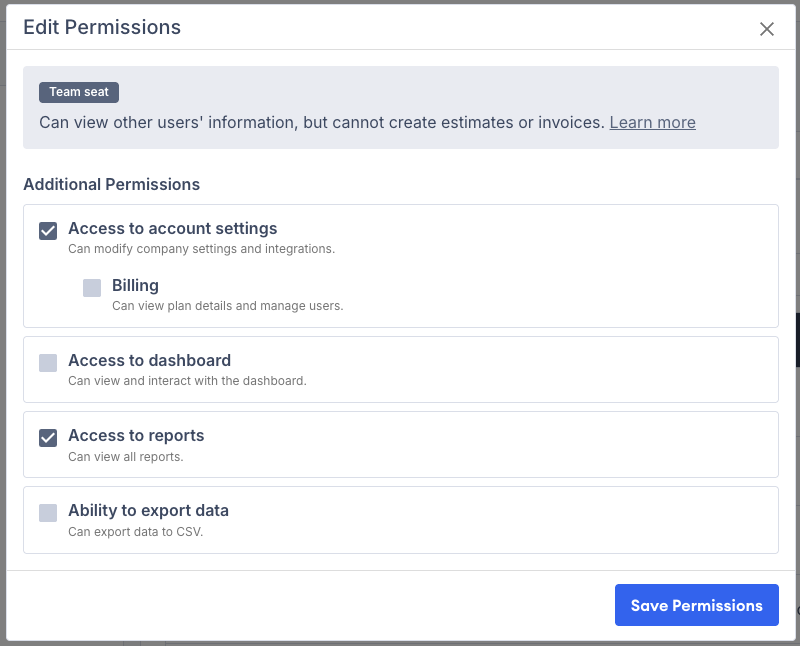
Use Team for office staff, production managers, and coordinators.

Team users can view records across the account and take limited action on estimates and invoices. They do not create estimates or invoices from scratch.

**Custom permissions:**

* Access to account settings.
* Access to Billing.
* Access to dashboard.
* Access to reports.
* Ability to export data.

See [Team User](/support/account-settings/users-and-permissions/team-user.md) for a summary of this user type.

<figure><img src="/files/Vz0KwjRrXaDEtCnu9Pgo" alt=""><figcaption></figcaption></figure>
{% endtab %}

{% tab title="Painter" %}
**Painter User**

{% hint style="info" %}
This user type is currently in beta.
{% endhint %}

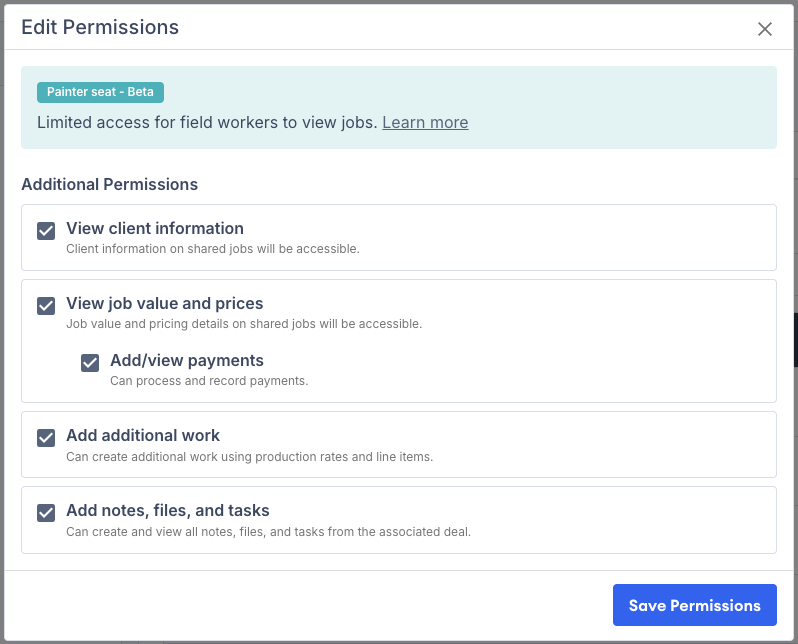
Painter is a field-focused user type for crew members and subcontractors. Painter permissions depend on whether the user is set up as an employee or subcontractor.

**Custom permissions:**

* View client information.
* View job value and prices.
* Add/view payments.
* Add additional work.
* Add/view tasks, notes, and files.

Painter users never get access to account settings, reports, pipelines, or the dashboard.

See [Painter User](/support/account-settings/users-and-permissions/painter-user.md).

<figure><img src="/files/ewgYYs4s2pATqE5ninsT" alt=""><figcaption></figcaption></figure>
{% endtab %}
{% endtabs %}

***

## How to edit permissions

1. Go to **Account Settings** → **Billing** → **User Management**.
2. Open the user menu.
3. Click **Edit permissions**.
4. Turn the permissions you want on or off.
5. Click **Save**.

## Related articles

* [Add a New User](/support/account-settings/users-and-permissions/how-to-add-a-new-user.md) — Add a new team member and assign the right user type.
* [Deactivate a User](/support/account-settings/users-and-permissions/how-to-deactivate-a-user.md) — Remove access and optionally transfer records first.
* [Share With Your Team](/support/estimating/sending-and-acceptance/how-to-share-estimates-and-work-orders-with-your-team.md) — Share estimates and work orders with your team.


---

# Agent Instructions
This documentation is published with GitBook. GitBook is the documentation platform designed so that both humans and AI agents can read, navigate, and reason over technical content effectively. Learn more at gitbook.com.

## Querying This Documentation
If you need additional information that is not directly available in this page, you can query the documentation dynamically by asking a question.

Perform an HTTP GET request on the current page URL with the `ask` query parameter:

```
GET https://help.paintscout.com/support/account-settings/users-and-permissions/user-permissions.md?ask=<question>
```

The question should be specific, self-contained, and written in natural language.
The response will contain a direct answer to the question and relevant excerpts and sources from the documentation.

Use this mechanism when the answer is not explicitly present in the current page, you need clarification or additional context, or you want to retrieve related documentation sections.
